How do I build the shot list?
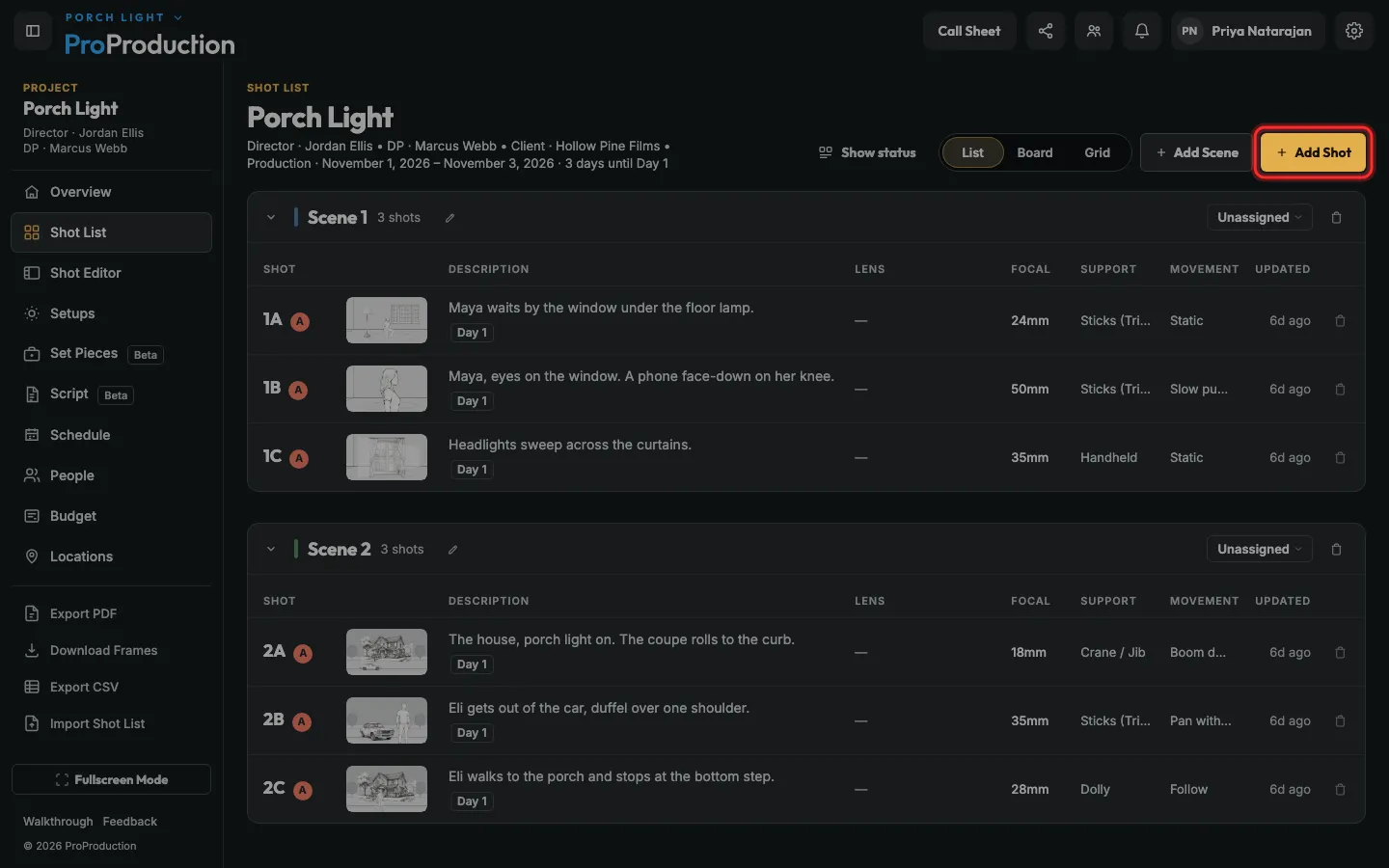
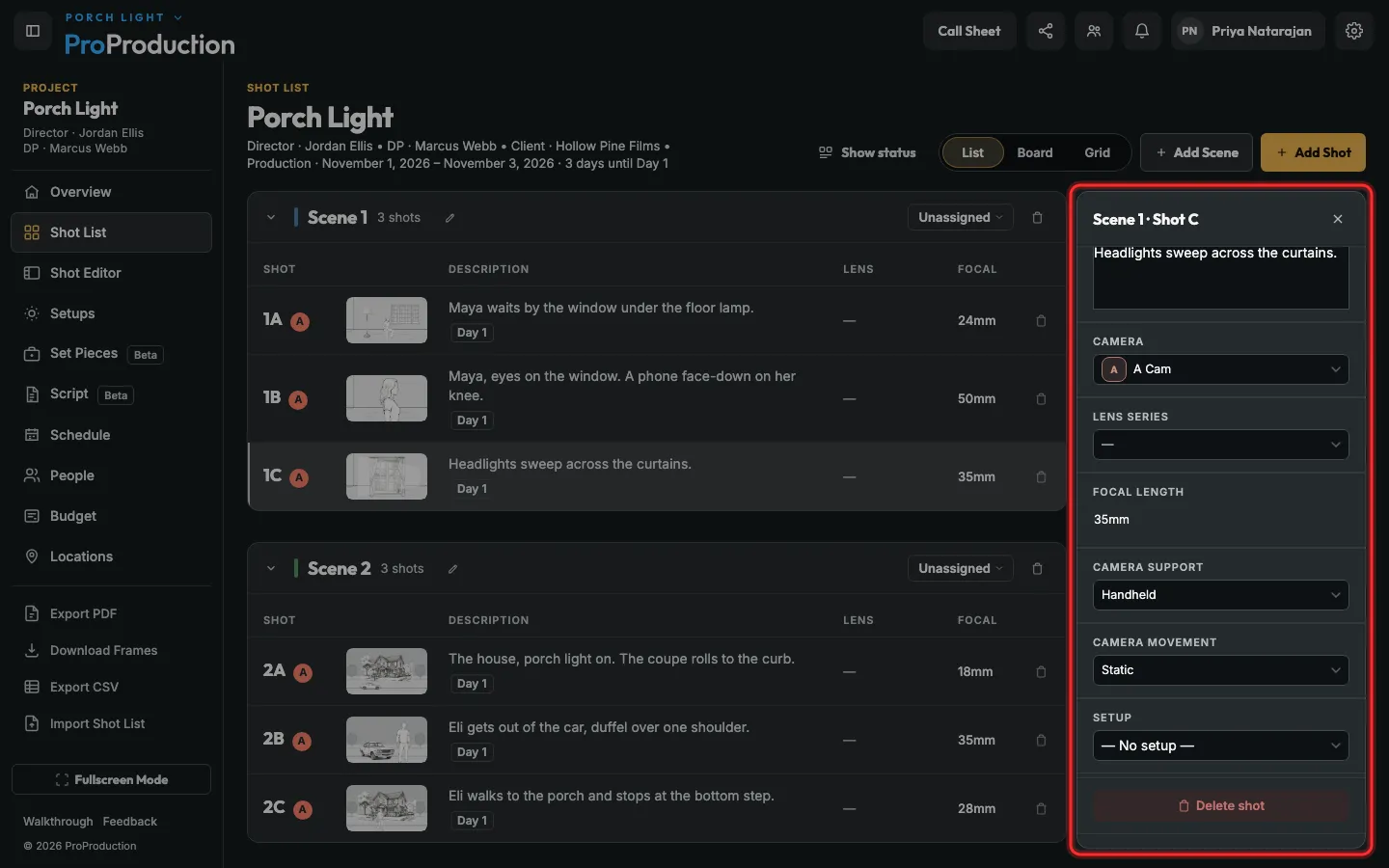
Open Shot List, click Add Shot, pick the scene and describe the shot. Click any shot to set its lens, focal length, support and movement.
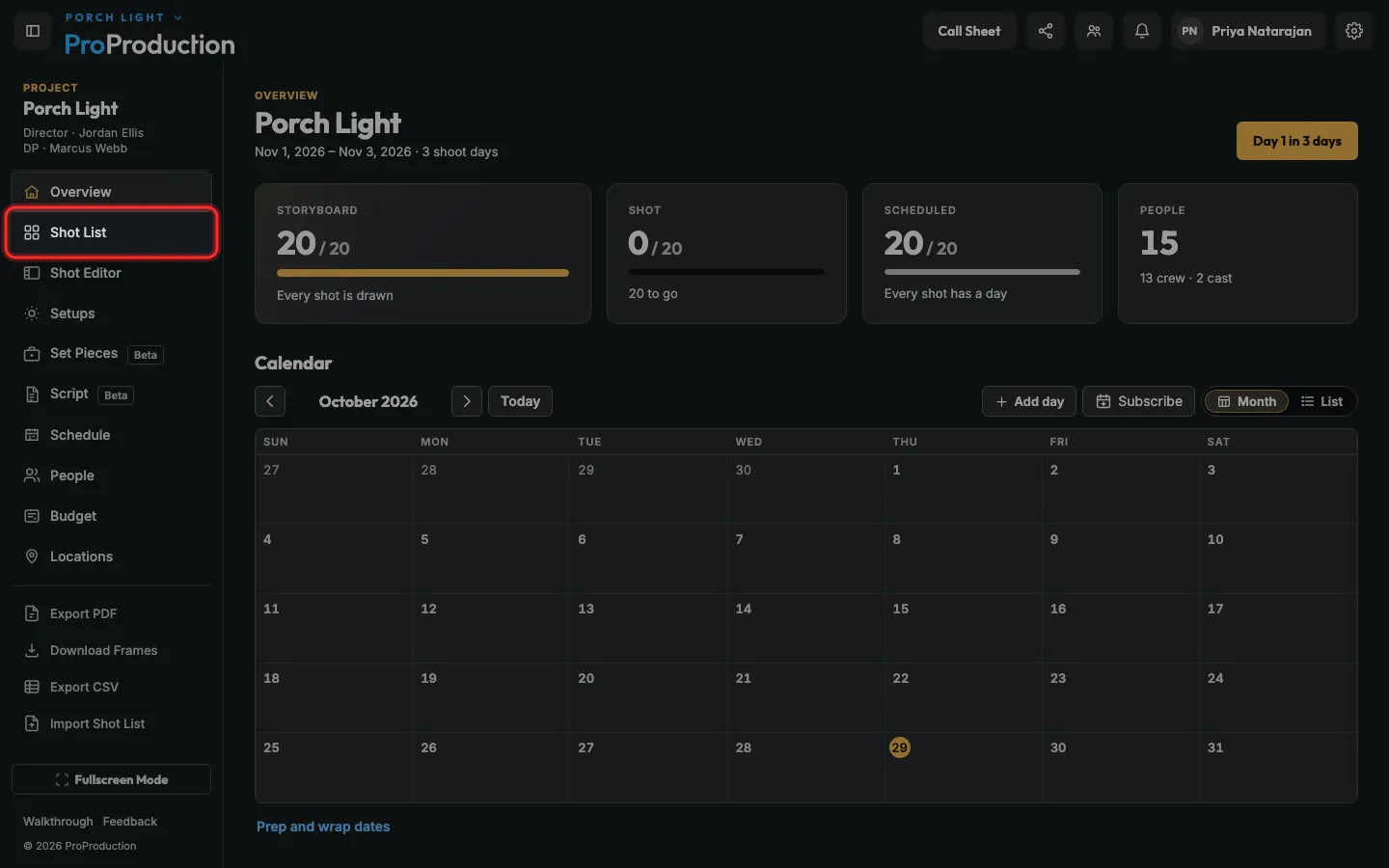
Step 1: In your project, click Shot List in the side bar.
Step 2: Click Add Shot.
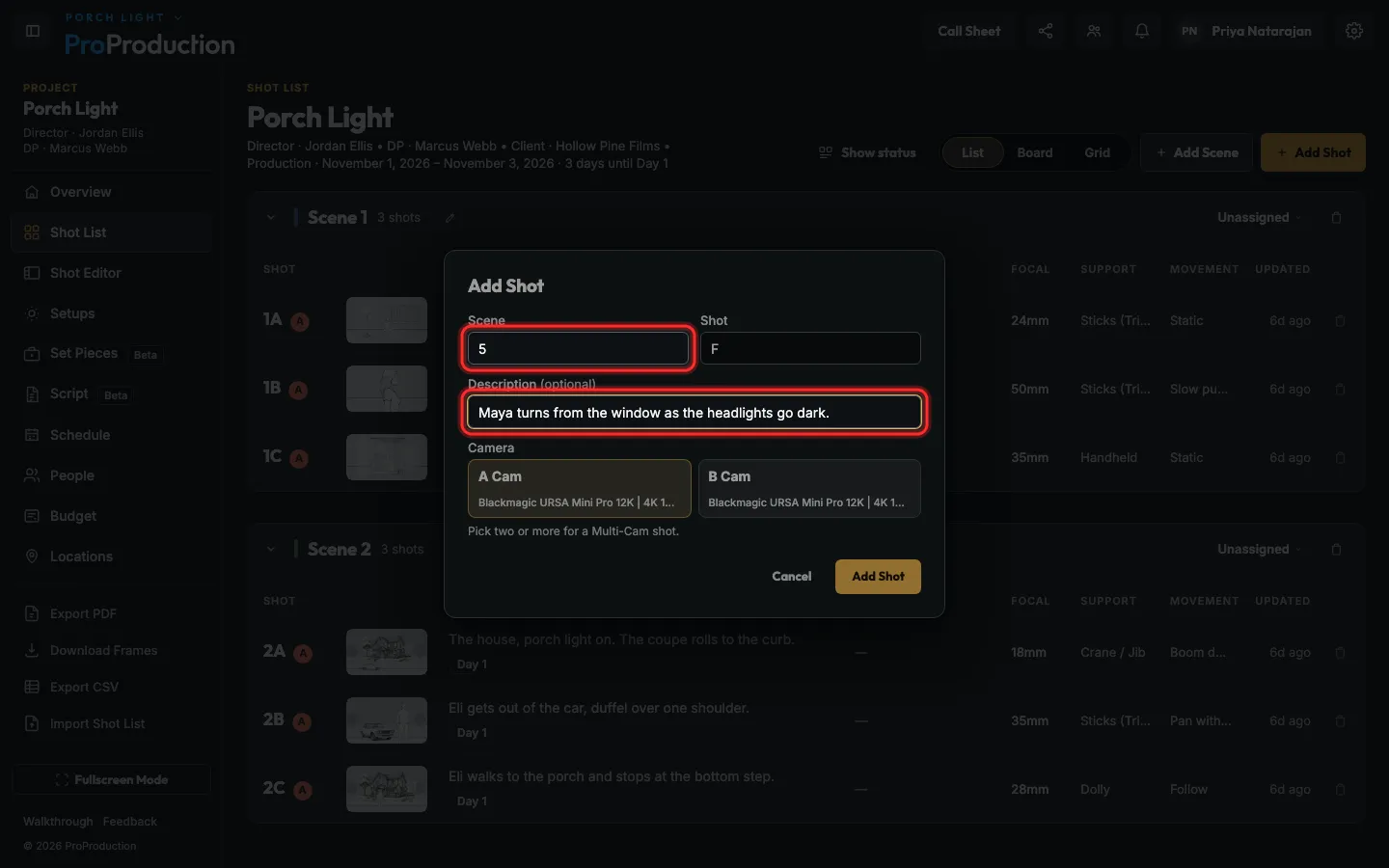
Step 3: Pick the scene and describe the shot.
The next shot letter fills itself in.
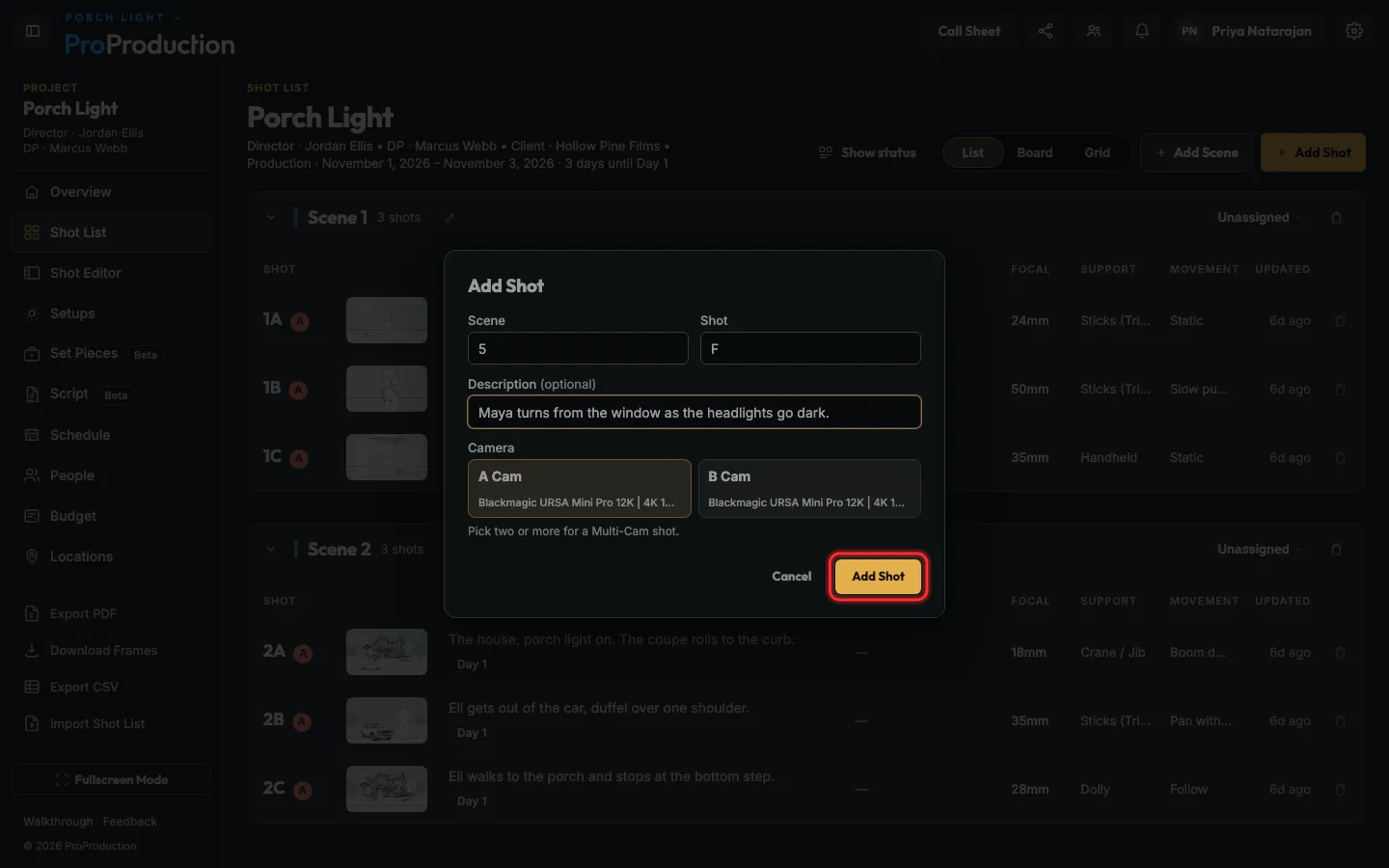
Step 4: Click Add Shot.
On Free, a project holds 50 shots. Each camera angle counts as one.
Step 5: Click a shot to set its lens, focal length, support and movement.
It saves as you go. The shoot day and setup are here too.
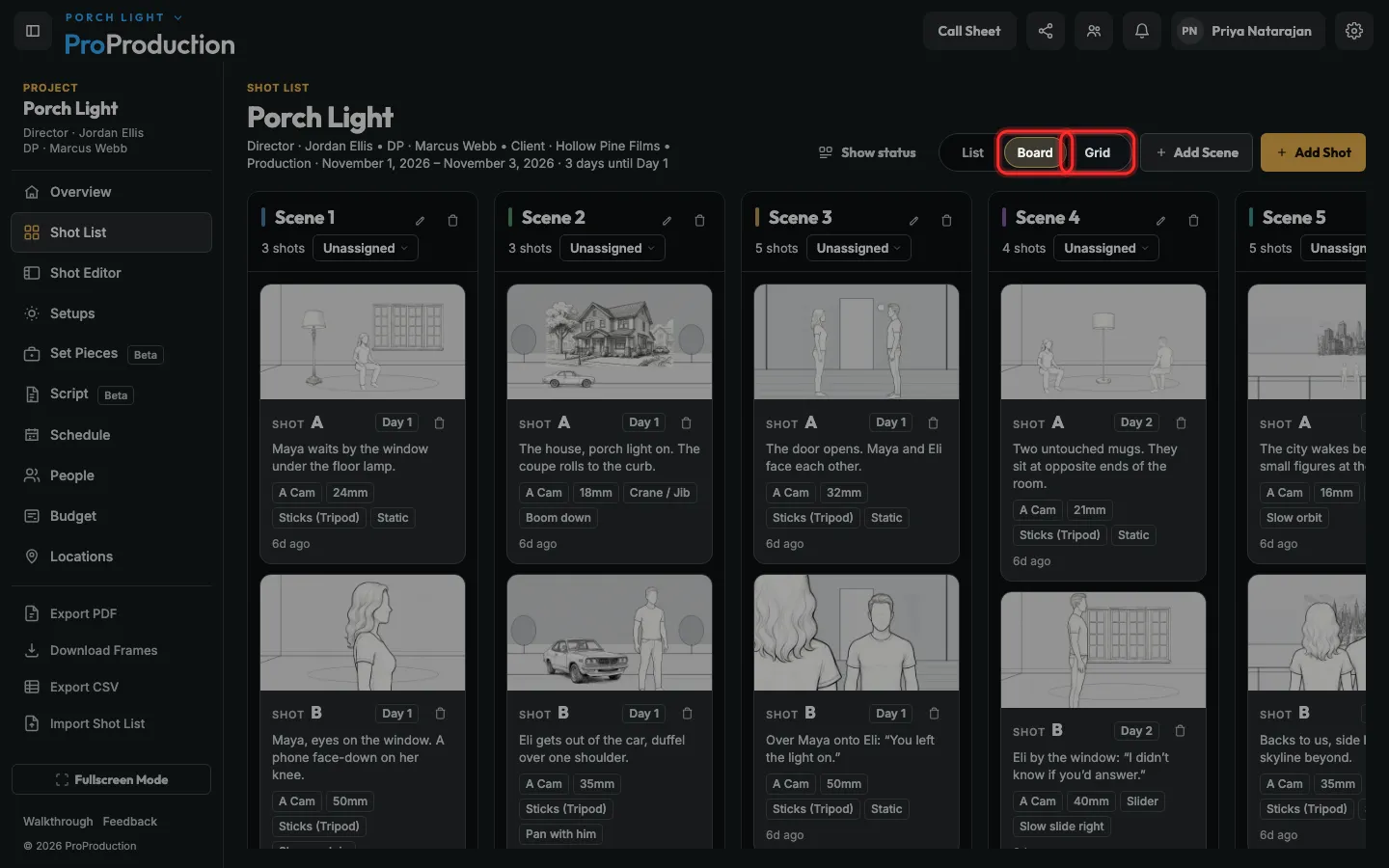
Step 6: To see it as cards, click Board or Grid.
Still stuck?
Write to hello@proproduction.app. A person reads every message.