How do I plan a lighting setup, with power and cable runs?
Draw the room as a building with its outlets, make a setup from it, and place your lights. ProProduction runs the cable from each light to an outlet and makes the stinger list.
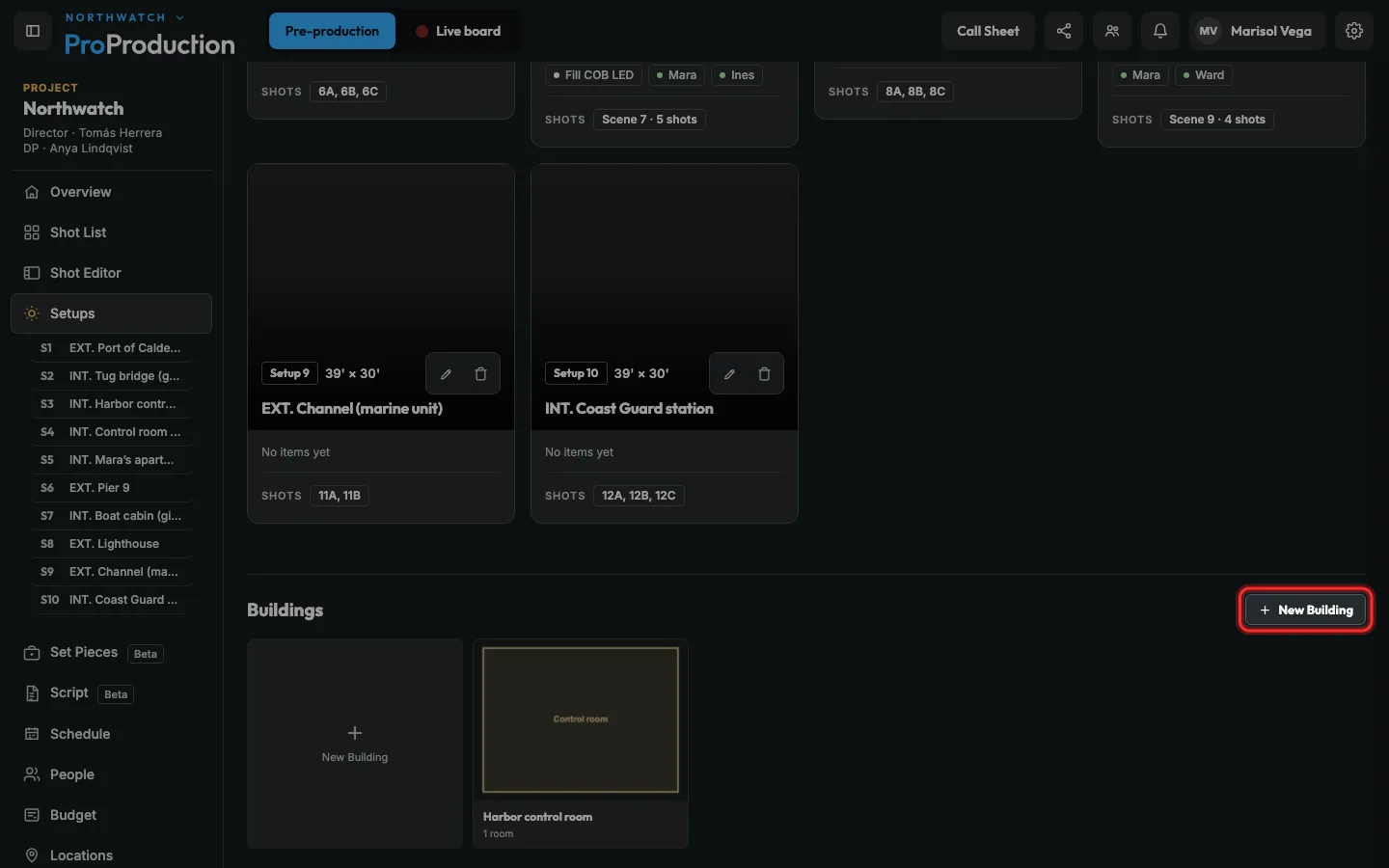
Step 1: In Setups, under Buildings, click New Building.
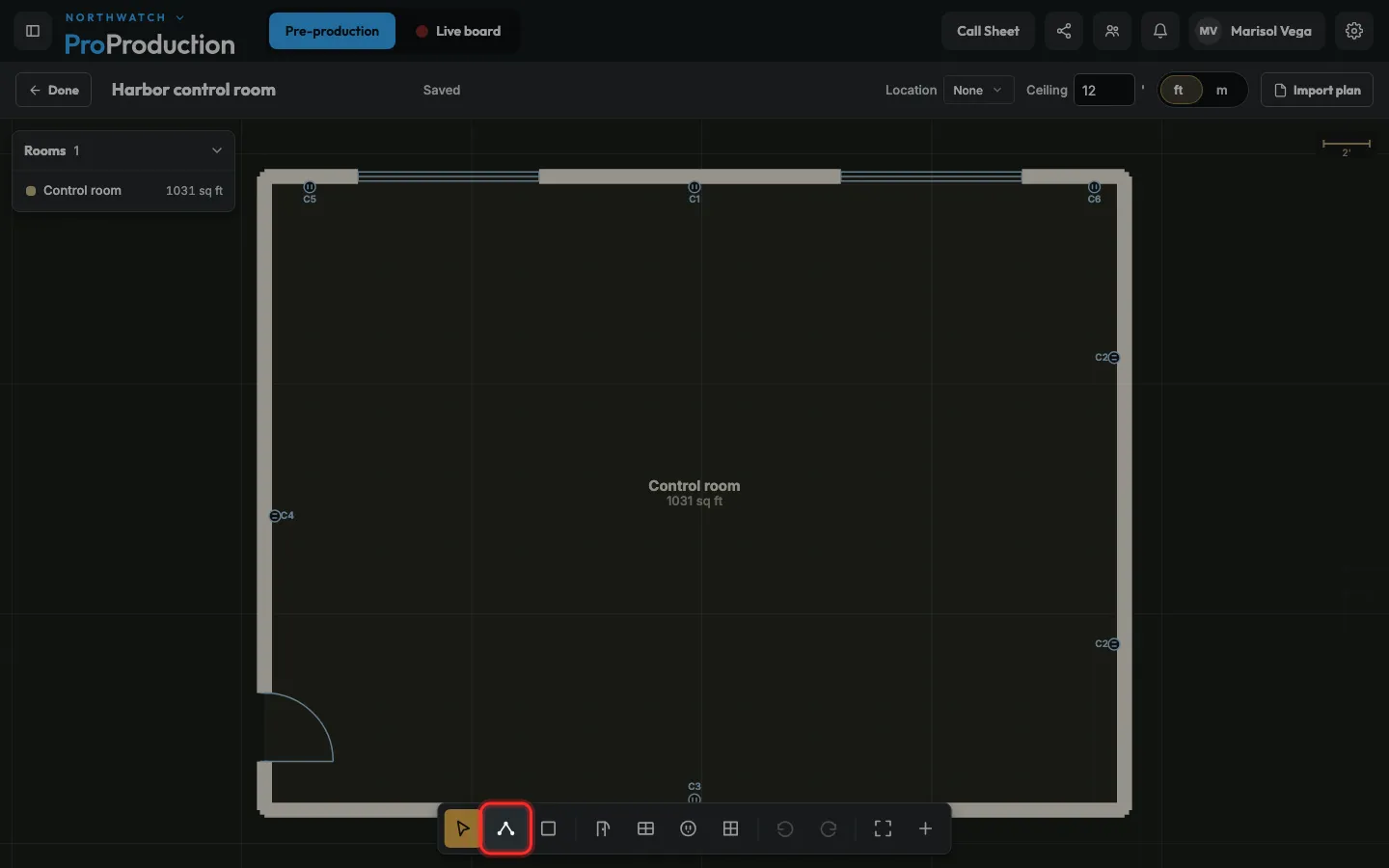
Step 2: Click Draw walls, then click from corner to corner around the room.
Type a length like 12’ and press Enter for an exact wall. Close the loop and it’s a room.
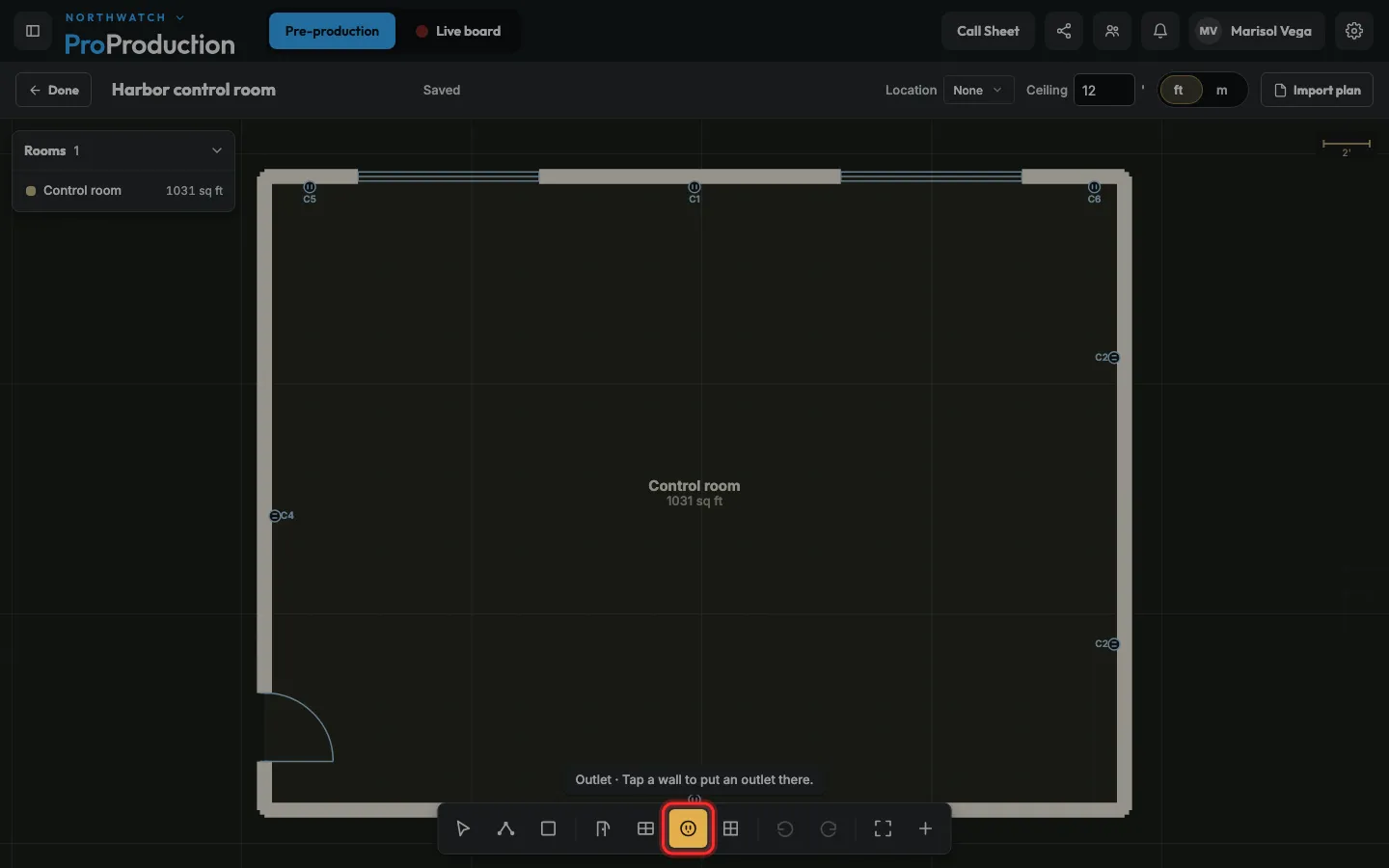
Step 3: Click Outlet, then click the wall where it is.
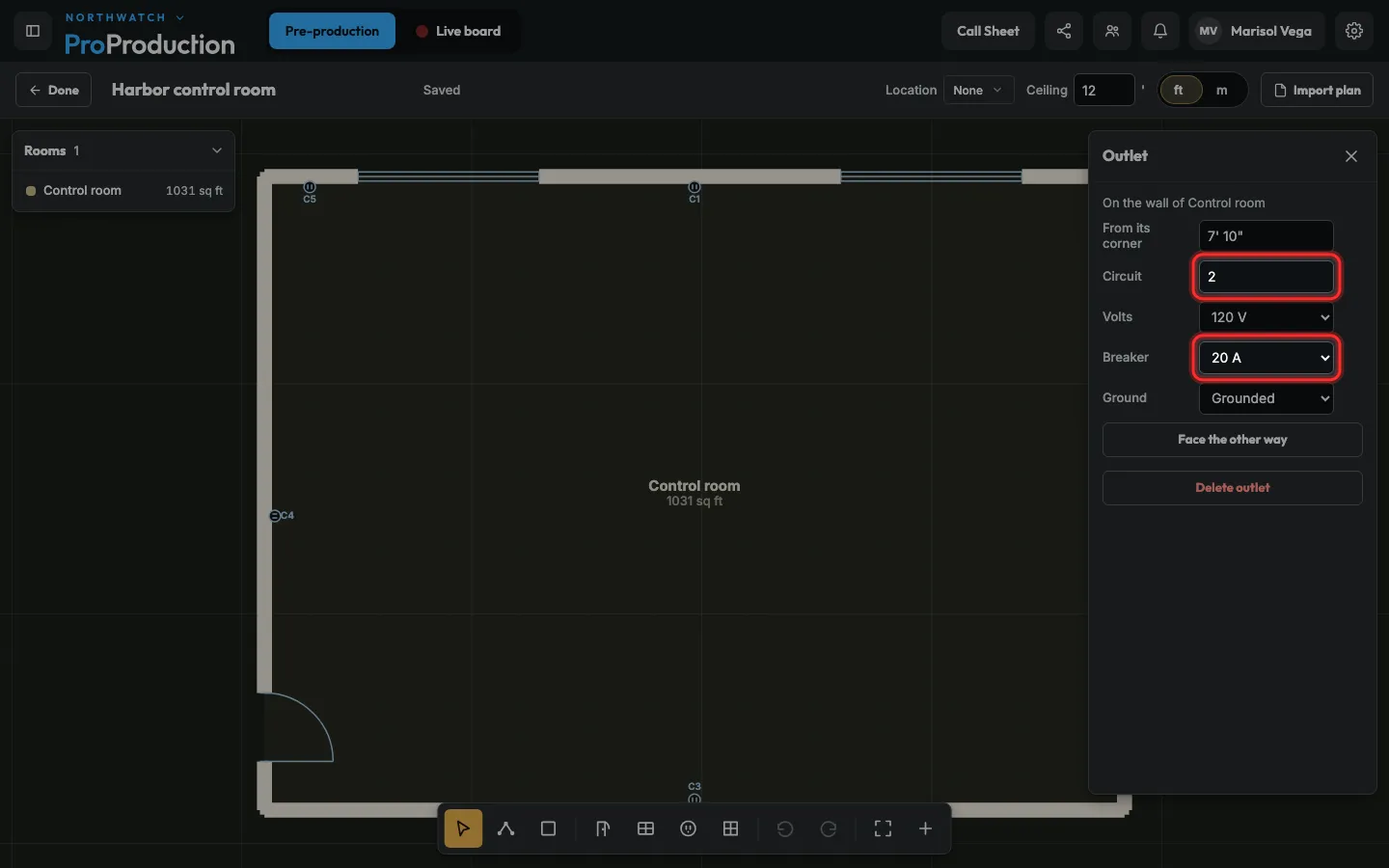
Step 4: Type its circuit and pick its volts and breaker.
Outlets on the same circuit share its breaker.
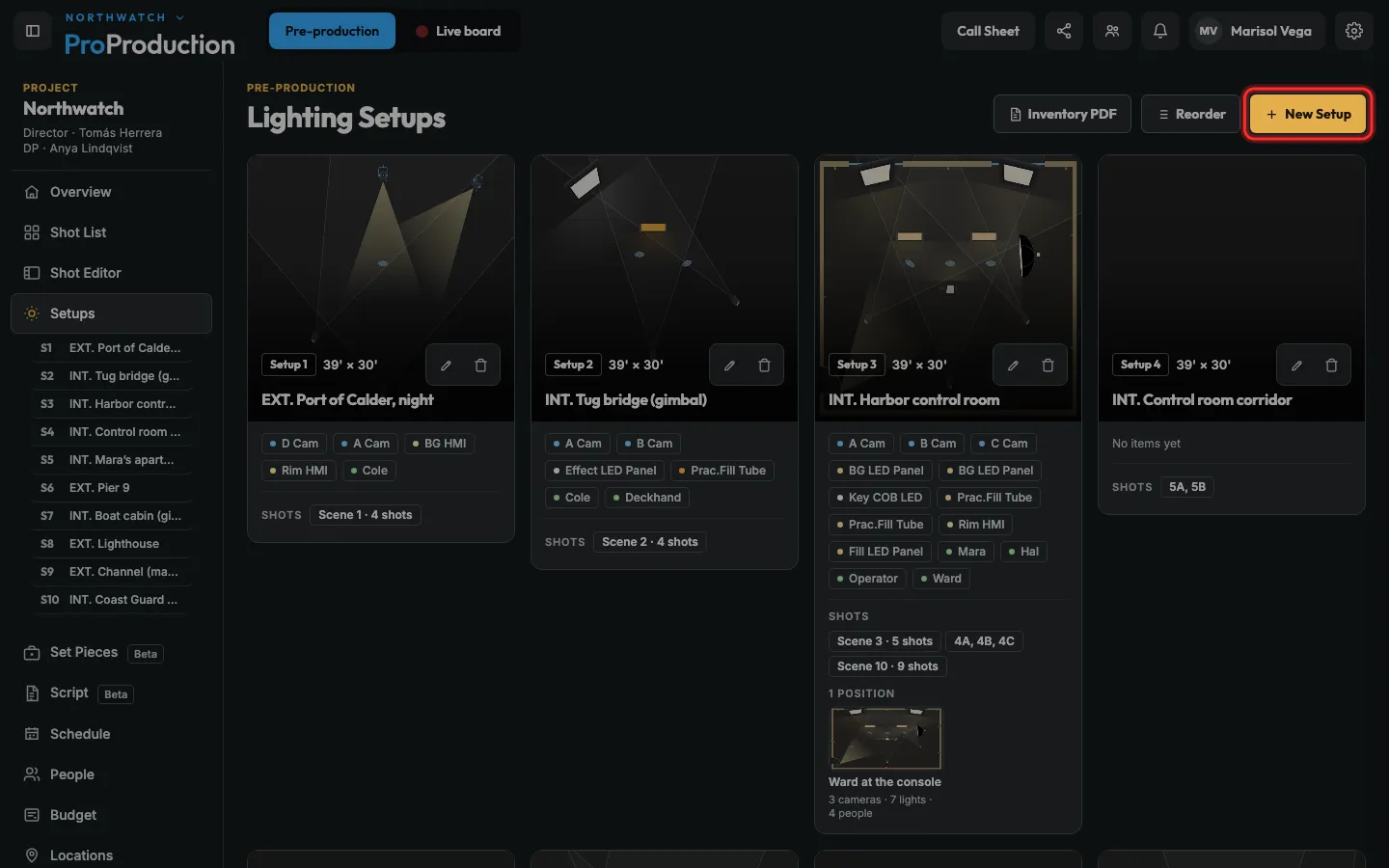
Step 5: Back in Setups, click New Setup.
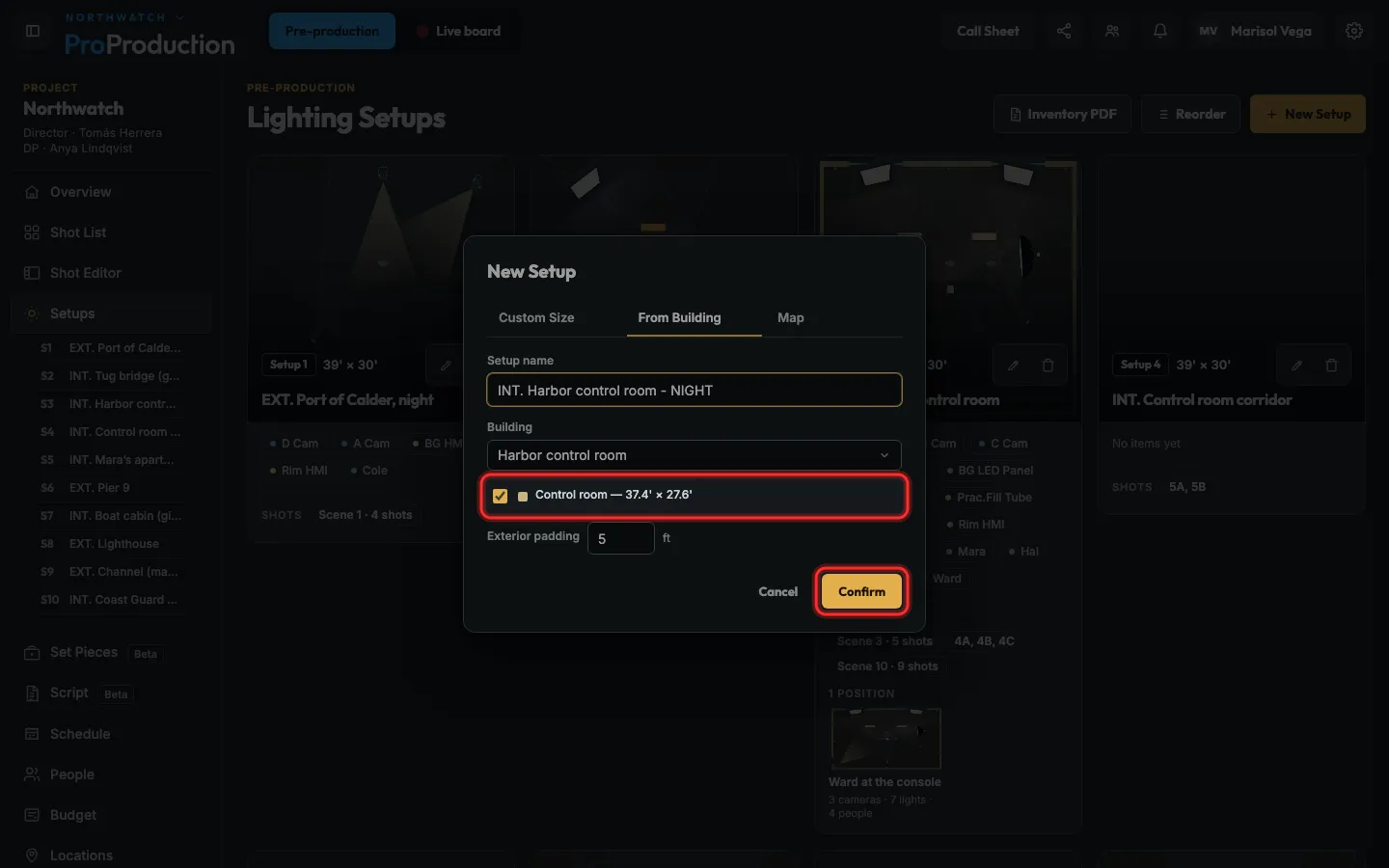
Step 6: On From Building, tick the room and click Confirm.
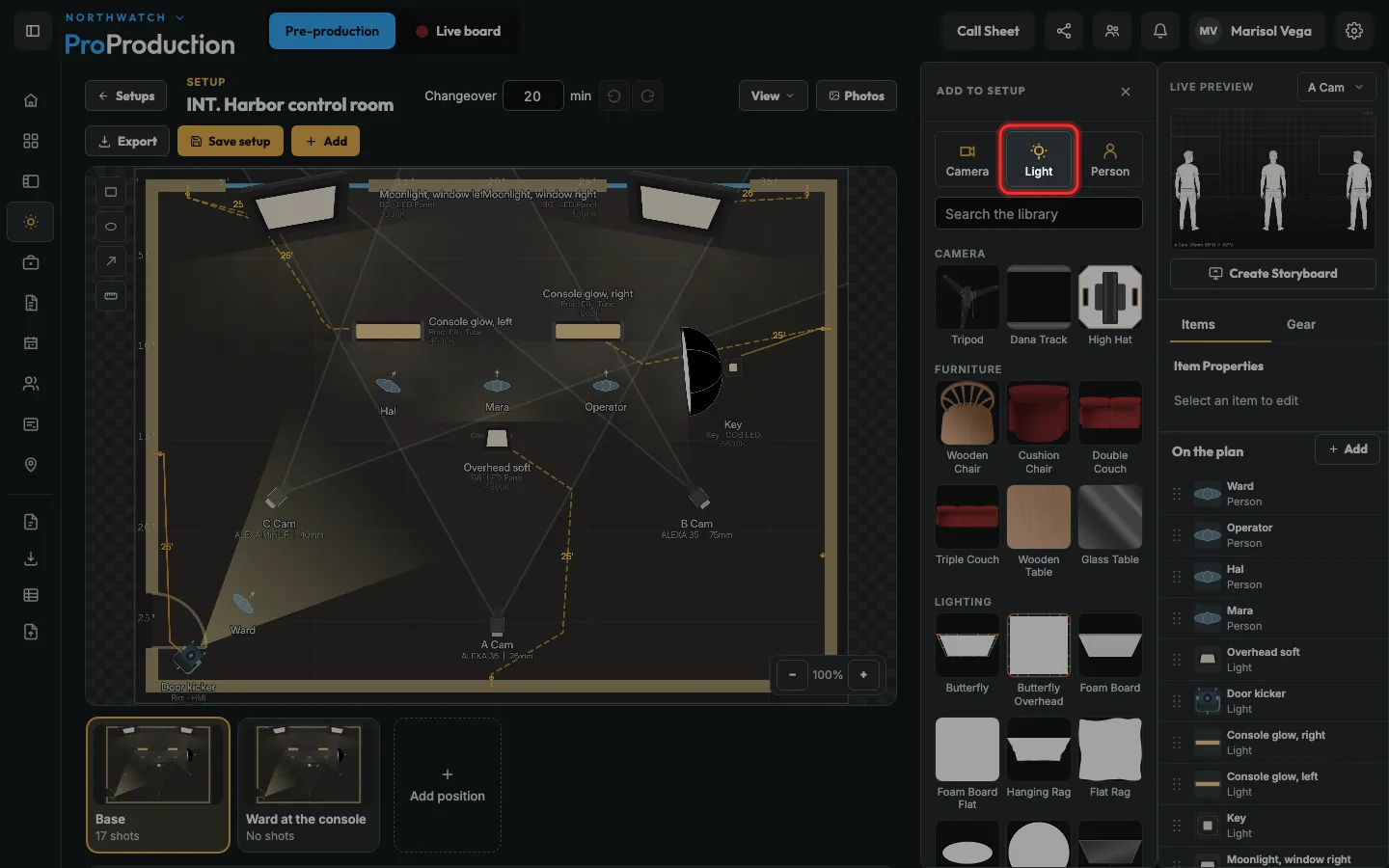
Step 7: Click Add, then Light, pick the fixture and place it.
Drag it into position, or type its X and Y.
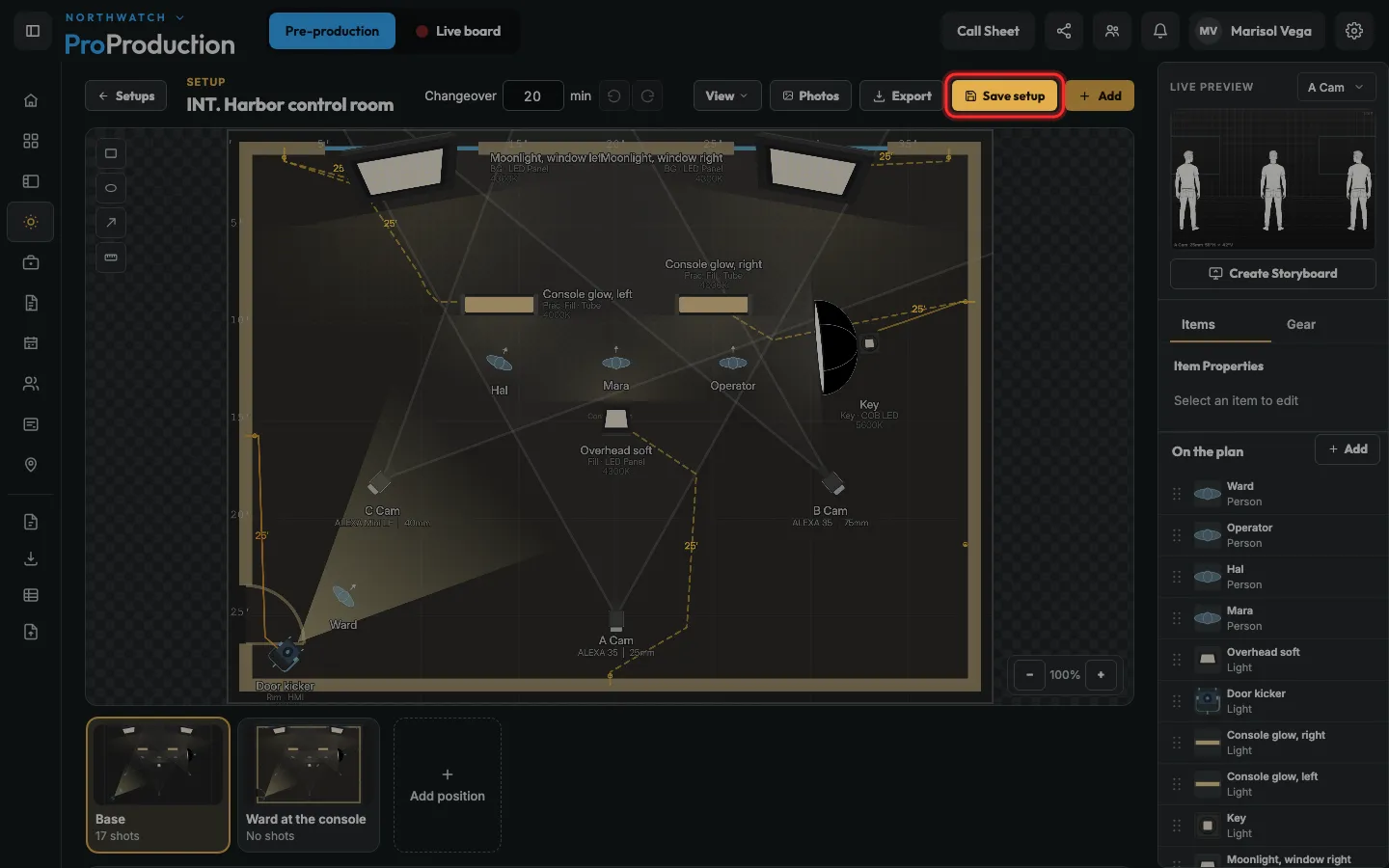
Step 8: Click Save setup.
It stands out while there are changes to save. It also saves on its own, and with ⌘S or Ctrl+S.
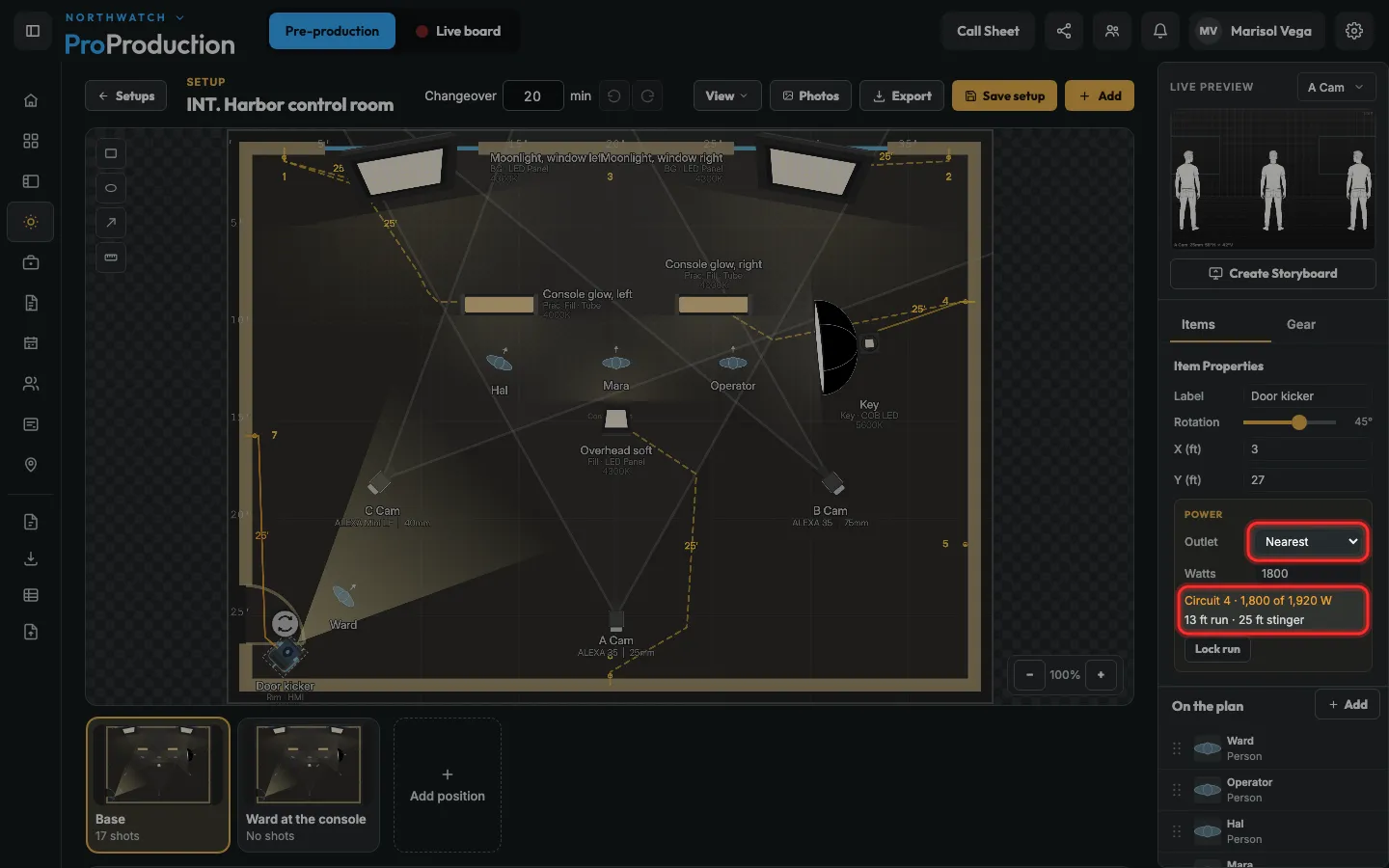
Step 9: Click a light to see its outlet, its run and the load on that circuit.
It picks the nearest outlet; pick another under Outlet. A circuit near its limit turns orange, and red when it’s over.
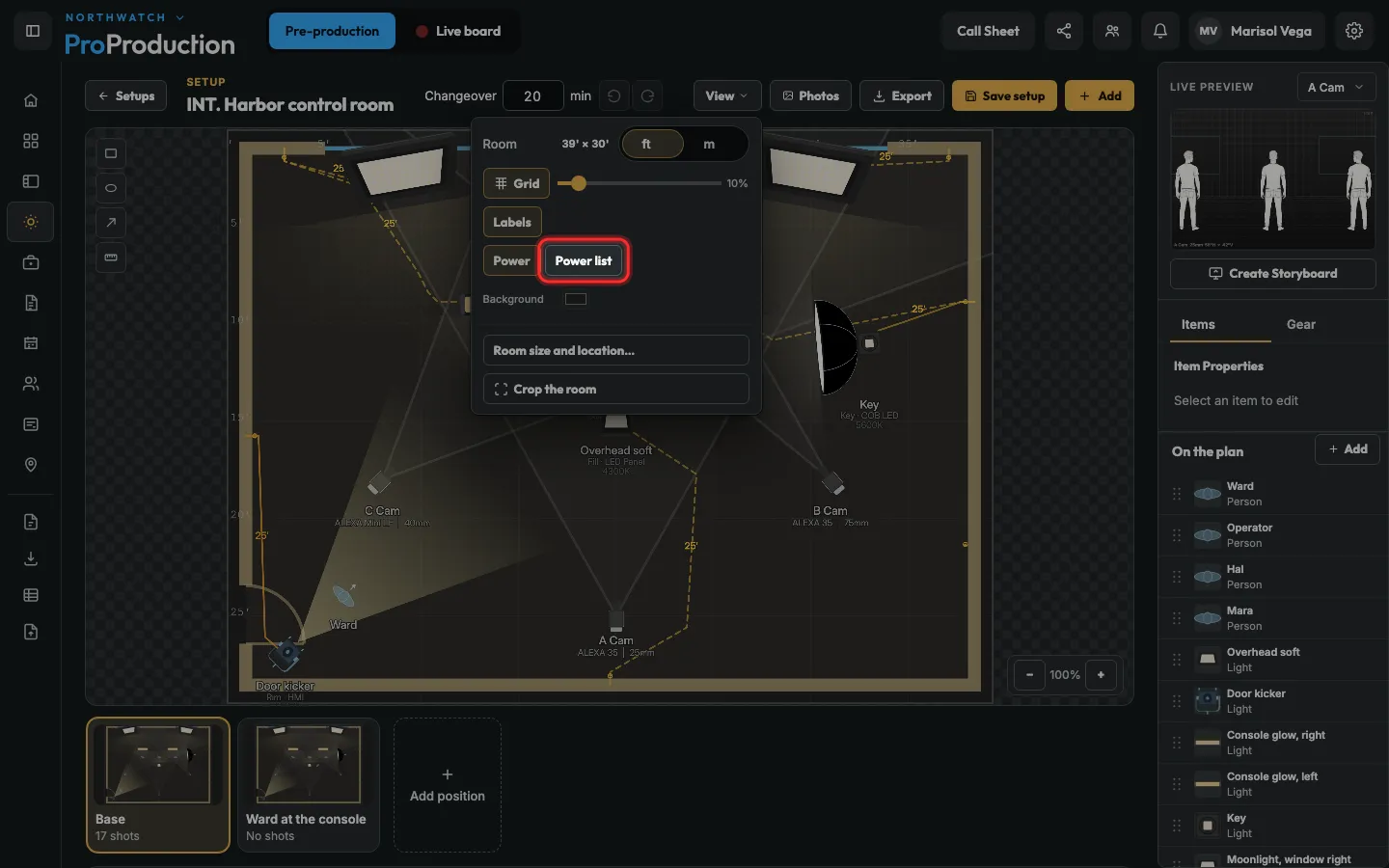
Step 10: Click View, then Power list.
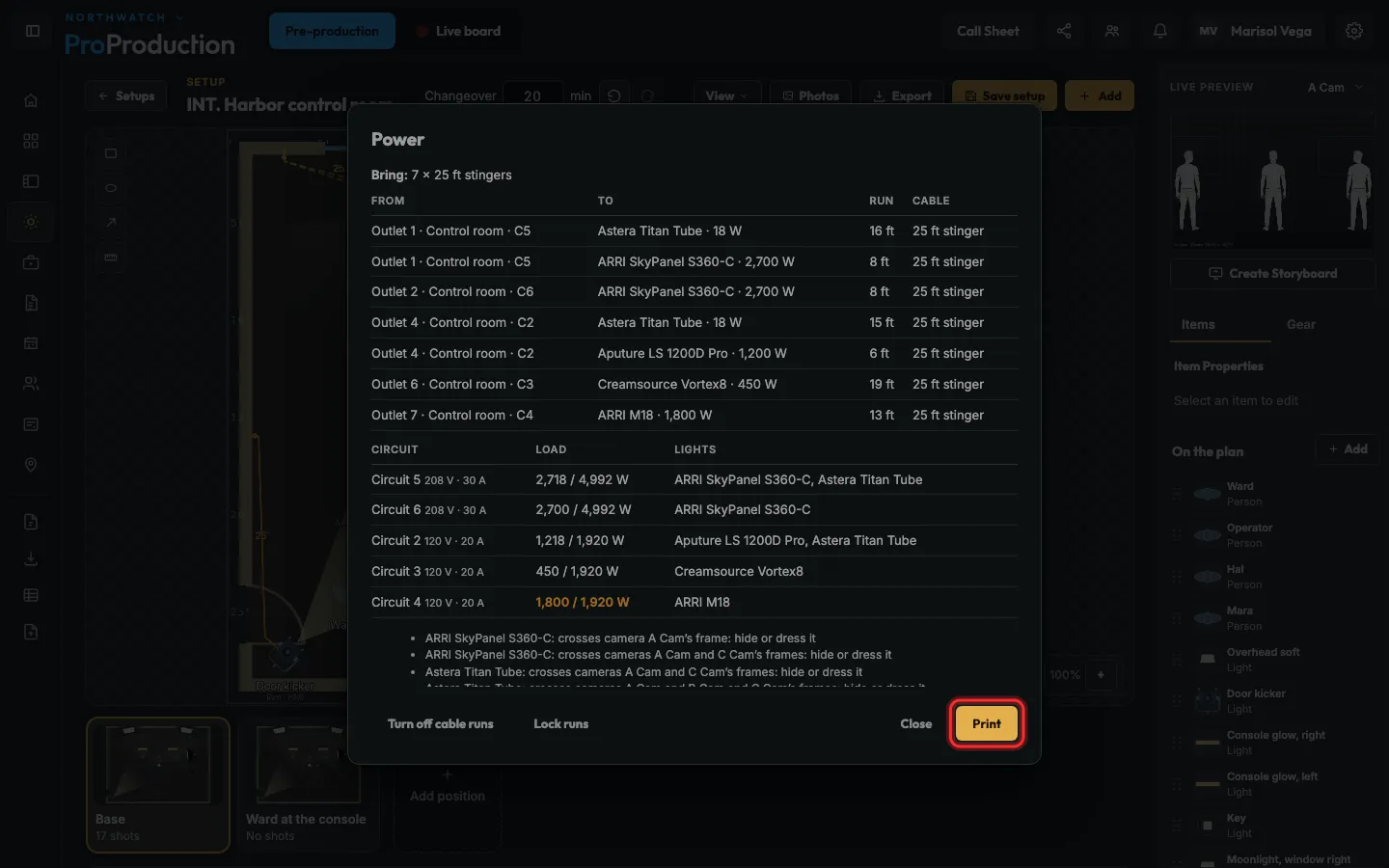
Step 11: That’s every run, the stingers to bring and each circuit’s load. Click Print for the gaffer.
Still stuck?
Write to hello@proproduction.app. A person reads every message.