How do I draw a storyboard frame?
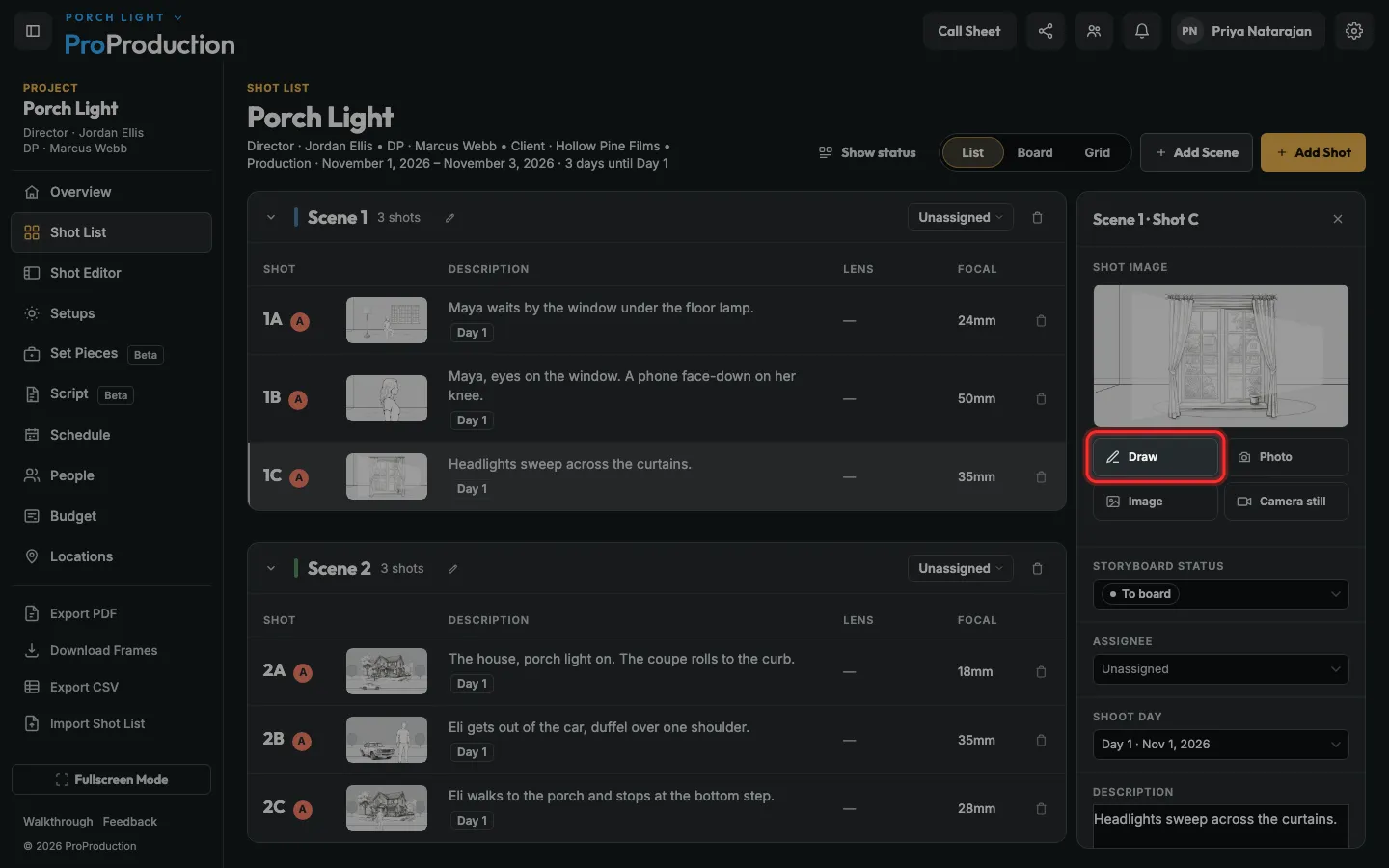
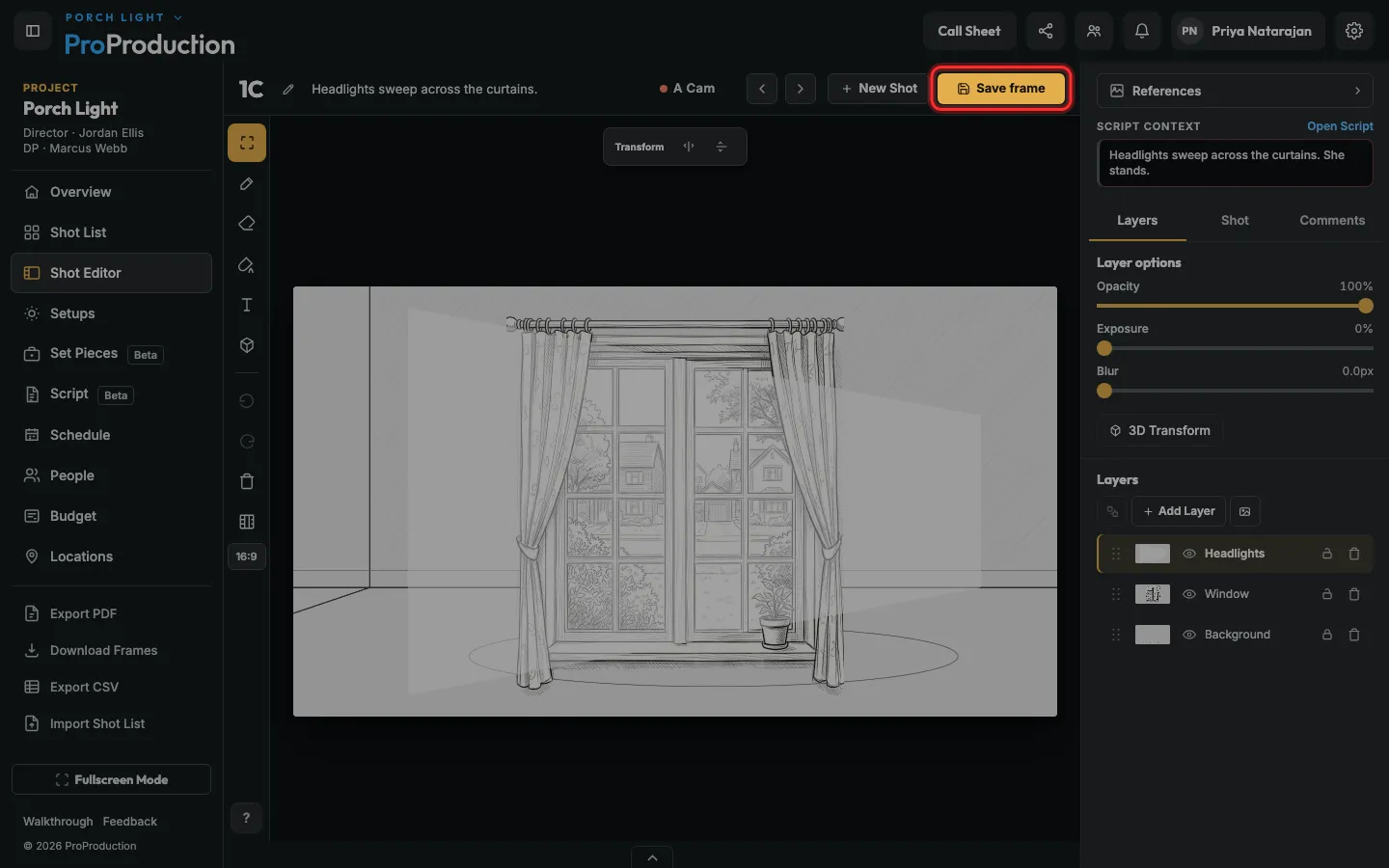
Open a shot and click Draw. Sketch with the brush on a frame the exact shape of your camera, keep things on layers, and it saves as you go.
Step 1: In Shot List, click a shot, then click Draw.
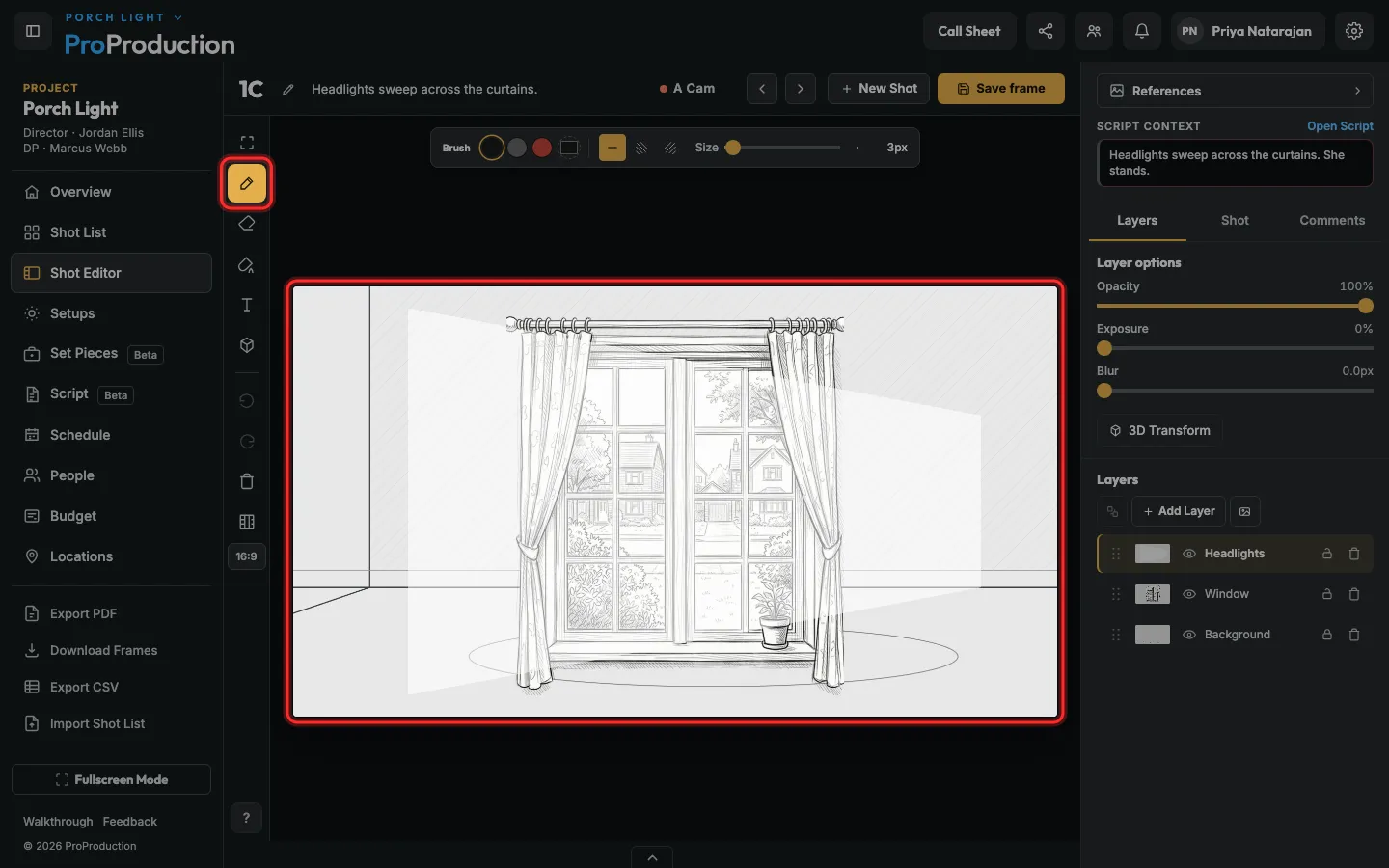
Step 2: Pick the brush and draw on the frame.
The frame is your camera’s own shape, from Project settings → Cameras.
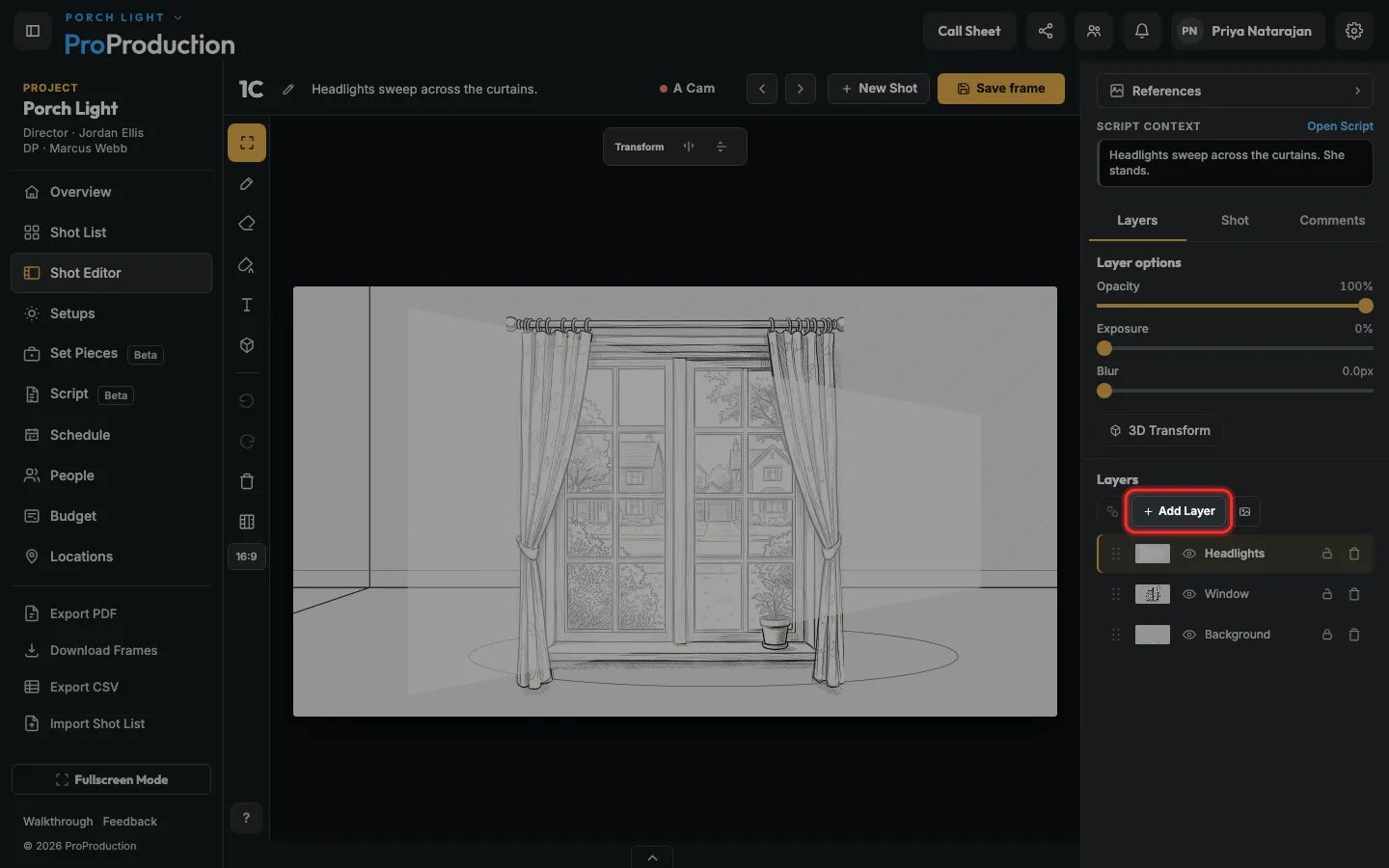
Step 3: Click Add Layer to keep a person, a prop or the light on its own layer.
The picture button beside it adds a reference photo to trace over.
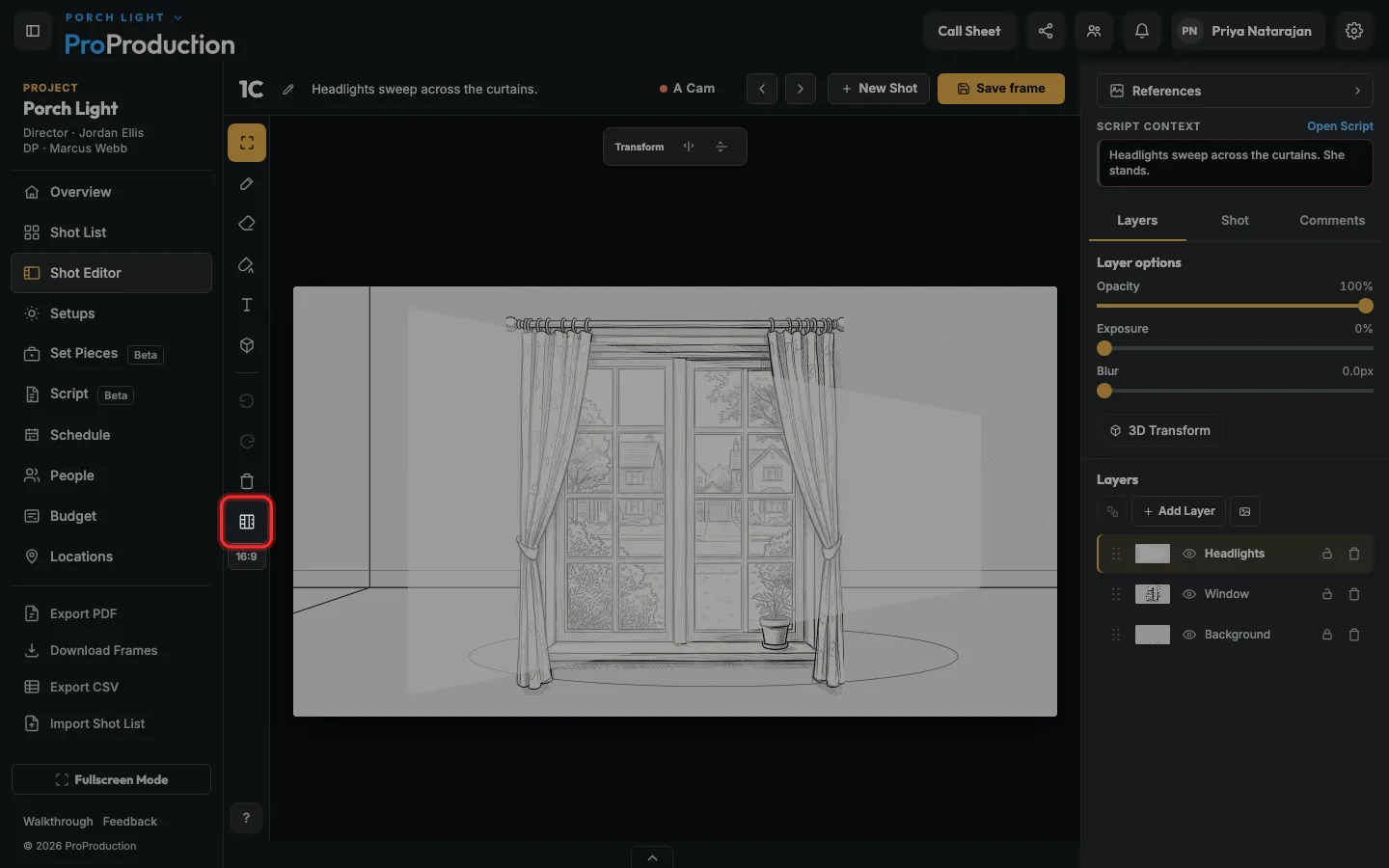
Step 4: Click the crop guide to see where your delivery frame cuts. The ratio under it, like 16:9 or 2.39:1, changes it.
Step 5: Click Save frame, or just stop: it saves on its own a few seconds later.
The arrows beside it go to the next and last shot.
Still stuck?
Write to hello@proproduction.app. A person reads every message.