How do I connect and control my cameras, like a Canon C400?
Put the camera on the set’s network, type its address in Day settings → Camera, and run the Camera Agent on a Mac there. Then Camera Control on the Live board changes its settings and rolls.
Step 1: On the Live board, click the gear on today’s day.
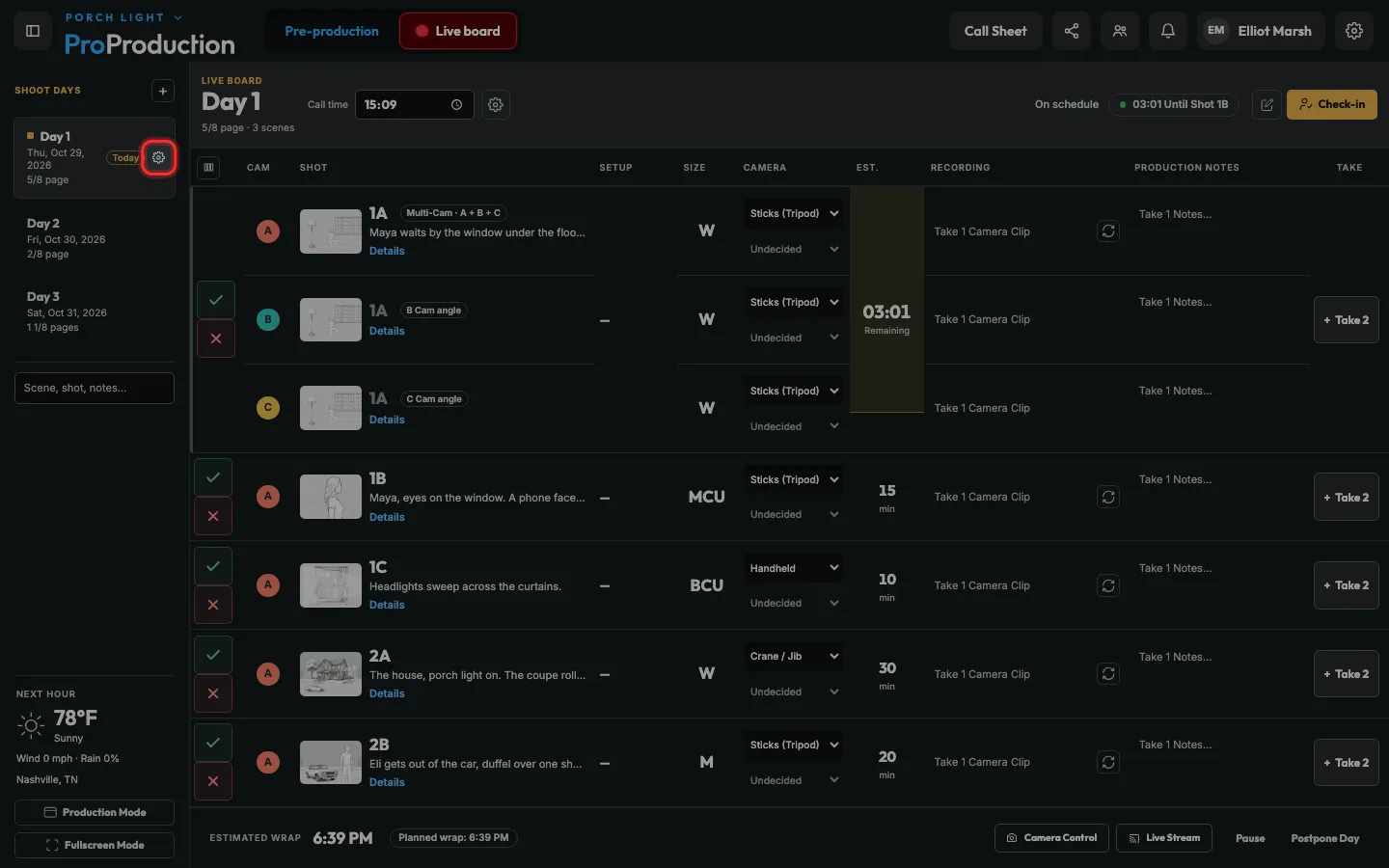
Step 2: Click Camera.
A camera shows here once the day has shots on it. Bodies come from Project settings → Cameras.
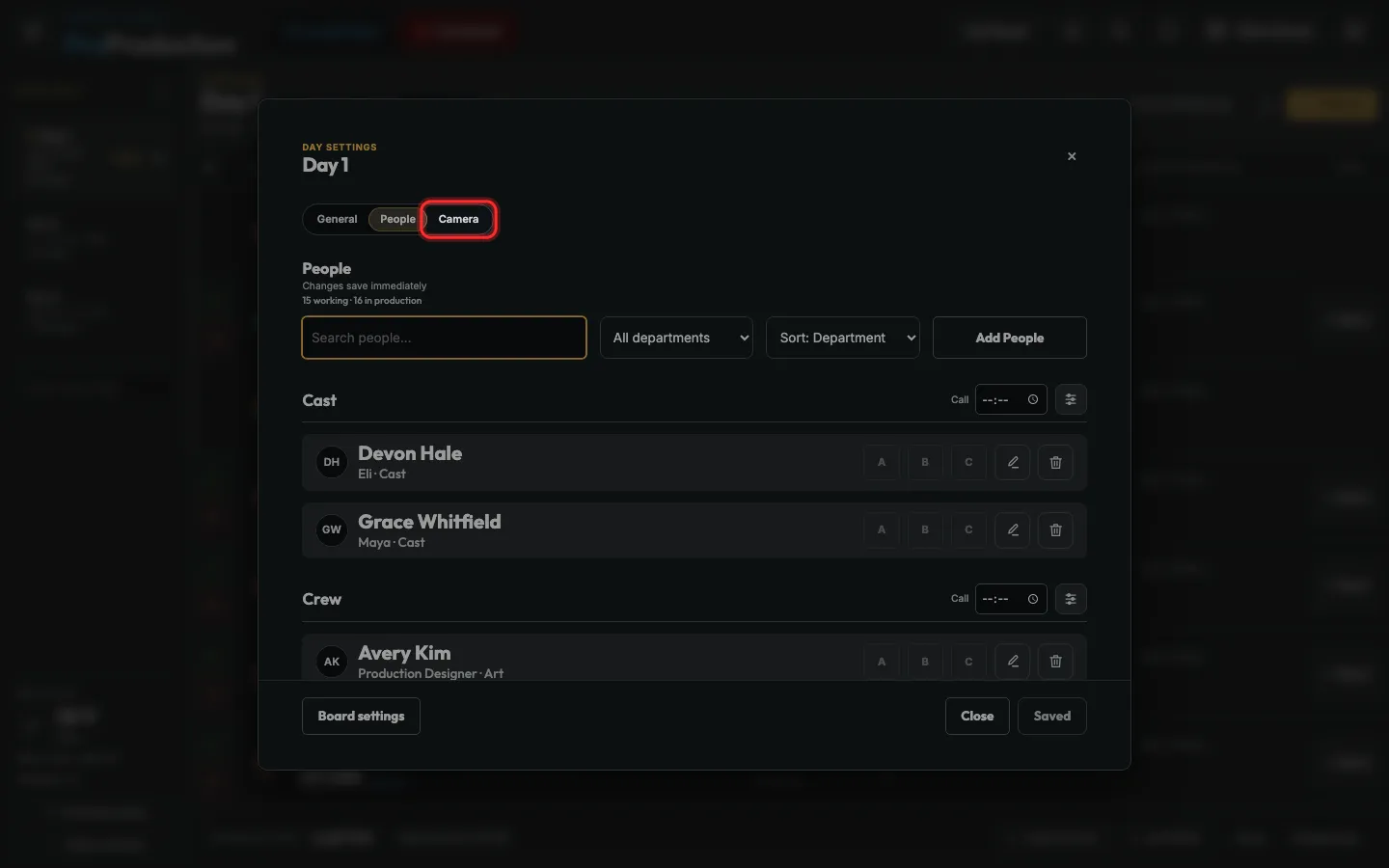
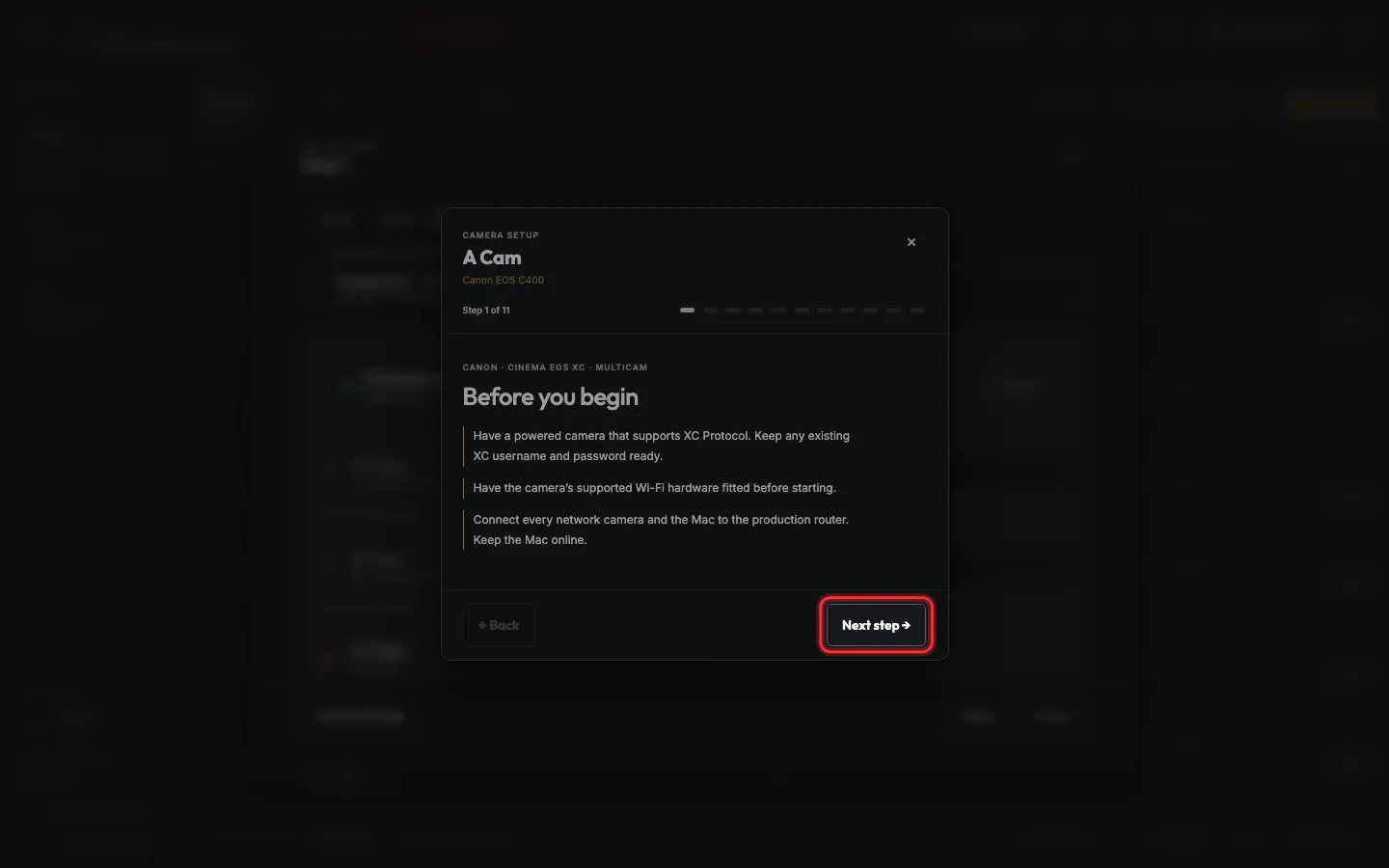
Step 3: Click the i beside a camera for its own setup steps.
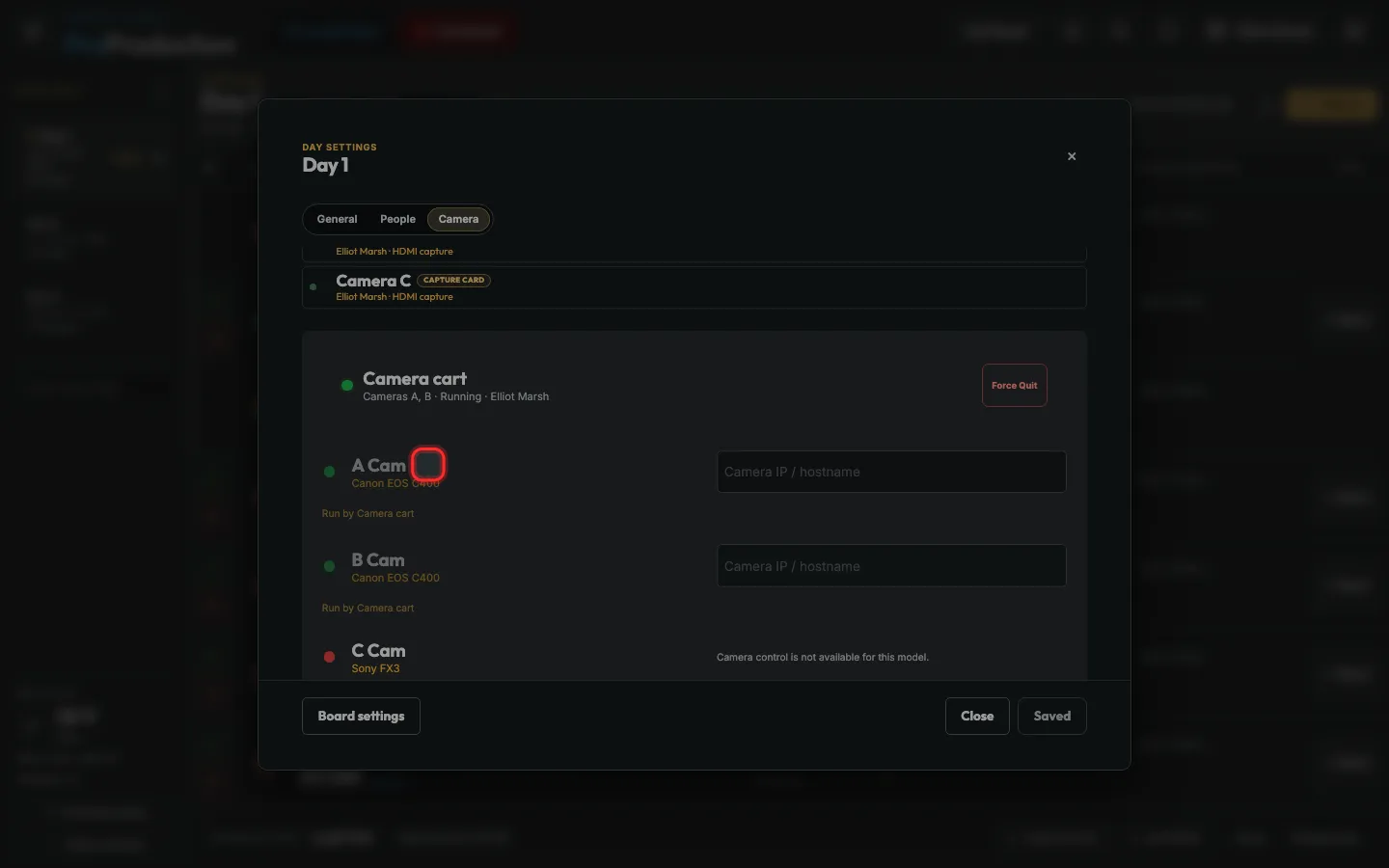
Step 4: Follow them on the camera: network on, XC Protocol, the Wi-Fi, and its address.
A C400 runs XC or Browser Remote, not both.
Step 5: Type each camera’s address beside its letter.
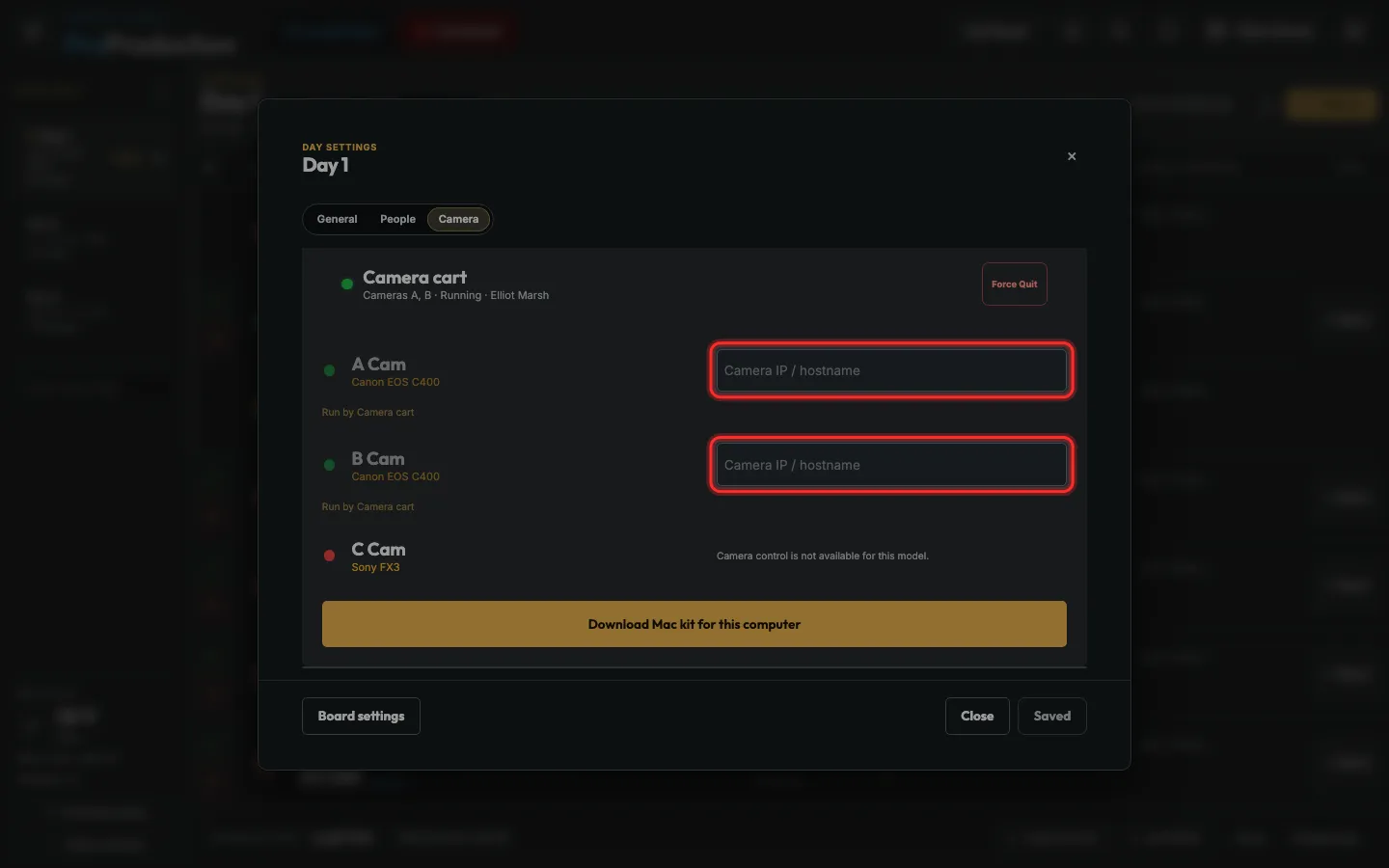
Step 6: On the Mac on set, click Download Mac kit for this computer.
Unzip it, double-click Start Production Camera Agent, and leave Terminal open. It asks for the camera’s XC username and password.
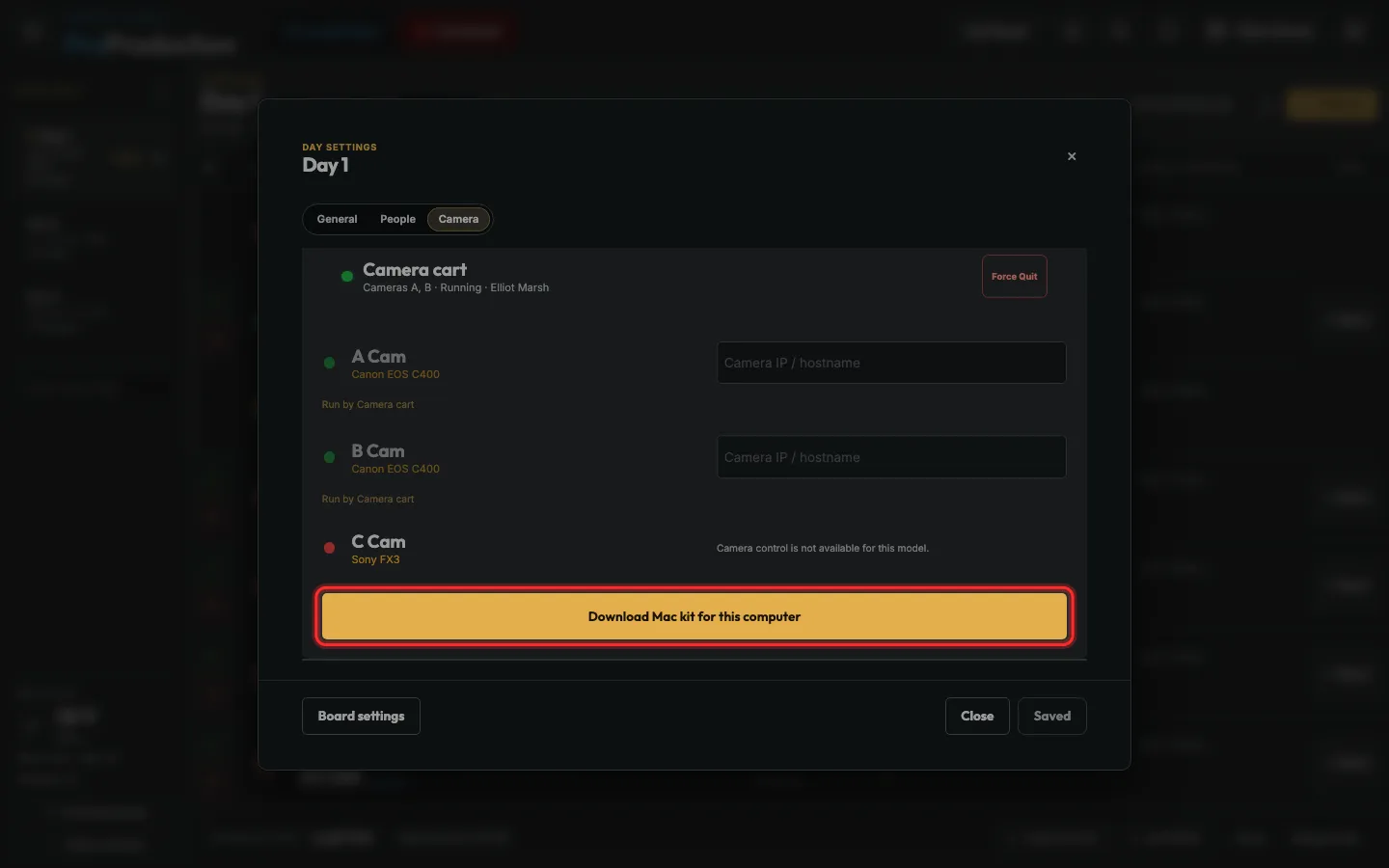
Step 7: The Mac shows as running, and each camera says who runs it.
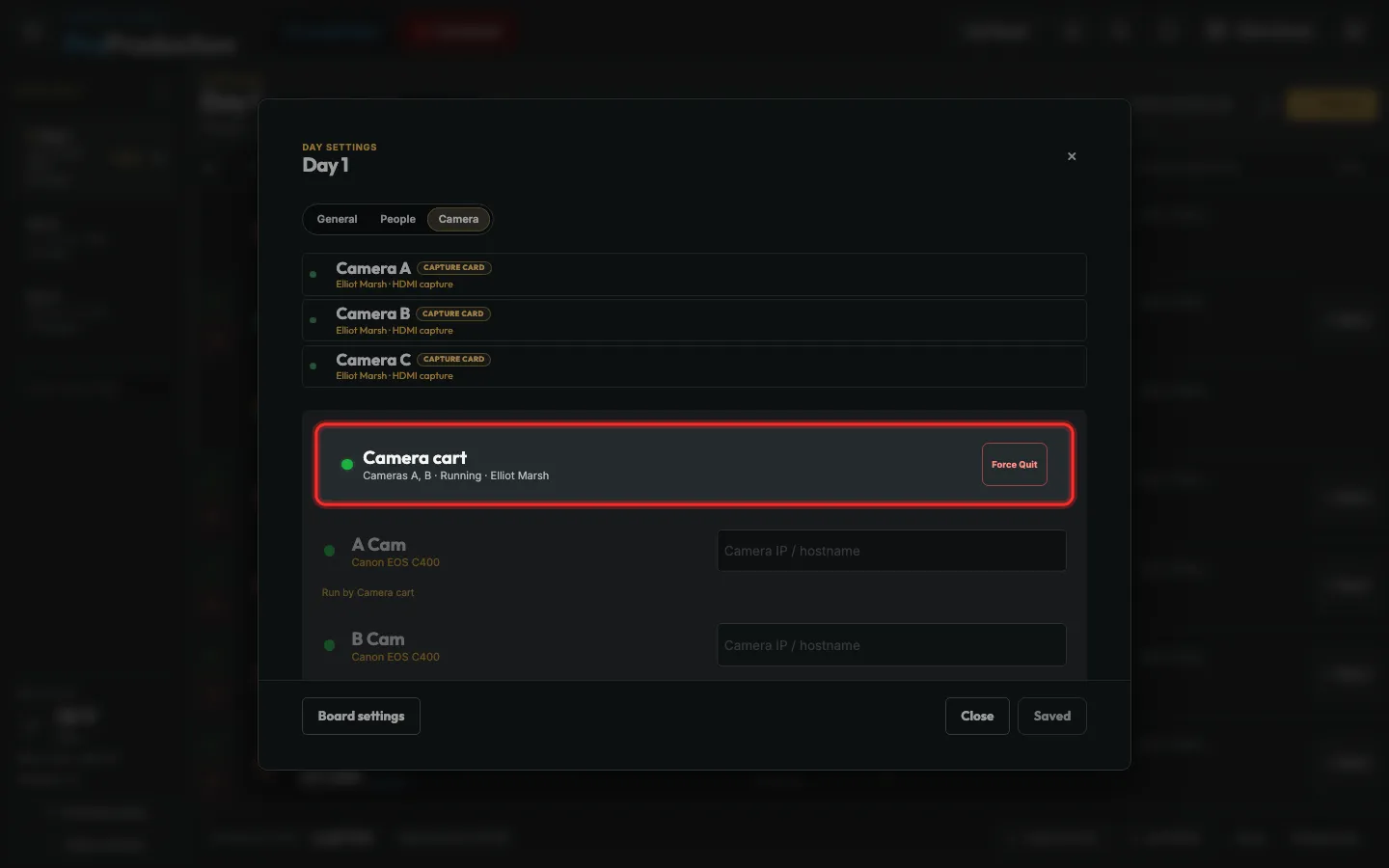
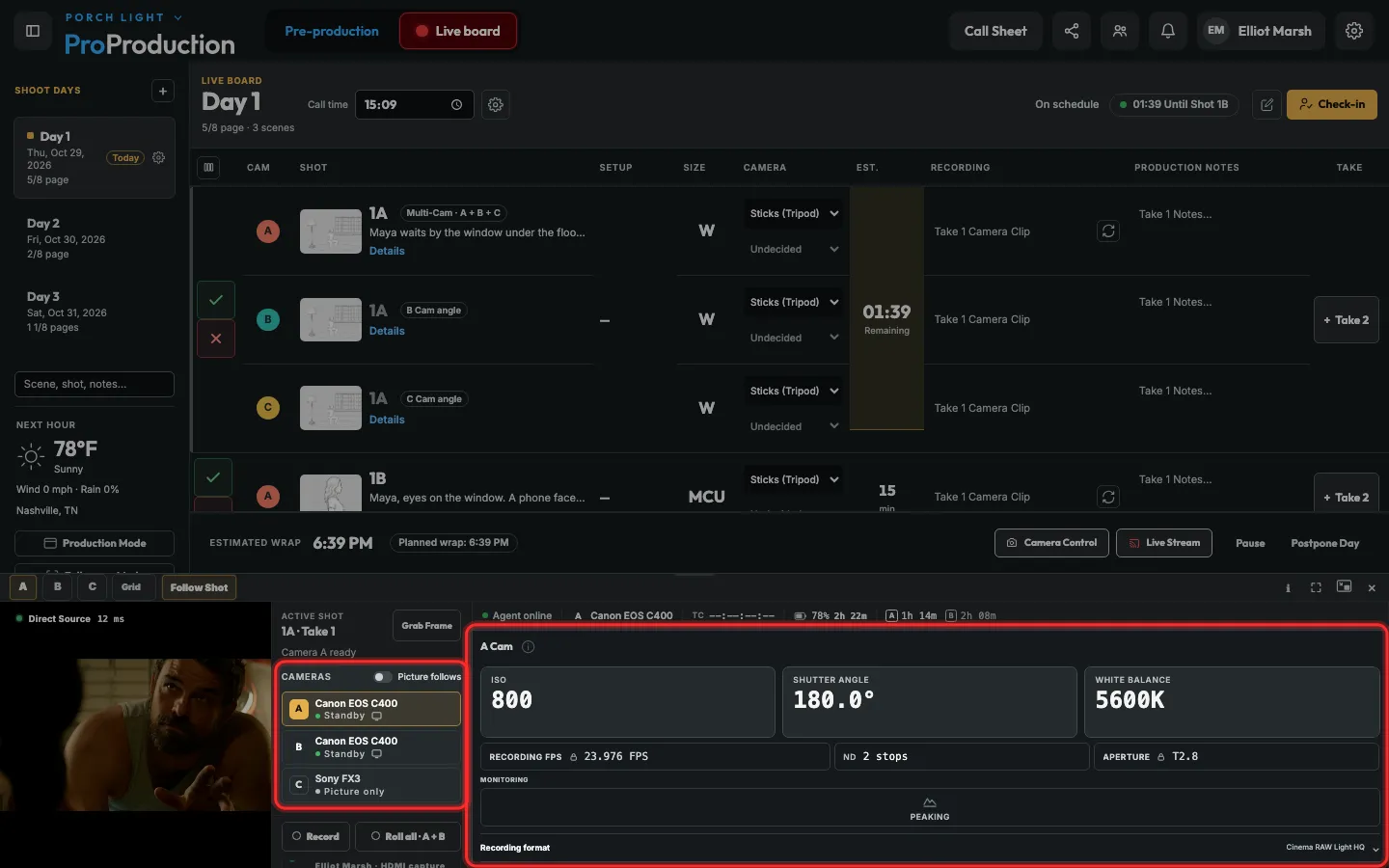
Step 8: Close Day settings and click Camera Control.
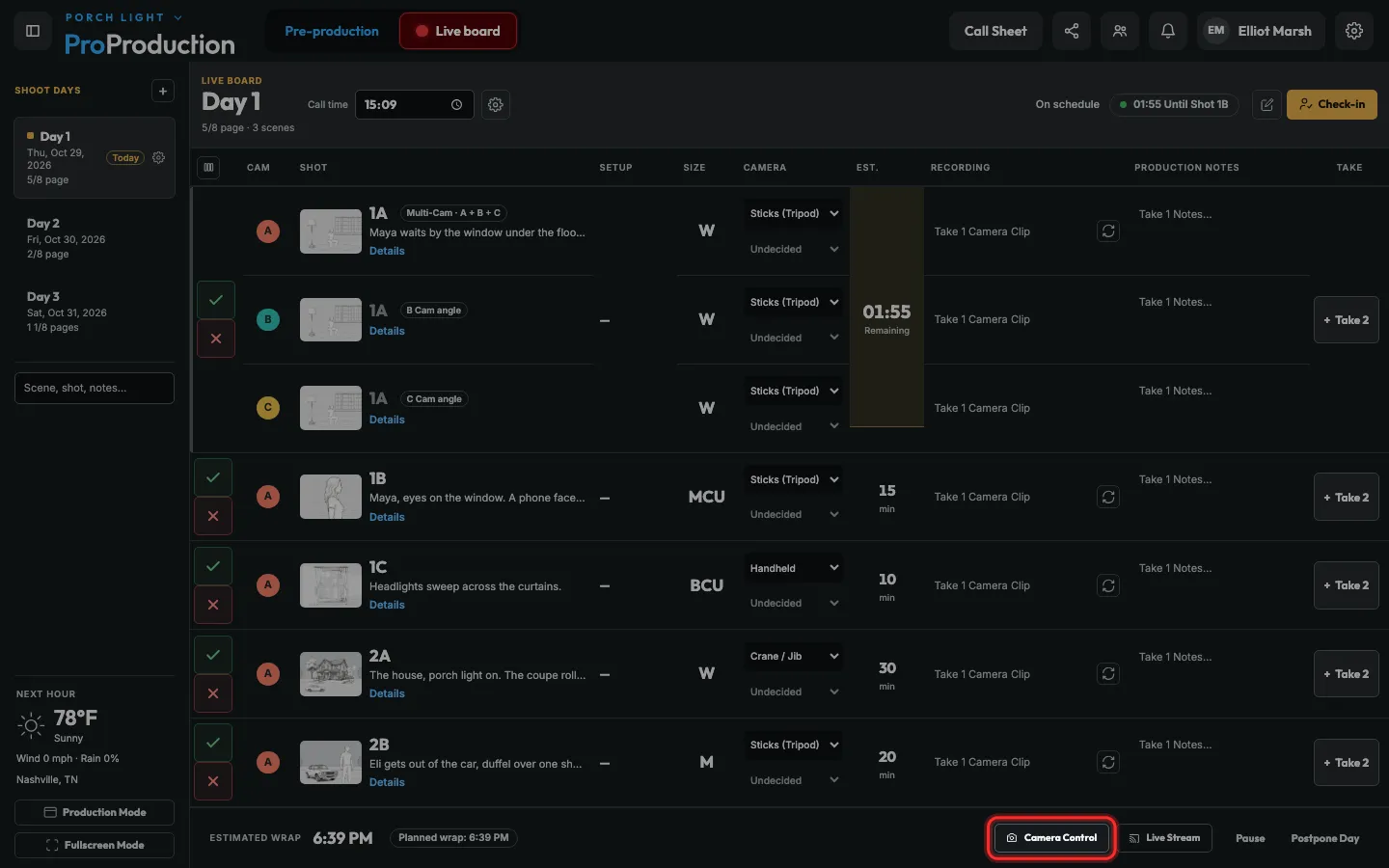
Step 9: Pick a camera, then click a setting like ISO or white balance to change it.
Each change says Sending, then Confirmed once the camera has it. A lock means that one can only be changed on the camera.
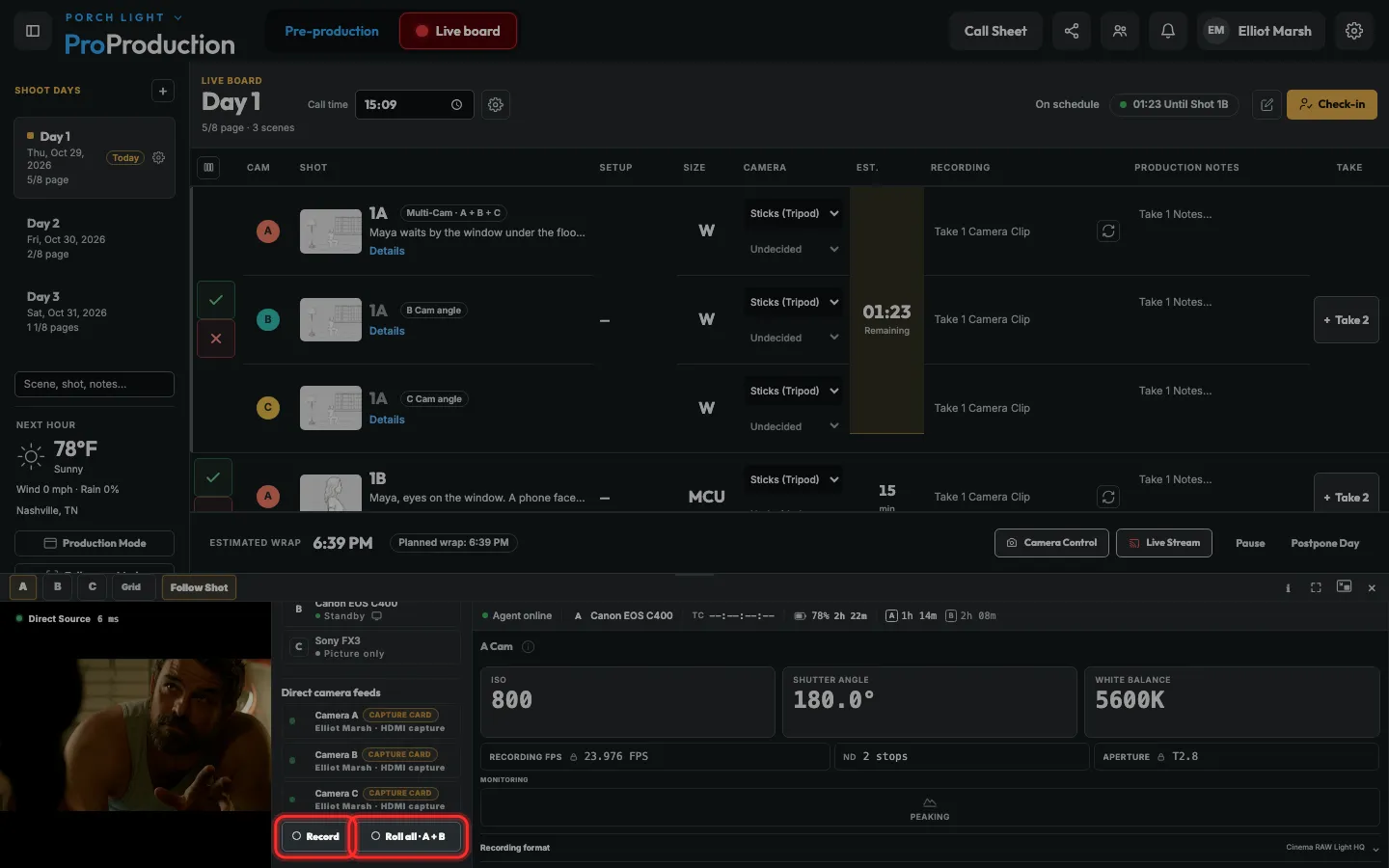
Step 10: Click Record, or Roll all for every camera.
Still stuck?
Write to hello@proproduction.app. A person reads every message.