How do I import my script?
Open Script, click Import and pick your PDF, Word, Final Draft or Fountain file. Then add its scenes to the storyboard in one click.
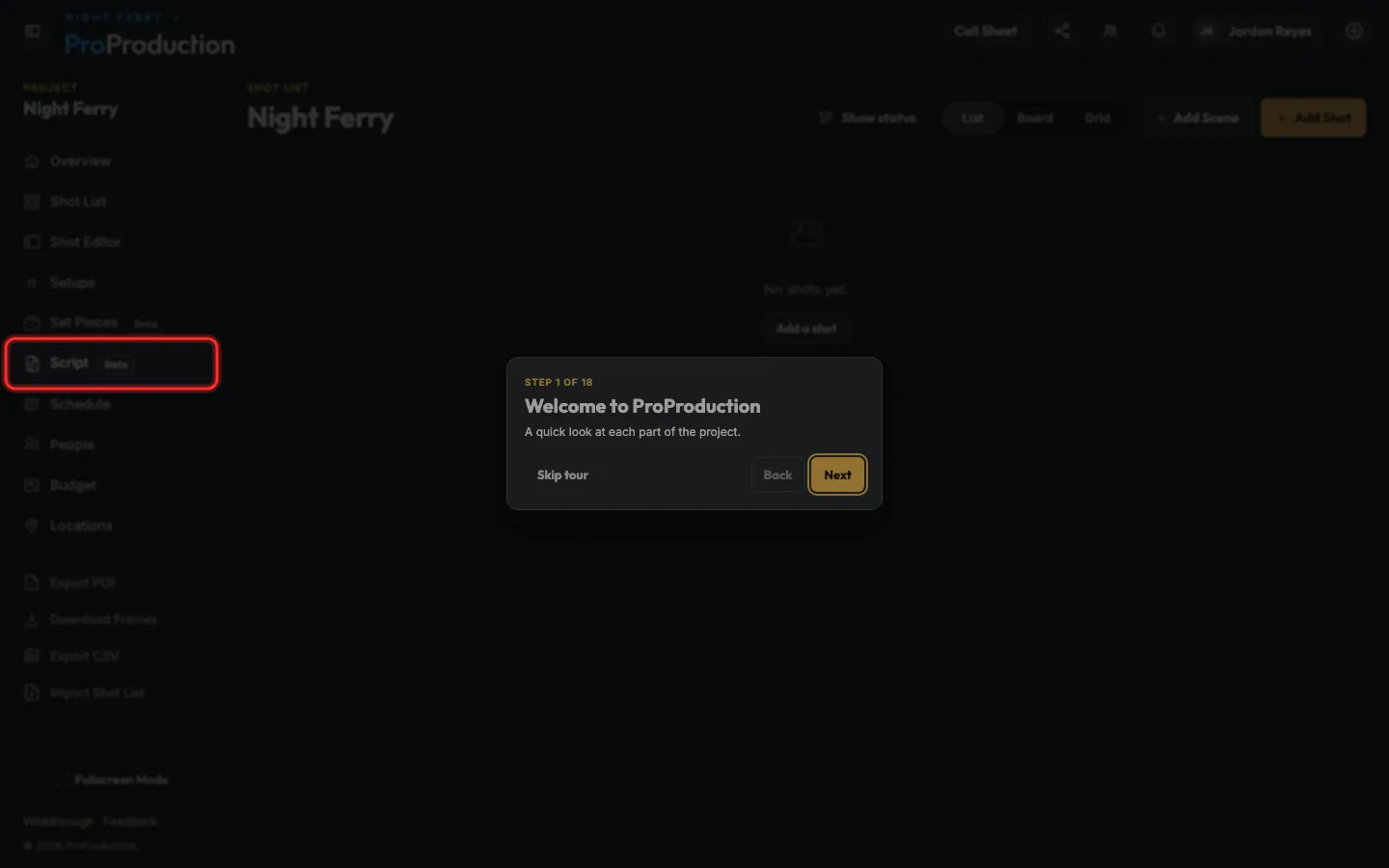
Step 1: In your project, click Script in the side bar.
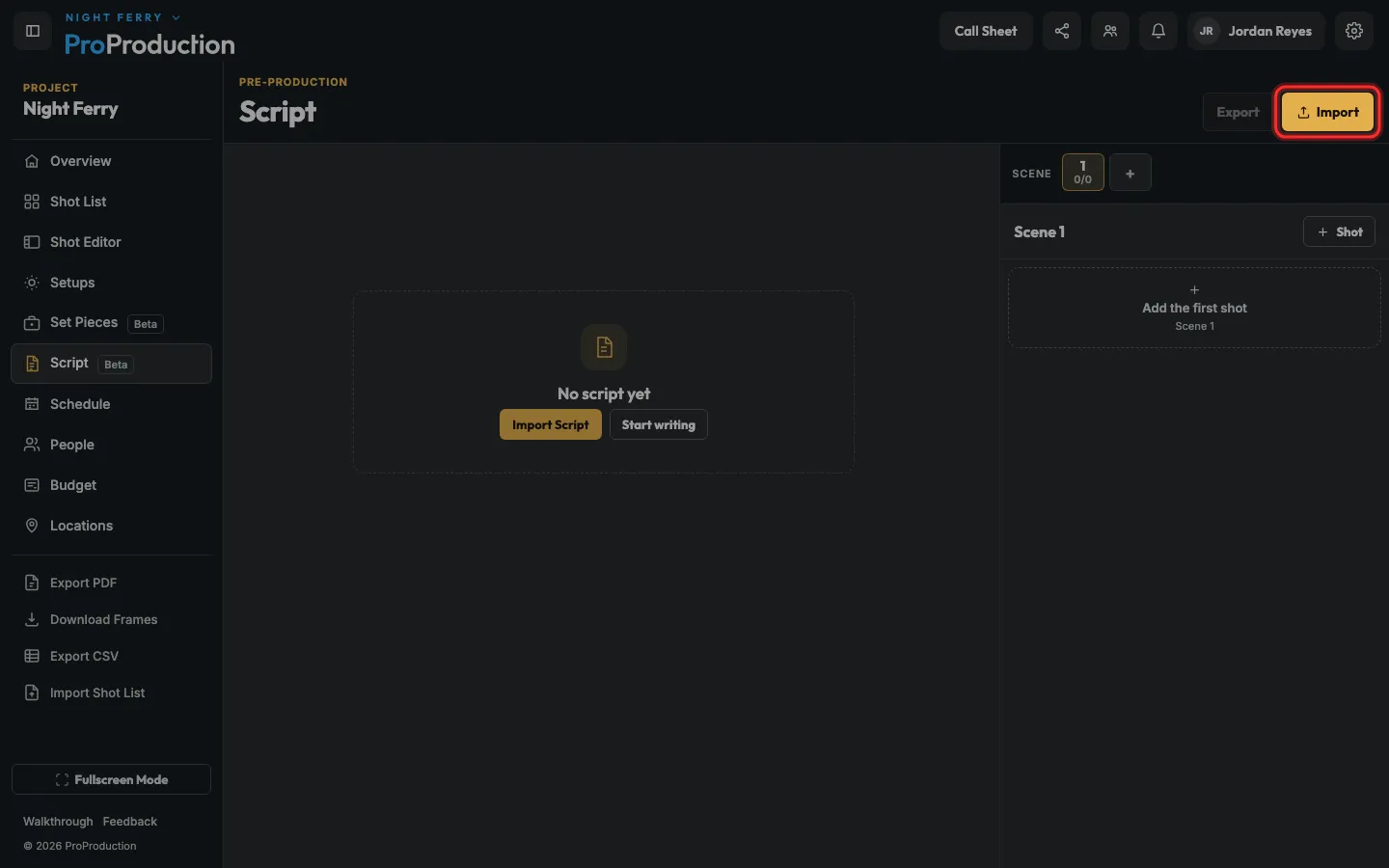
Step 2: Click Import.
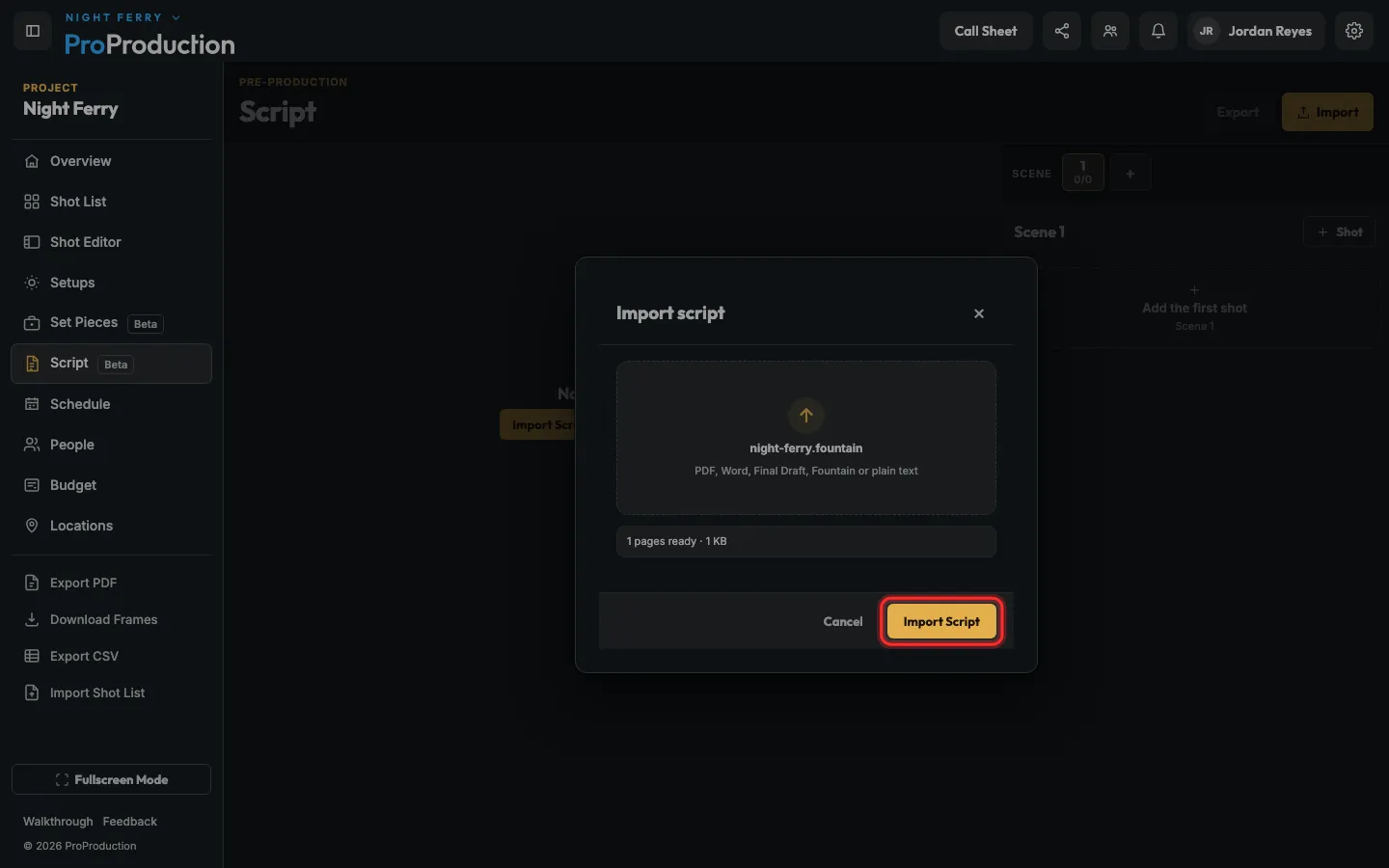
Step 3: Drop your script file in the box, then click Import Script.
PDF, Word (.docx), Final Draft (.fdx), Fountain and plain text all work. A scanned PDF won’t, because it’s a picture of text.
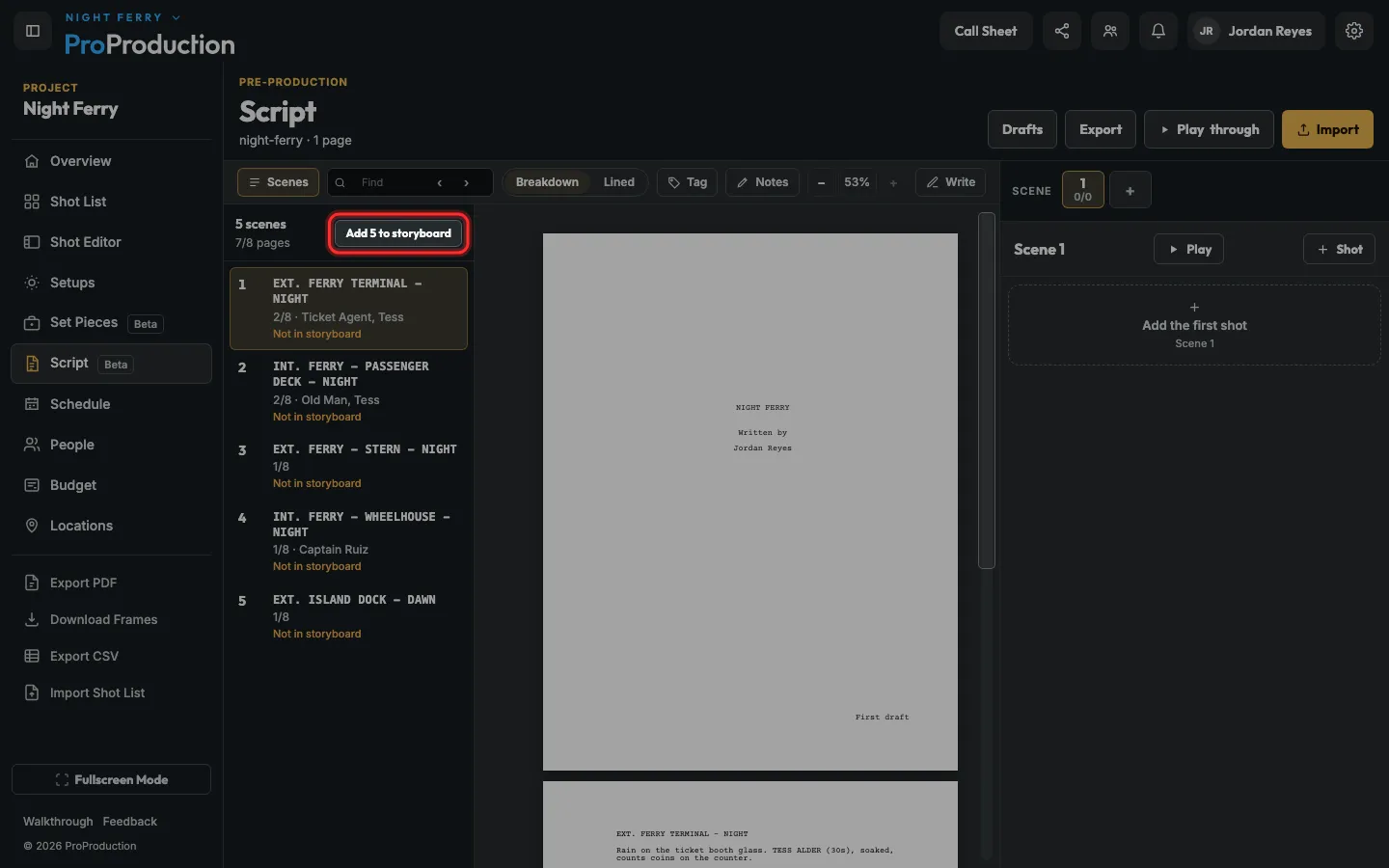
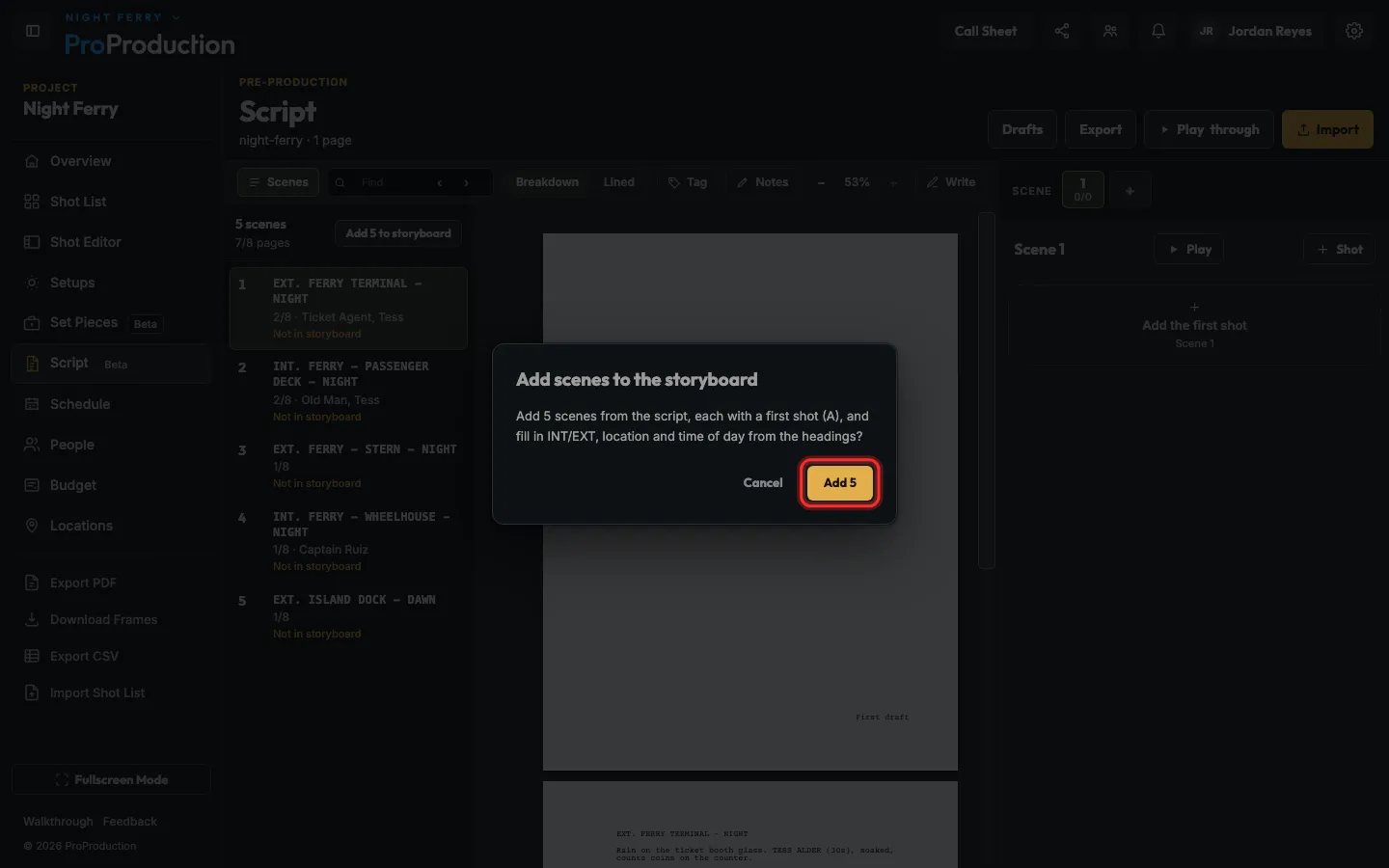
Step 4: In the scene list, click Add 5 to storyboard.
Every INT. or EXT. heading is a scene. The number is however many your script has.
Step 5: Click Add 5 to confirm.
Each scene gets a first shot, plus INT/EXT, location and time of day from its heading.
Still stuck?
Write to hello@proproduction.app. A person reads every message.