How do I lock the script and send revised pages?
In Script, open Drafts and click Lock script. From then on every change you save is marked in the next color (Blue, then Pink), and Issue prints just the pages that changed.
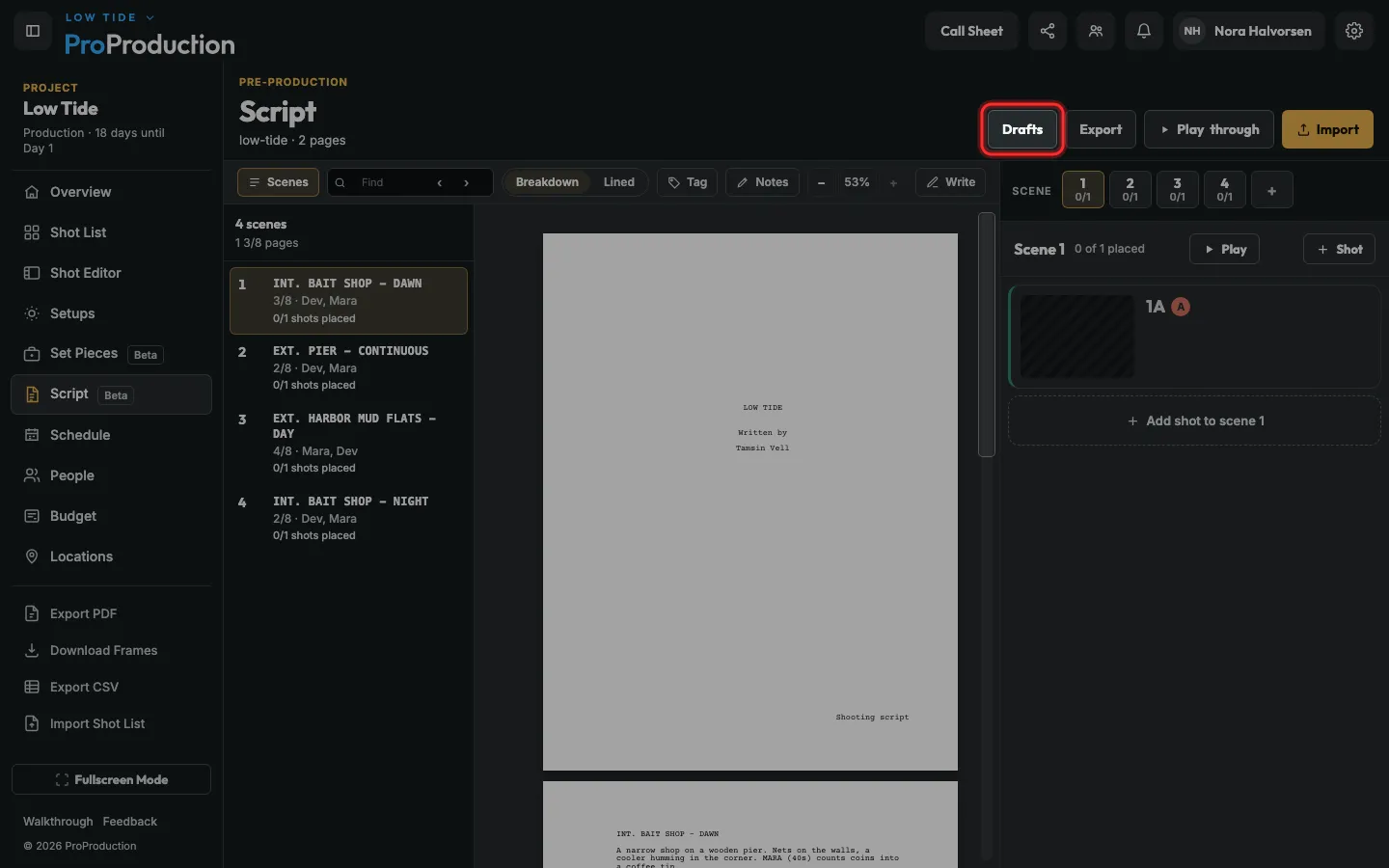
Step 1: In Script, click Drafts.
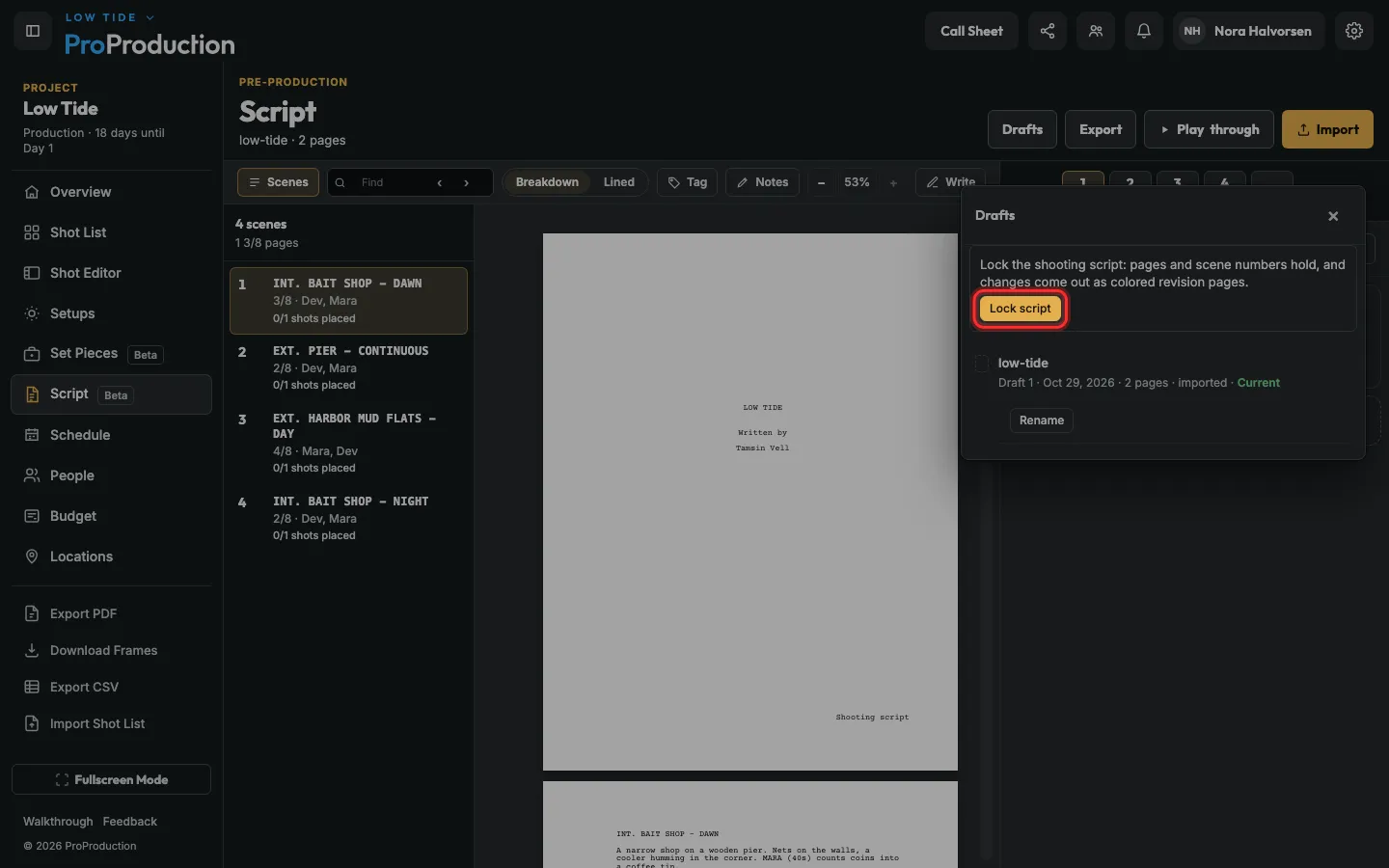
Step 2: Click Lock script, then Lock script again.
Pages and scene numbers hold from now on. A cut scene stays as OMITTED, and a page that runs over becomes an A-page, like 23A.
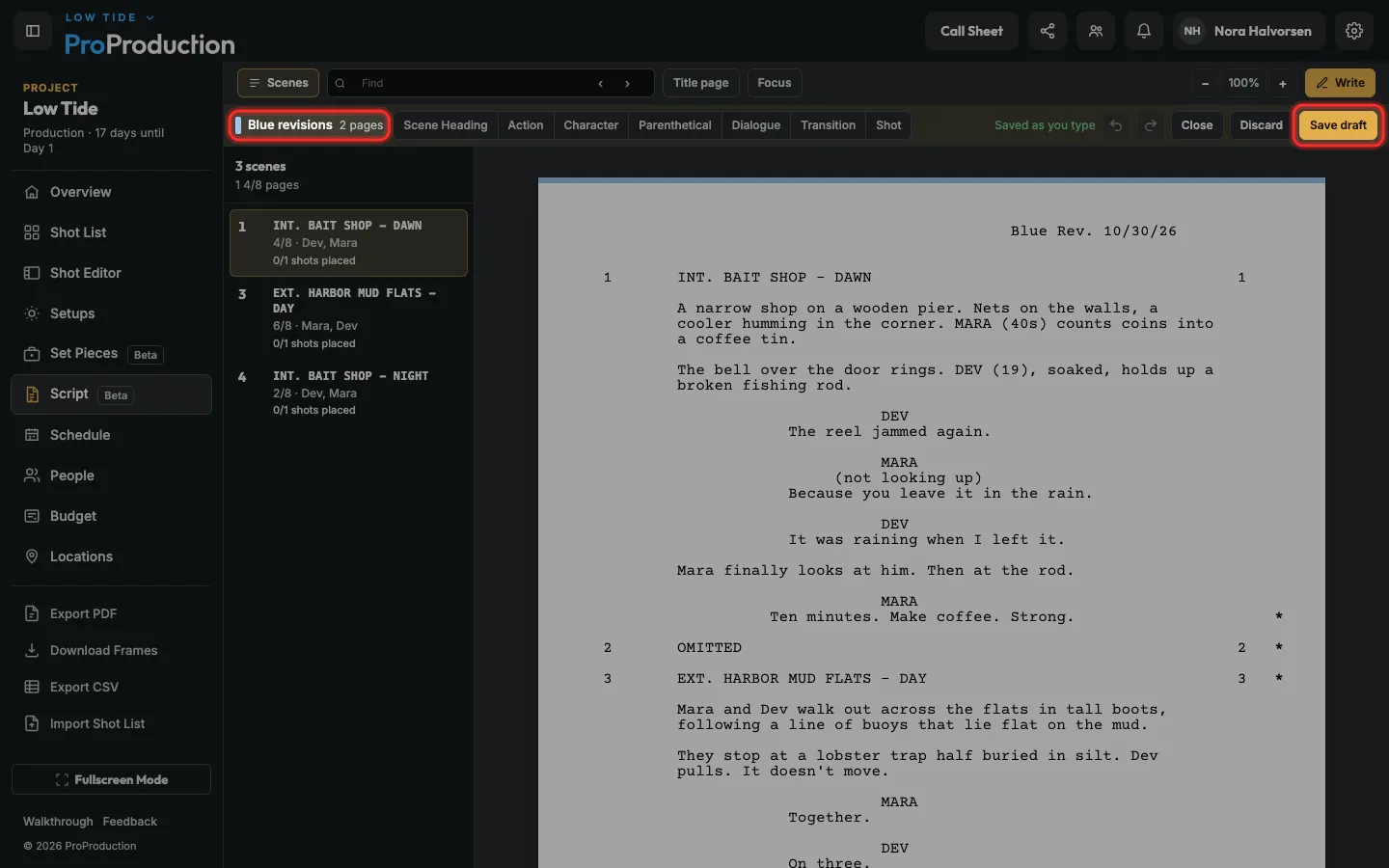
Step 3: Click Write. The bar says Blue revisions. Make your changes, then click Save draft.
Save as often as you like. It all stays Blue until you issue it.
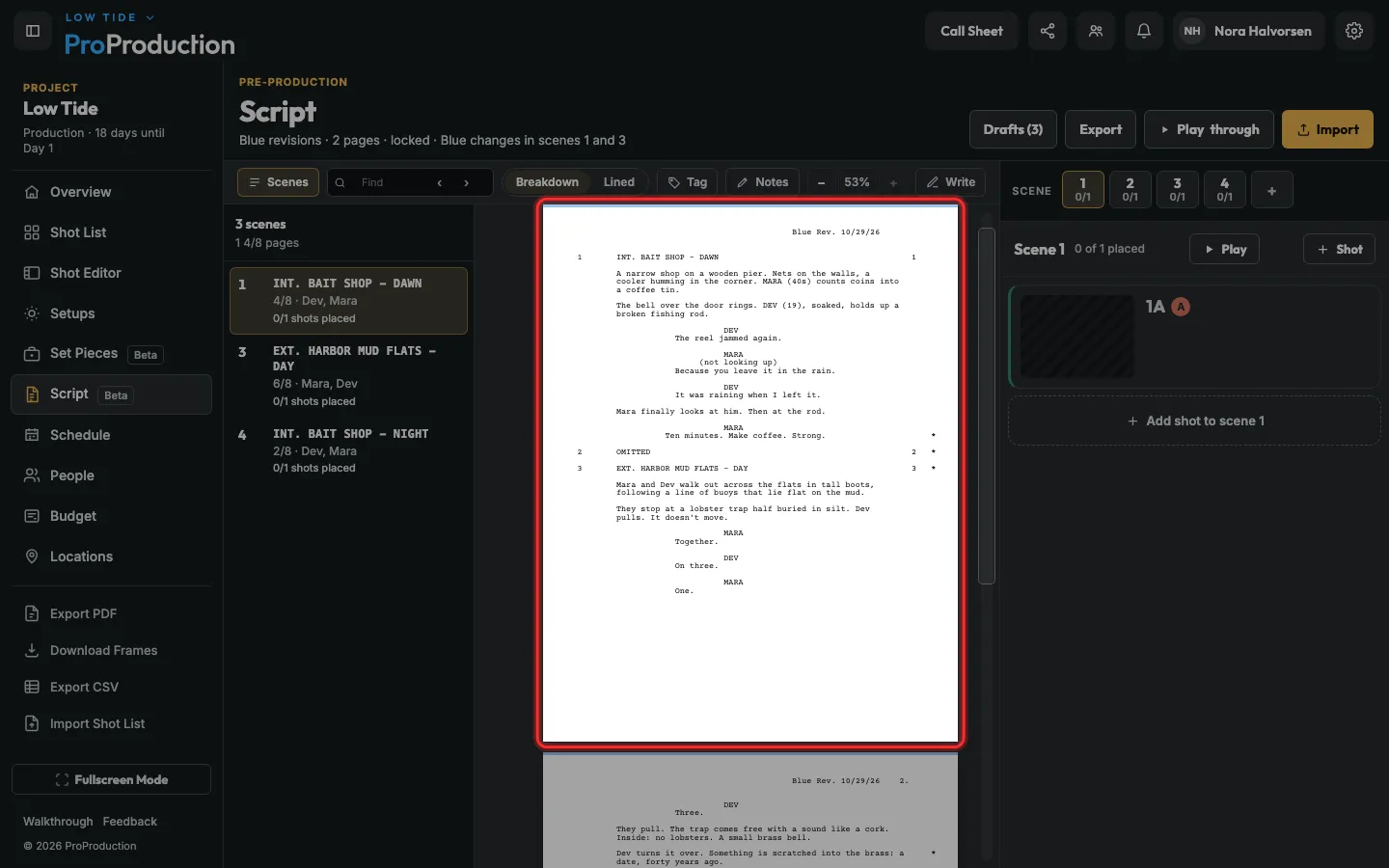
Step 4: Each changed line gets a star in the margin, and each changed page says Blue Rev. and the date at the top.
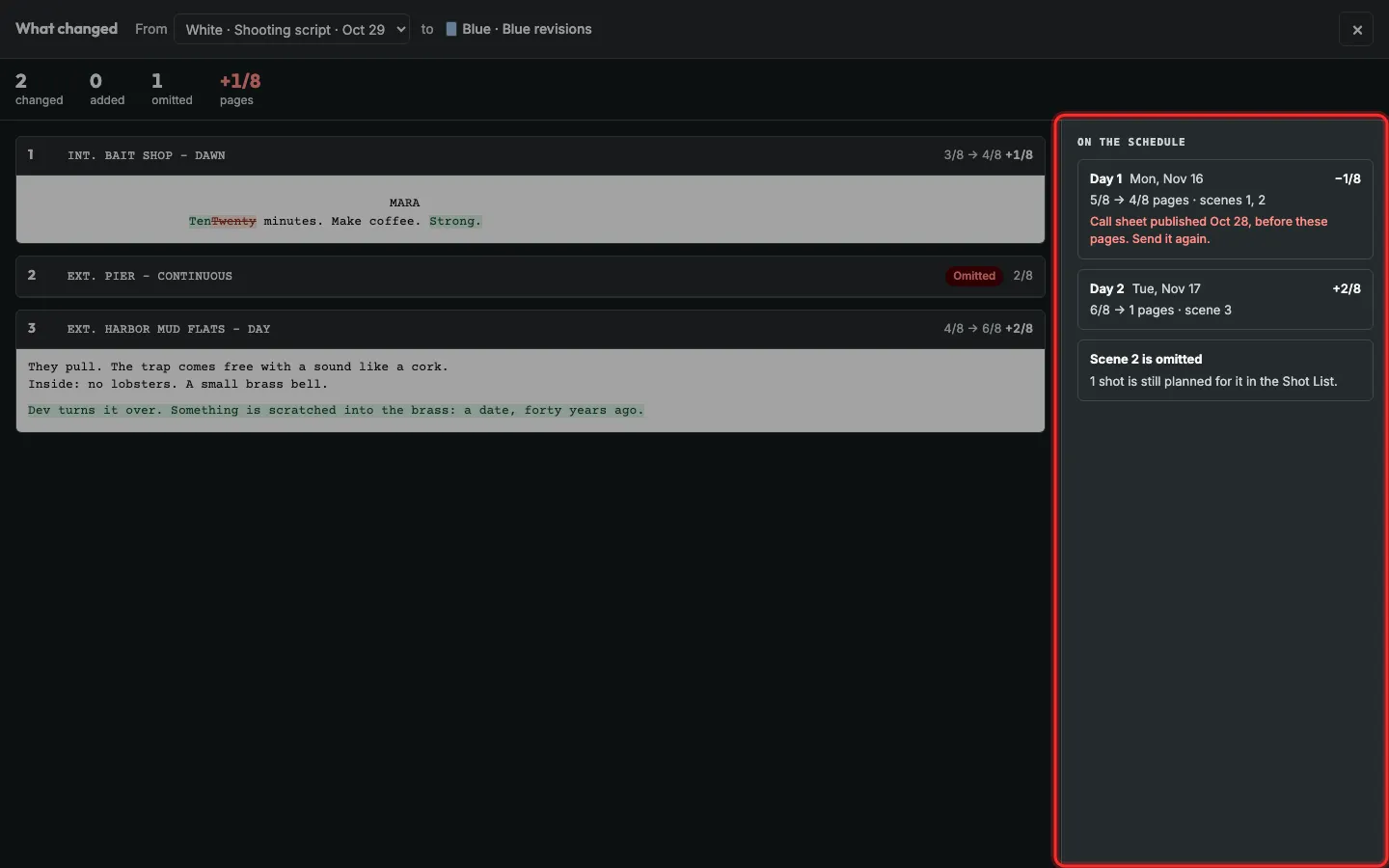
Step 5: To see what the changes do to the shoot, open Drafts and click What changed.
It lists each changed scene, the shoot days whose pages moved, and any call sheet sent before the change.
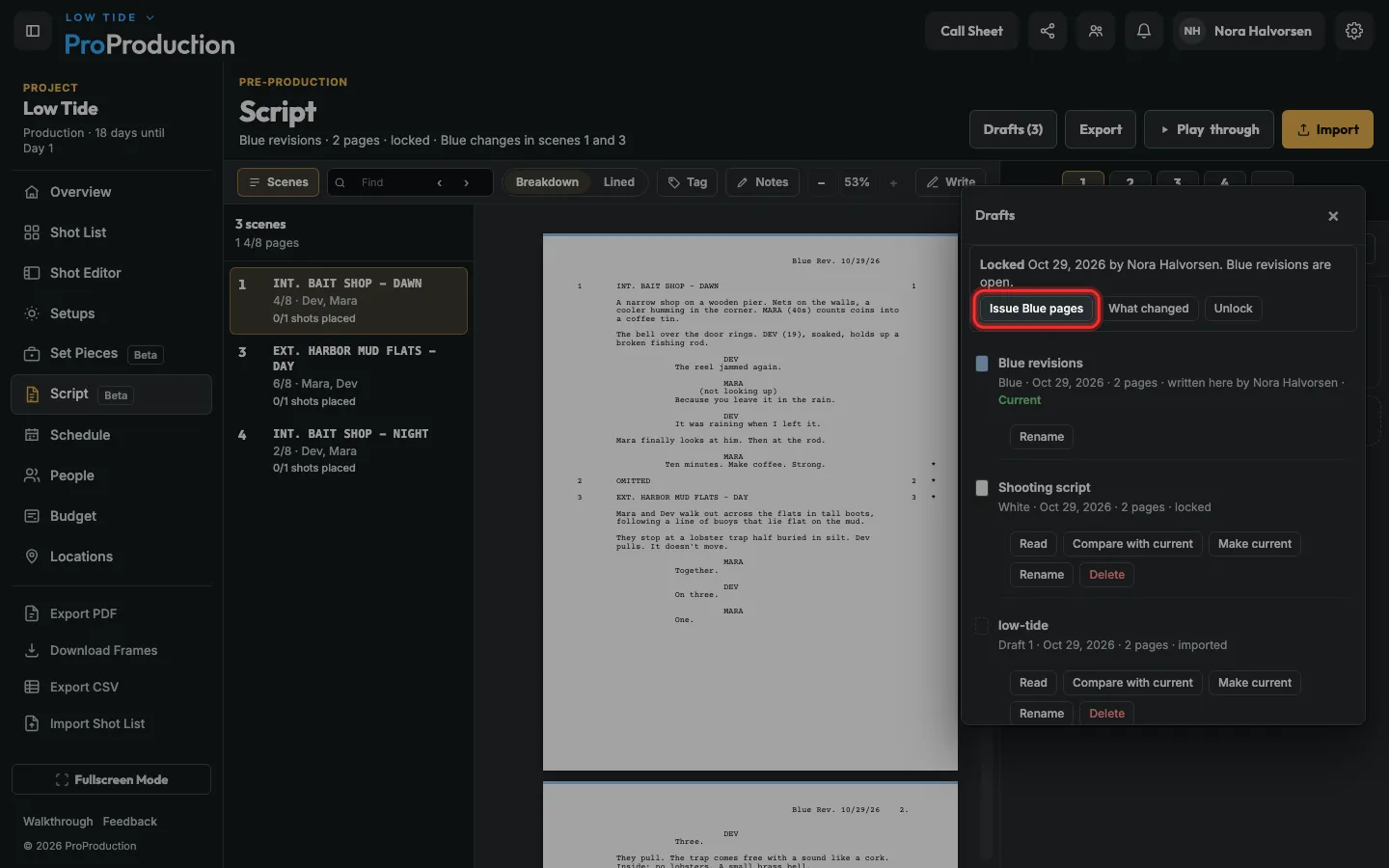
Step 6: When the pages go out, click Issue Blue pages, then Print Blue pages.
The next draft you save is Pink.
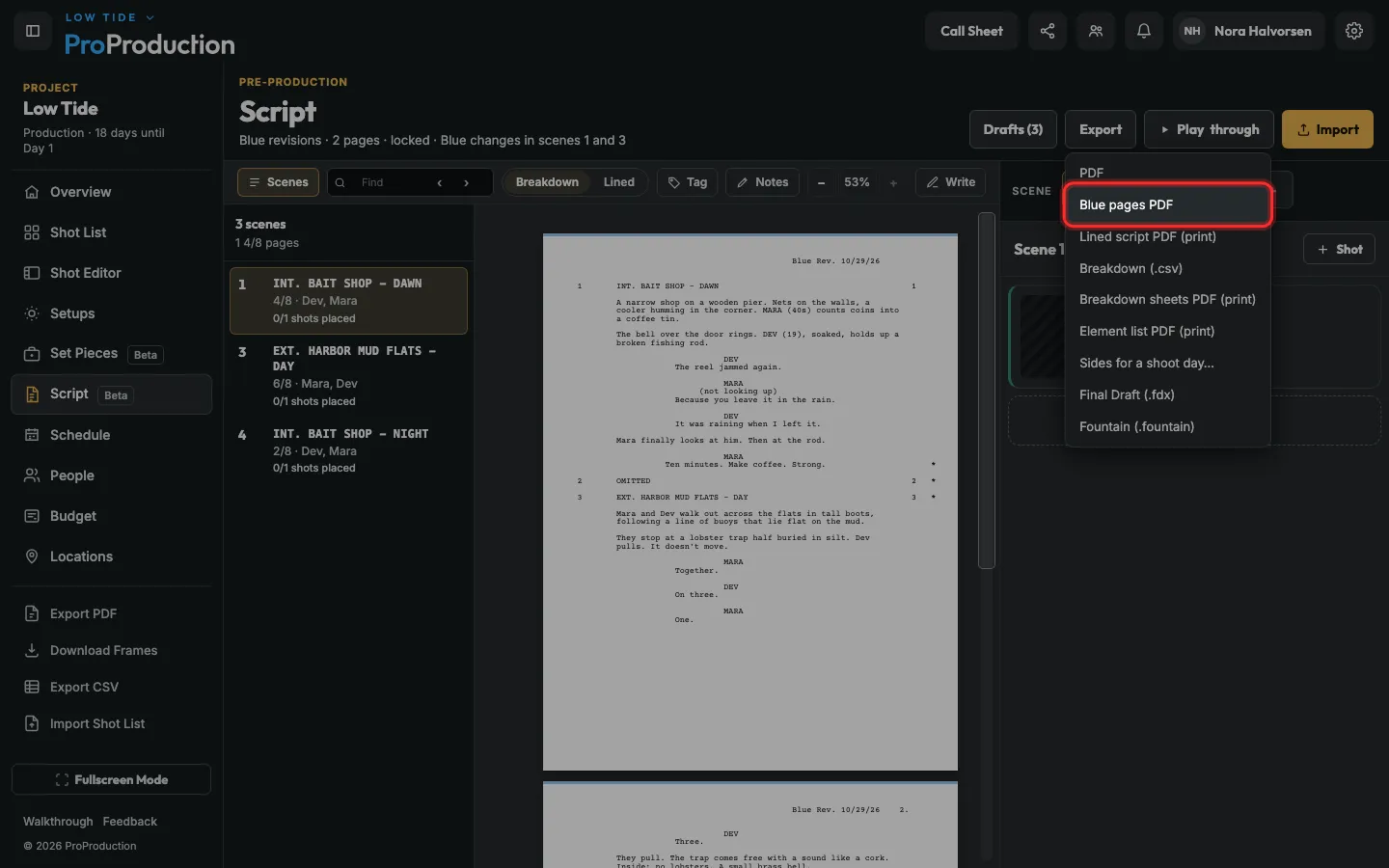
Step 7: To print them again later, click Export, then Blue pages PDF.
Still stuck?
Write to hello@proproduction.app. A person reads every message.