How do I make and send a call sheet?
Click Call Sheet, open the day, check Calls, Logistics and Preview, then on Send click Send to N people. Each person gets their own sheet and can confirm it.
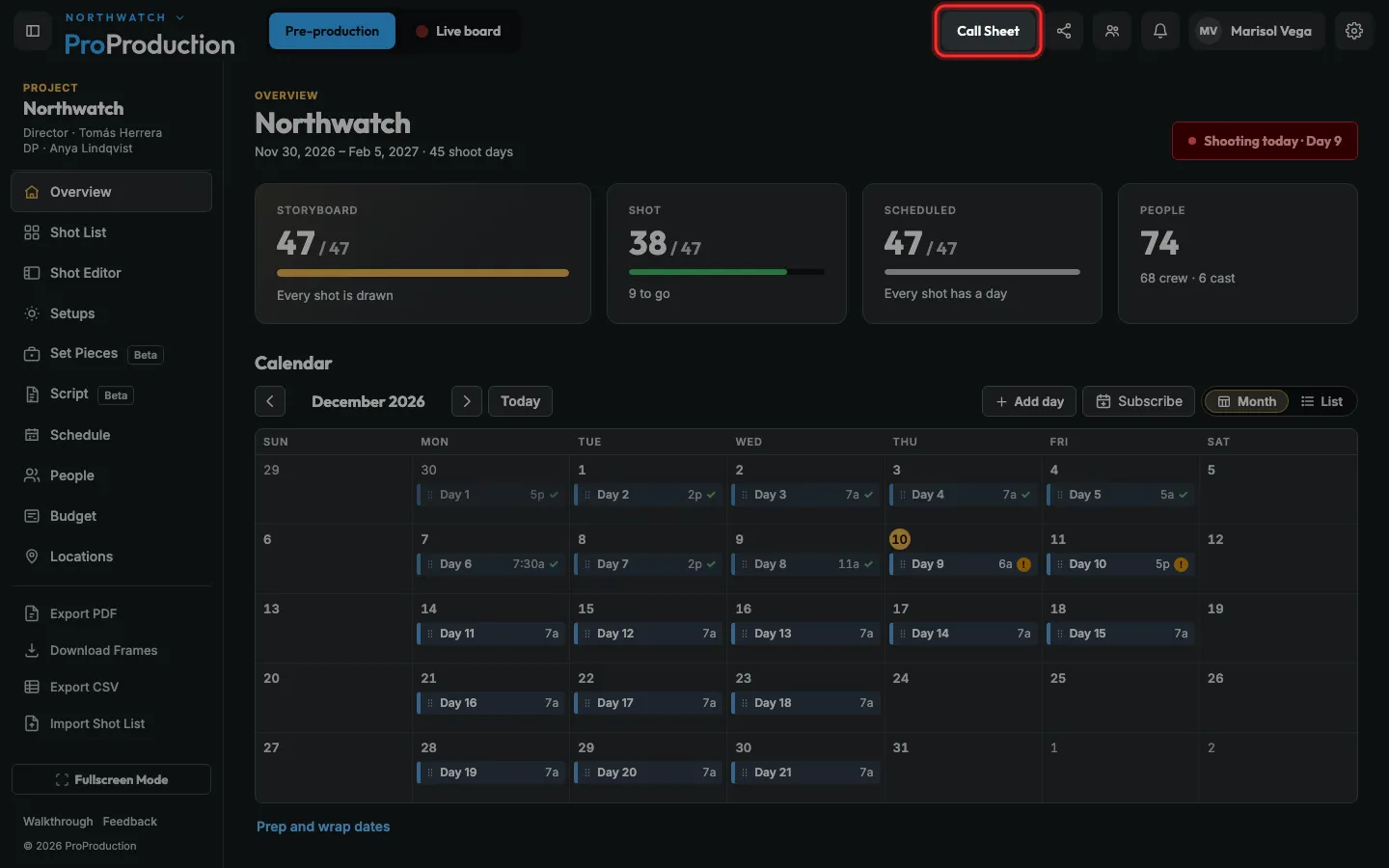
Step 1: Click Call Sheet at the top of any project page.
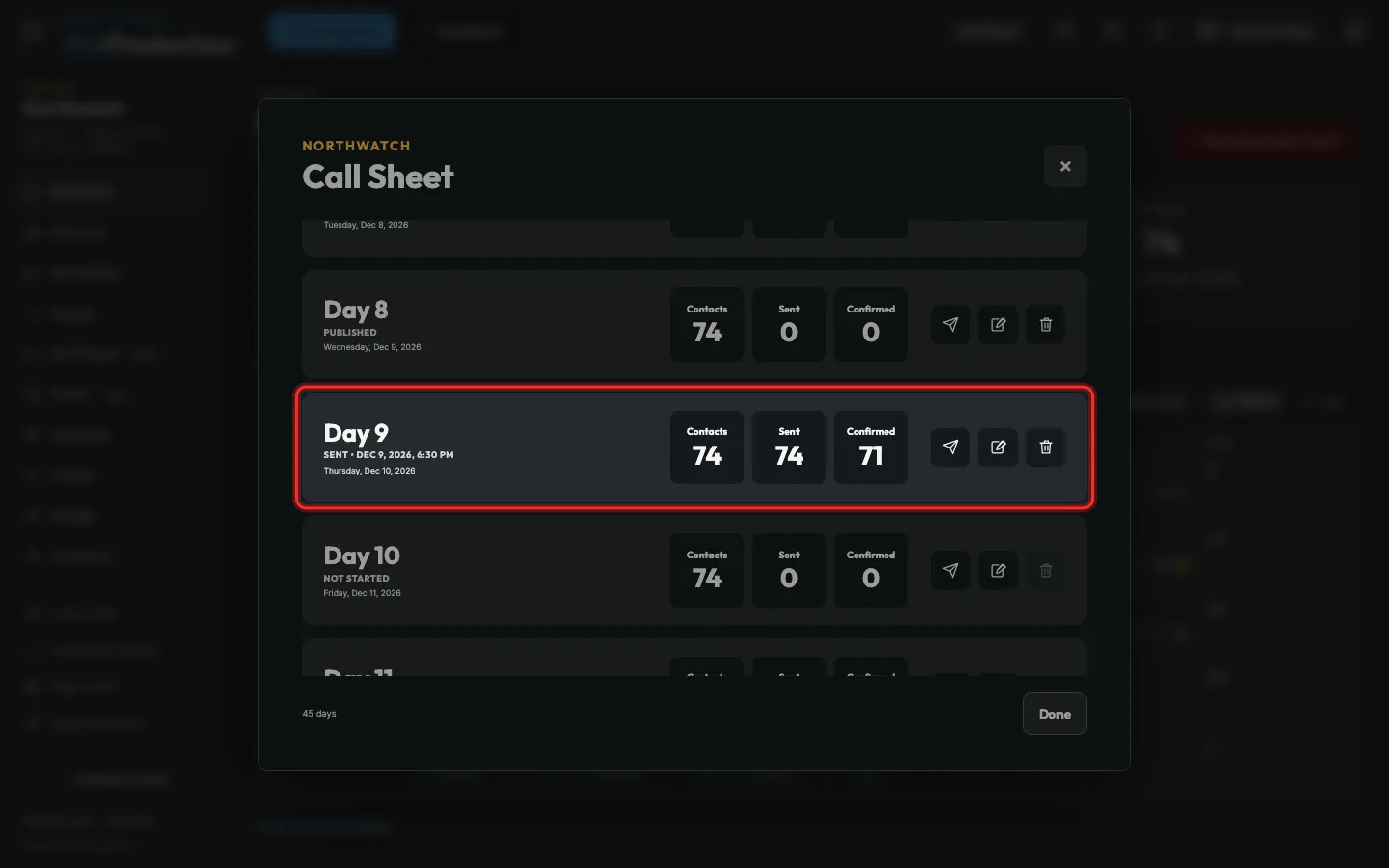
Step 2: Click the day you’re sending.
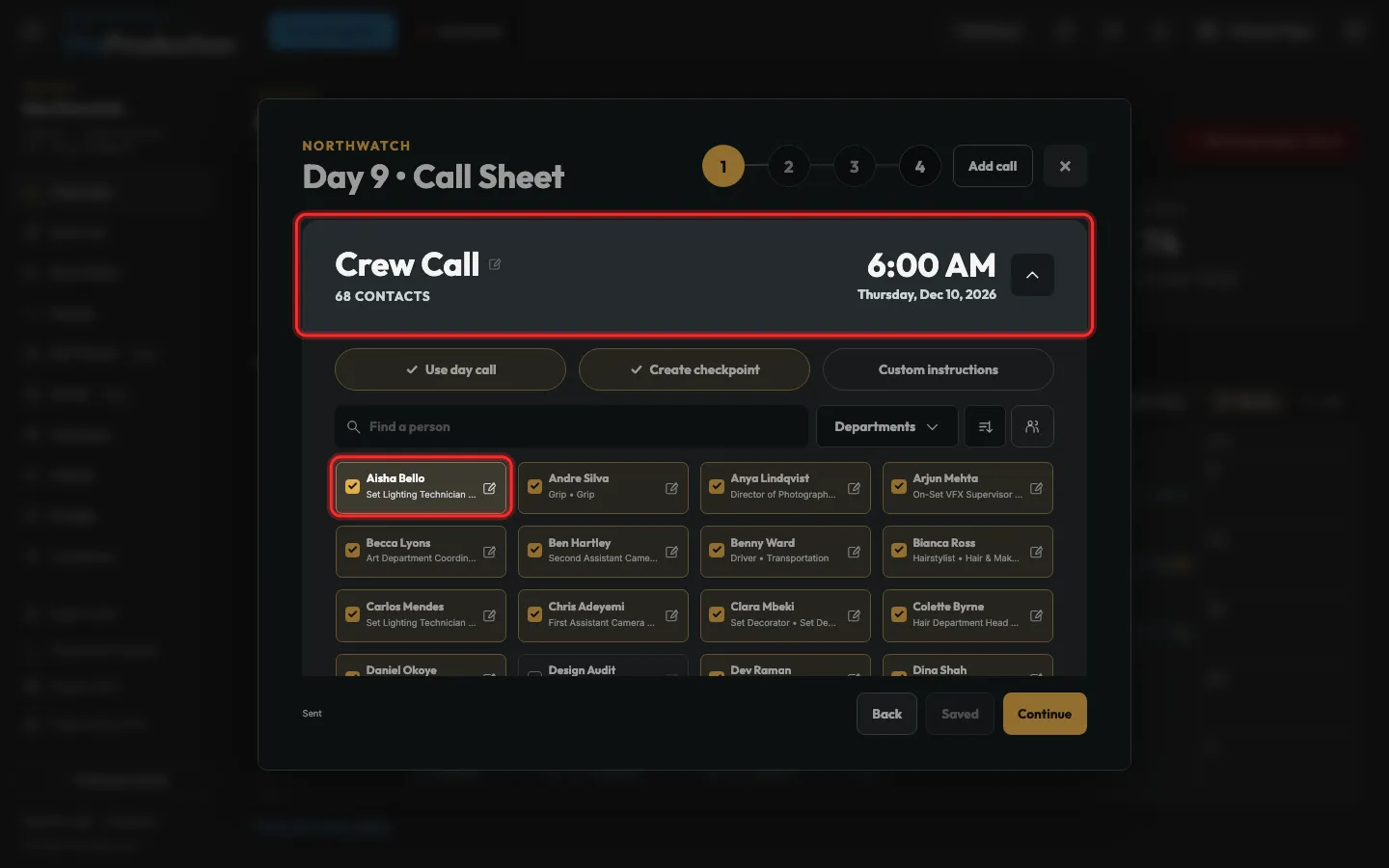
Step 3: On step 1, Calls, tick who’s called in each group.
Each group starts at the day’s call. Turn off Use day call to give a group its own time.
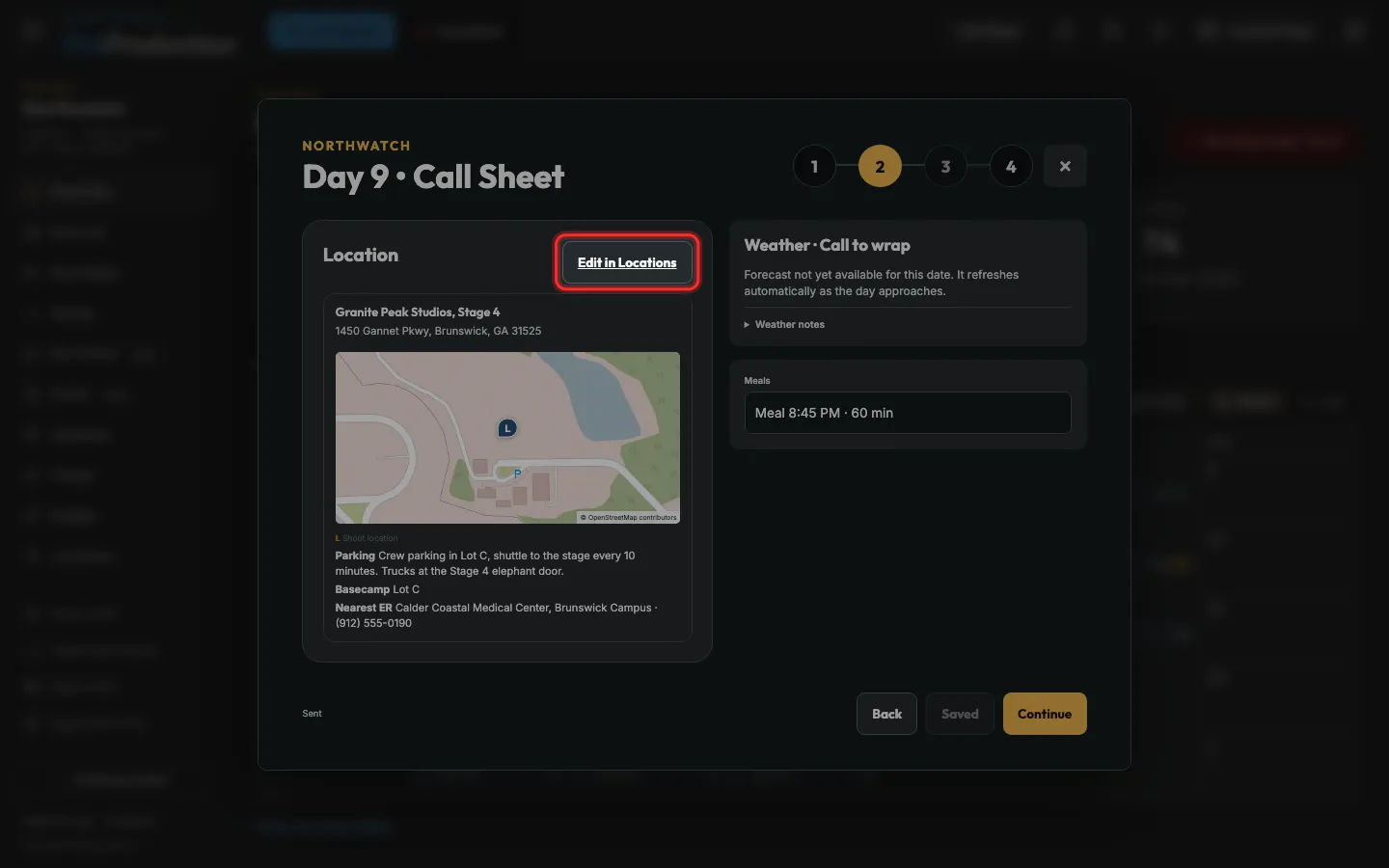
Step 4: On step 2, Logistics, check the address, parking and nearest ER, then click Continue.
They come from the day’s location. Edit in Locations changes them for every sheet that uses it.
Step 5: On step 3, Preview, pick a person to see the sheet exactly as they will.
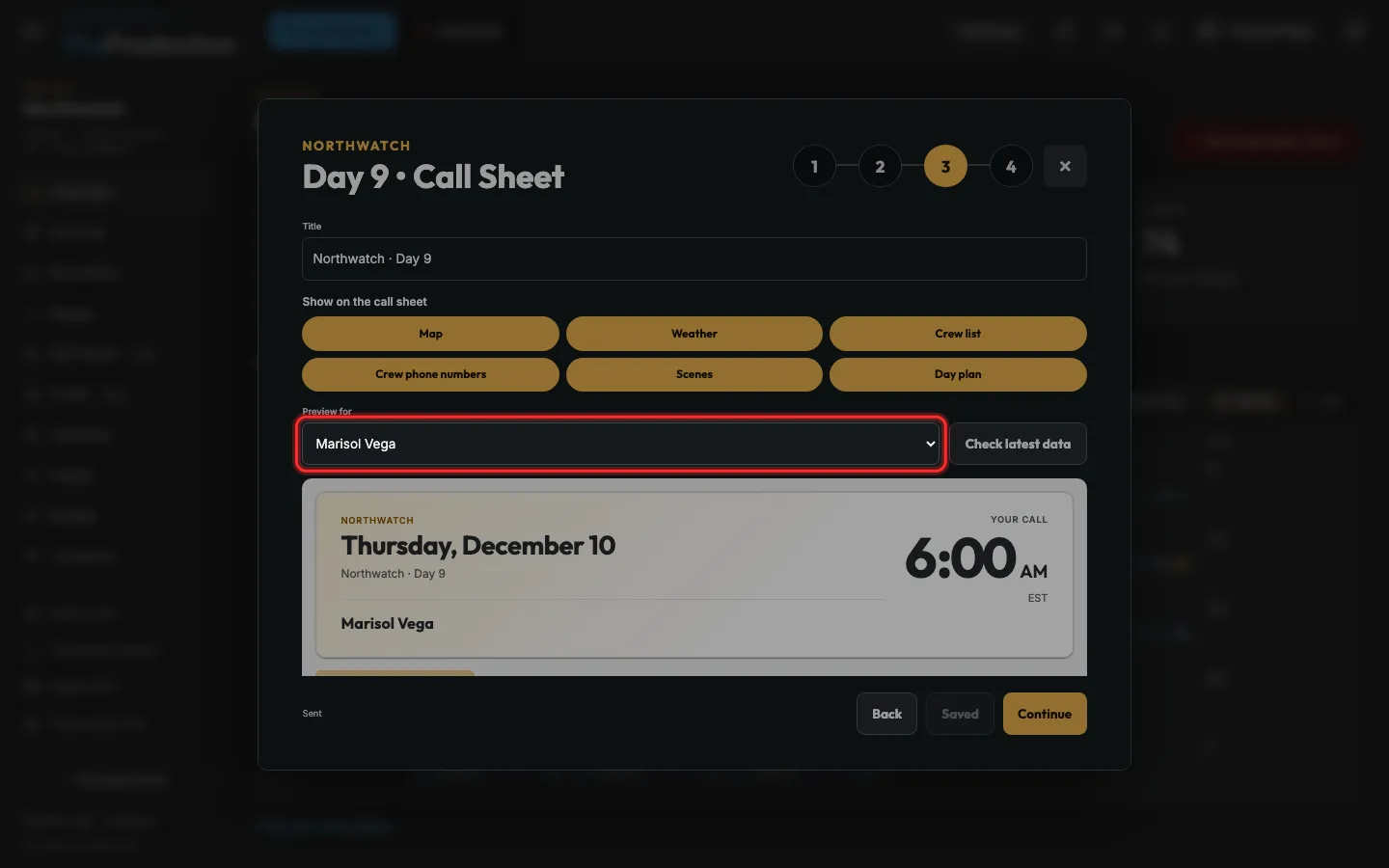
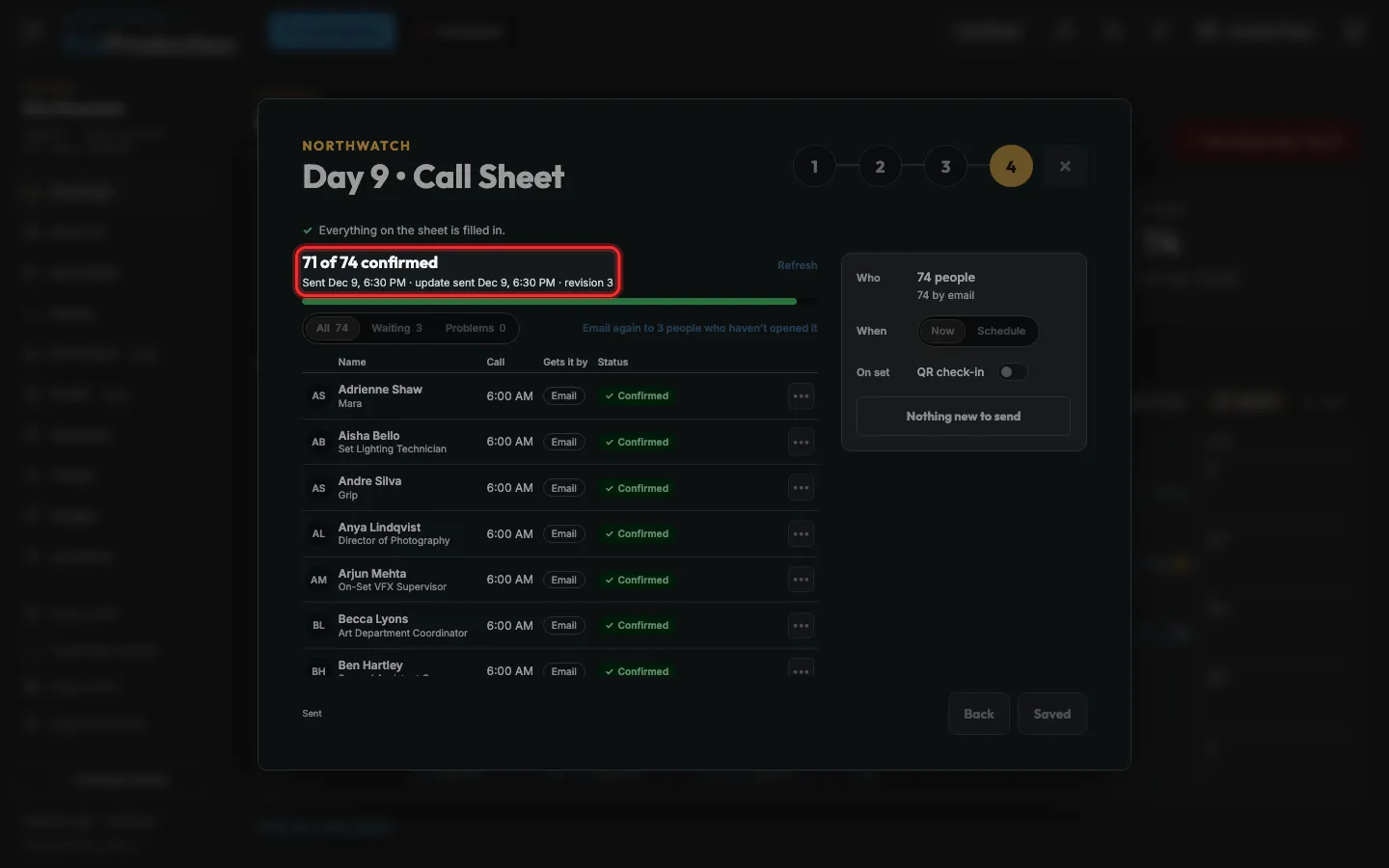
Step 6: On step 4, Send, check the roster: who gets it, how, and who has confirmed.
Anyone missing an email or phone number gets a Fix button.
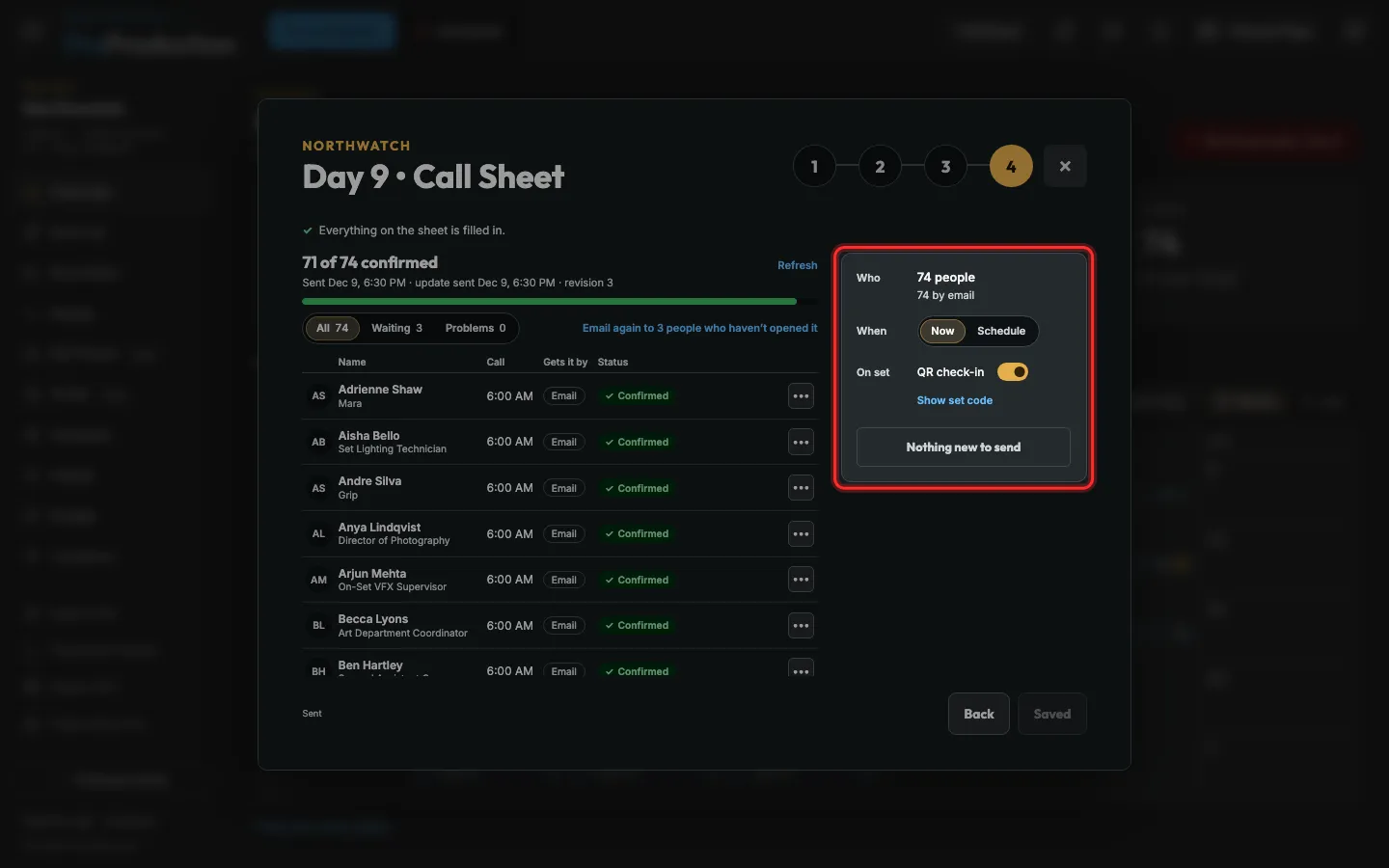
Step 7: Pick Now or Schedule, then click the send button.
It reads Send to N people the first time and Send update after changes. People who asked for texts get one too, and everyone can tap Confirm I’ve got it.
Still stuck?
Write to hello@proproduction.app. A person reads every message.