How do I run the shoot day on the Live board?
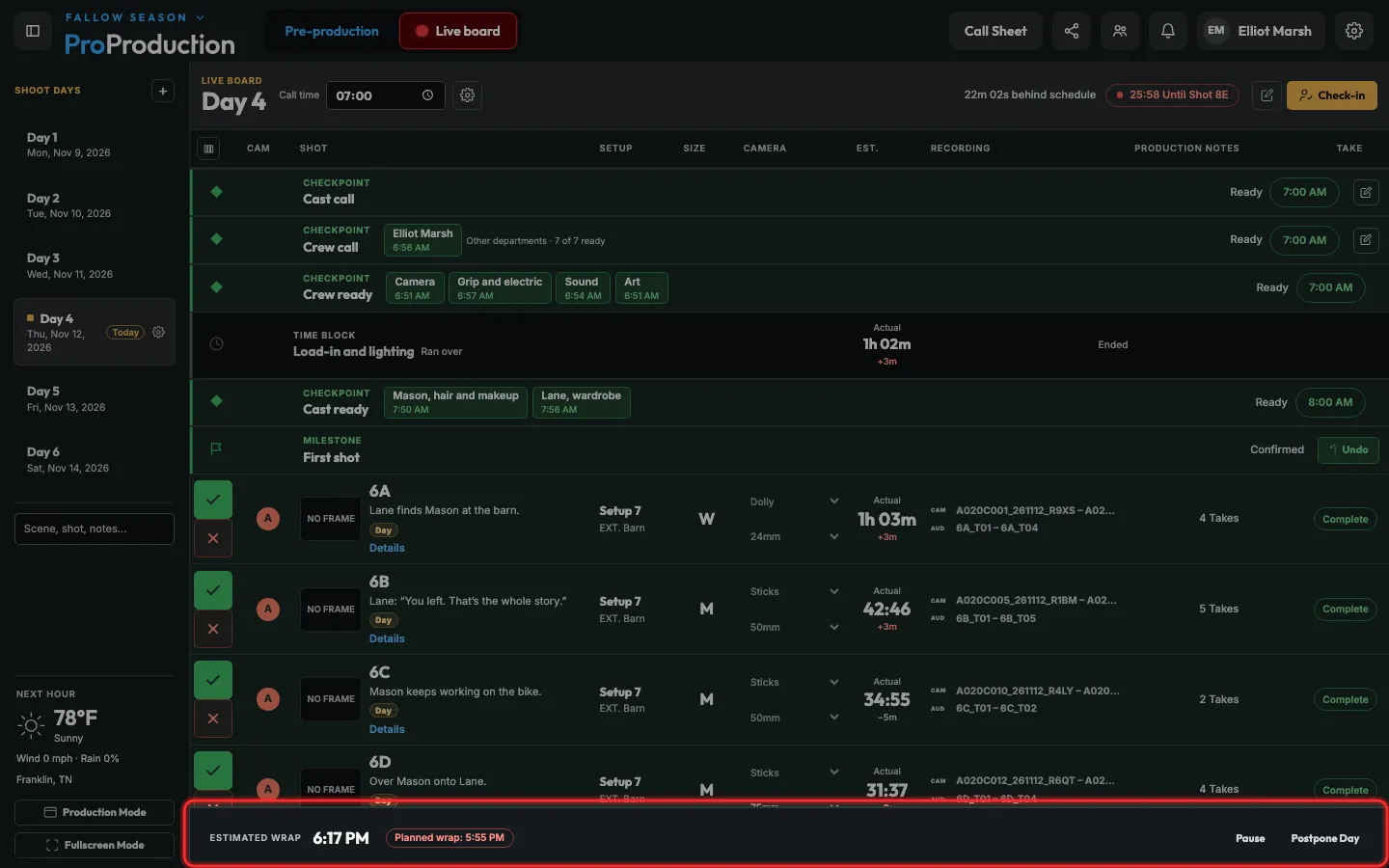
Open Live board. The day starts at its call time, the shot you’re on counts down, and you click the tick when it’s done. Estimated wrap at the bottom moves as you go.
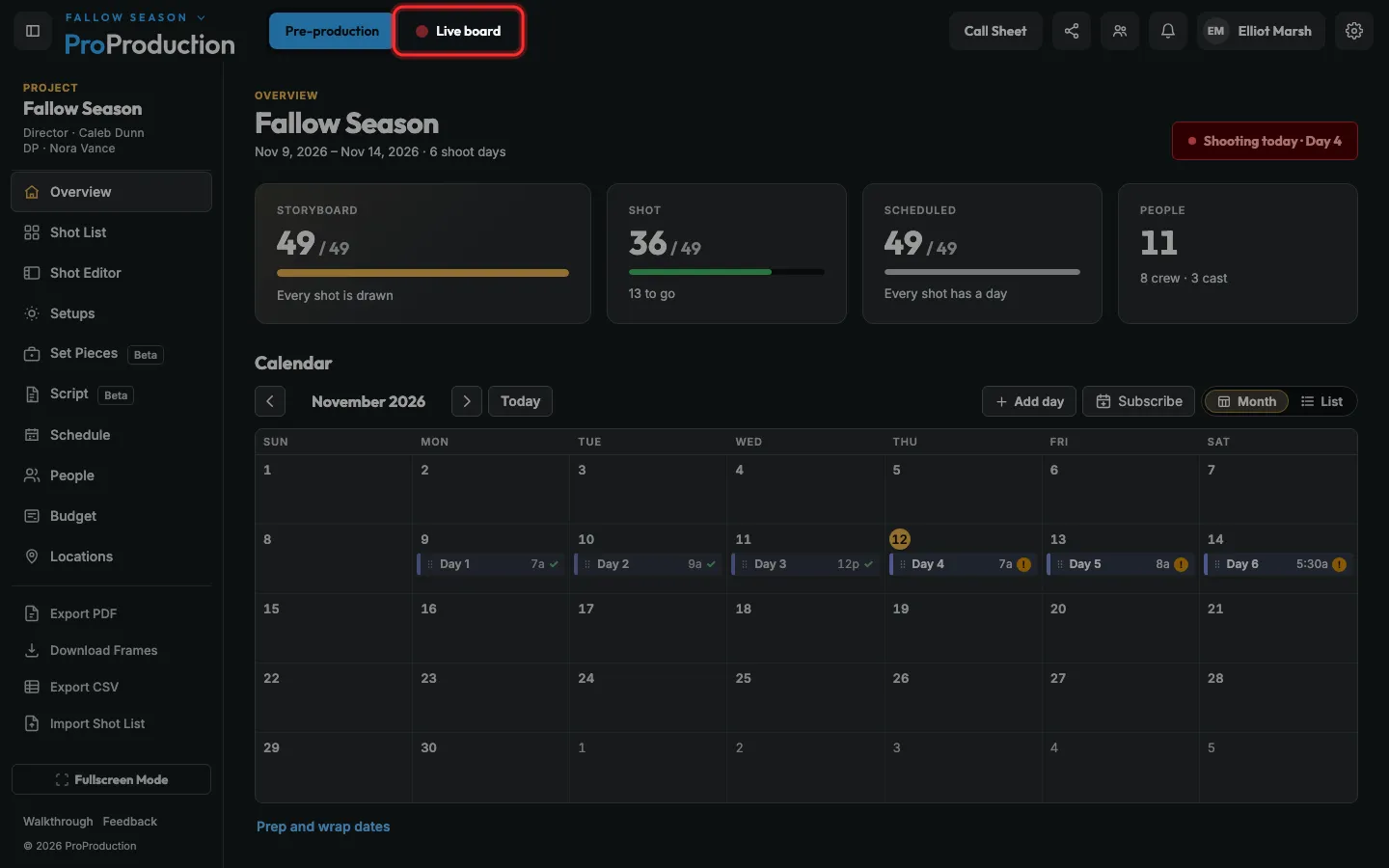
Step 1: Click Live board at the top of any project page.
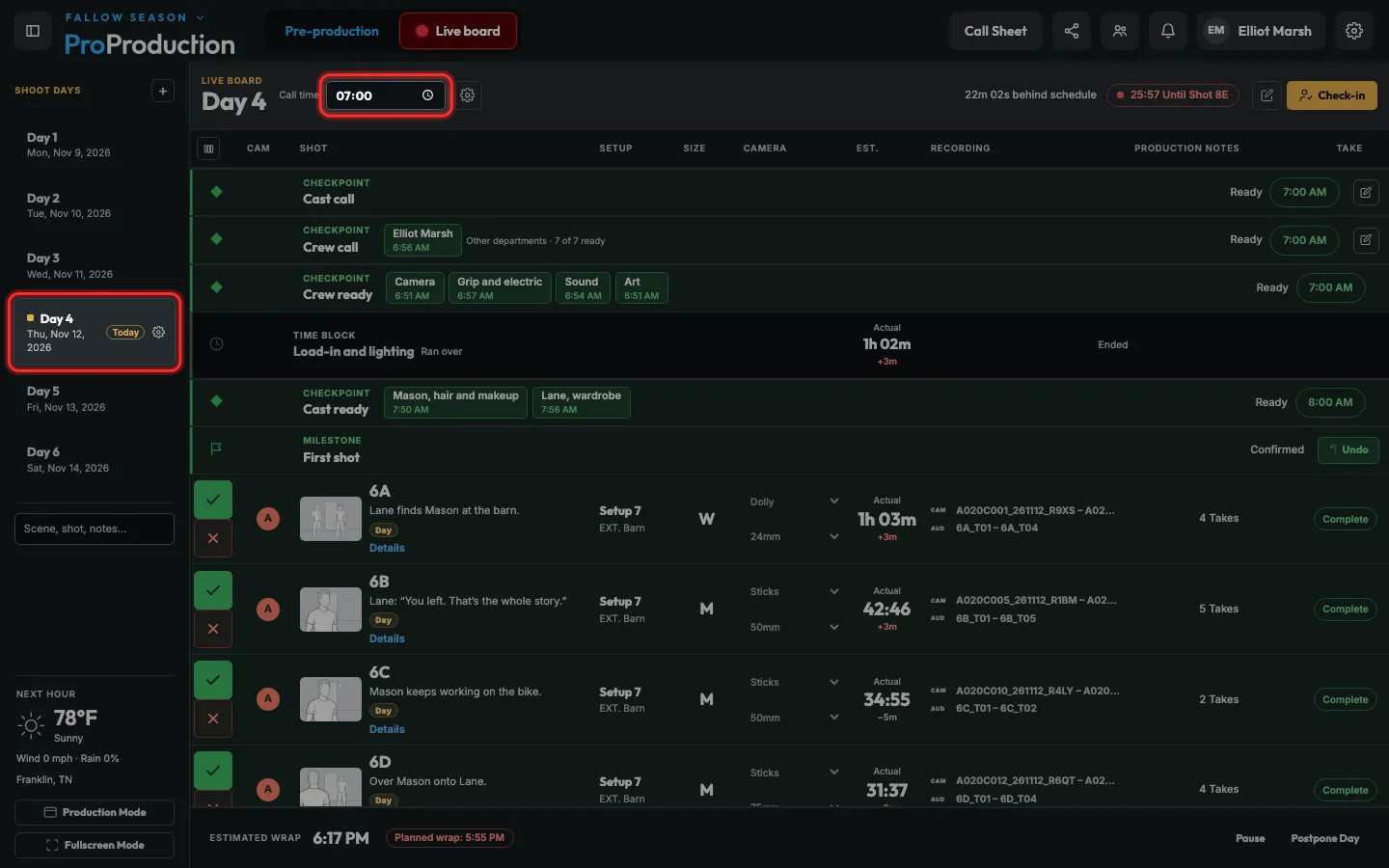
Step 2: Pick the day on the left and check its Call time.
There’s no start button: the clock starts at the call.
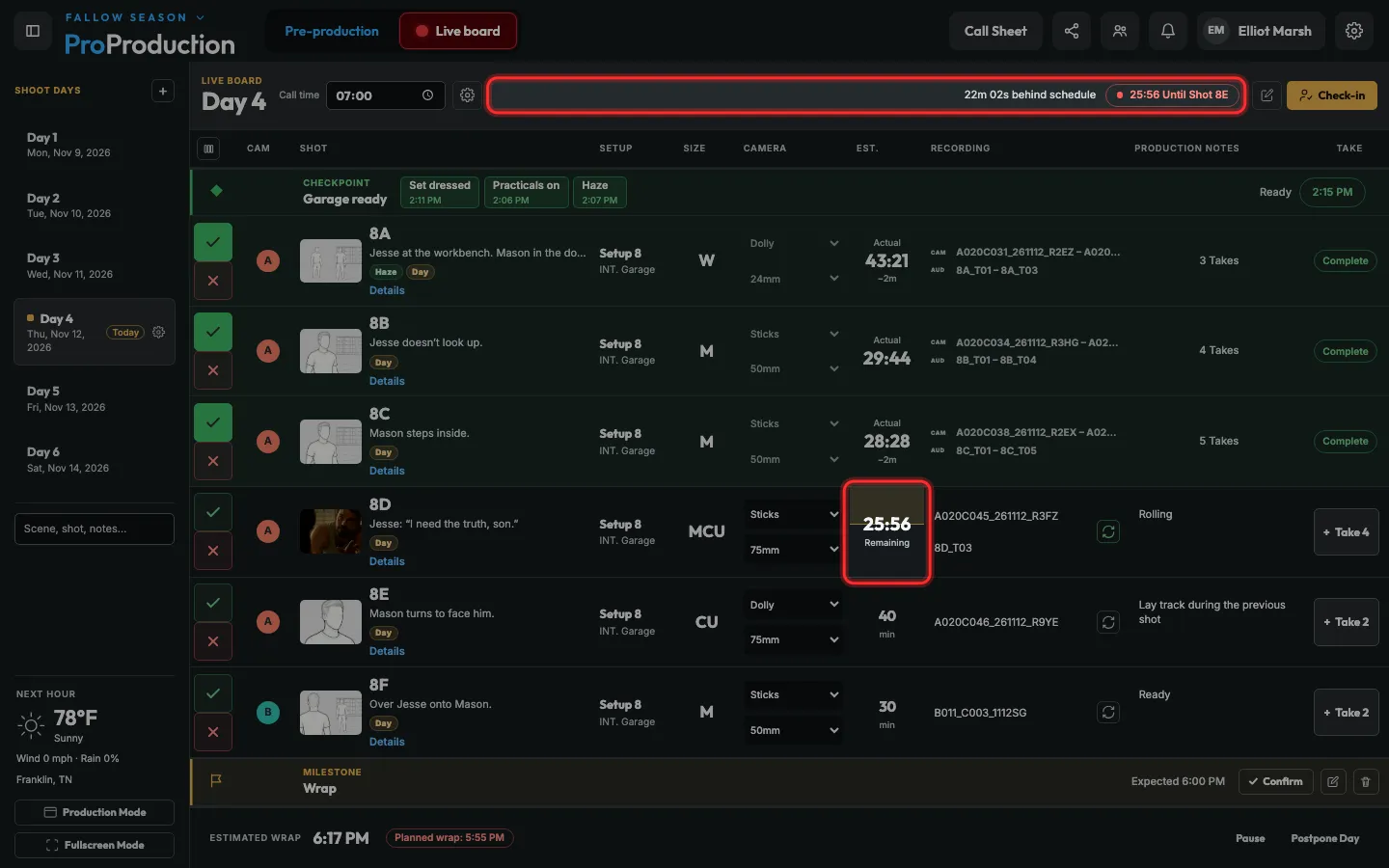
Step 3: The shot you’re on counts down. The top bar says how far ahead or behind you are.
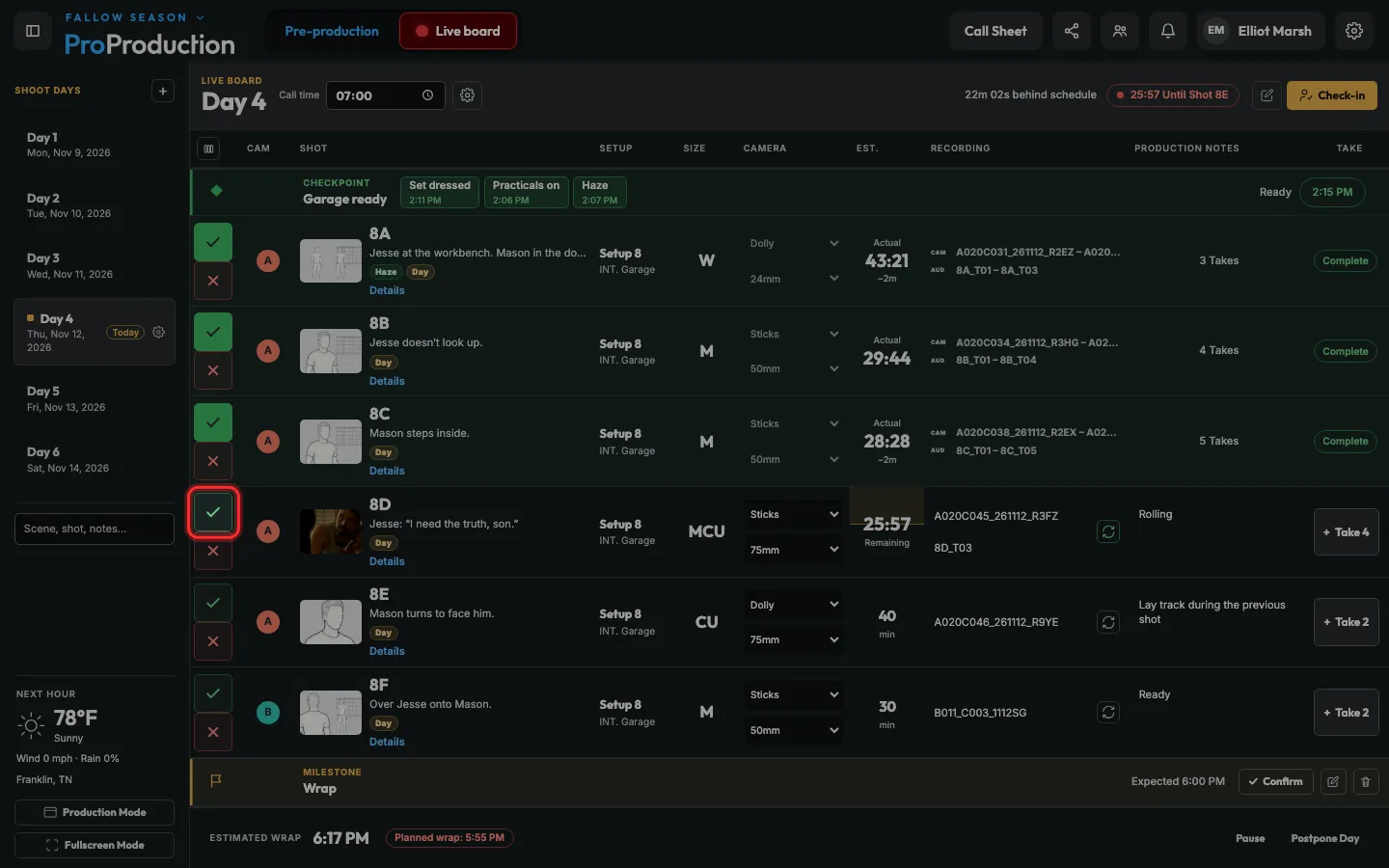
Step 4: When the shot’s done, click its tick.
The next shot starts counting. The cross beneath marks a shot canceled.
Step 5: Watch Estimated wrap at the bottom against the planned wrap.
Pause stops the clock for weather or a break. Postpone Day moves what’s left to another day. Both ask why.
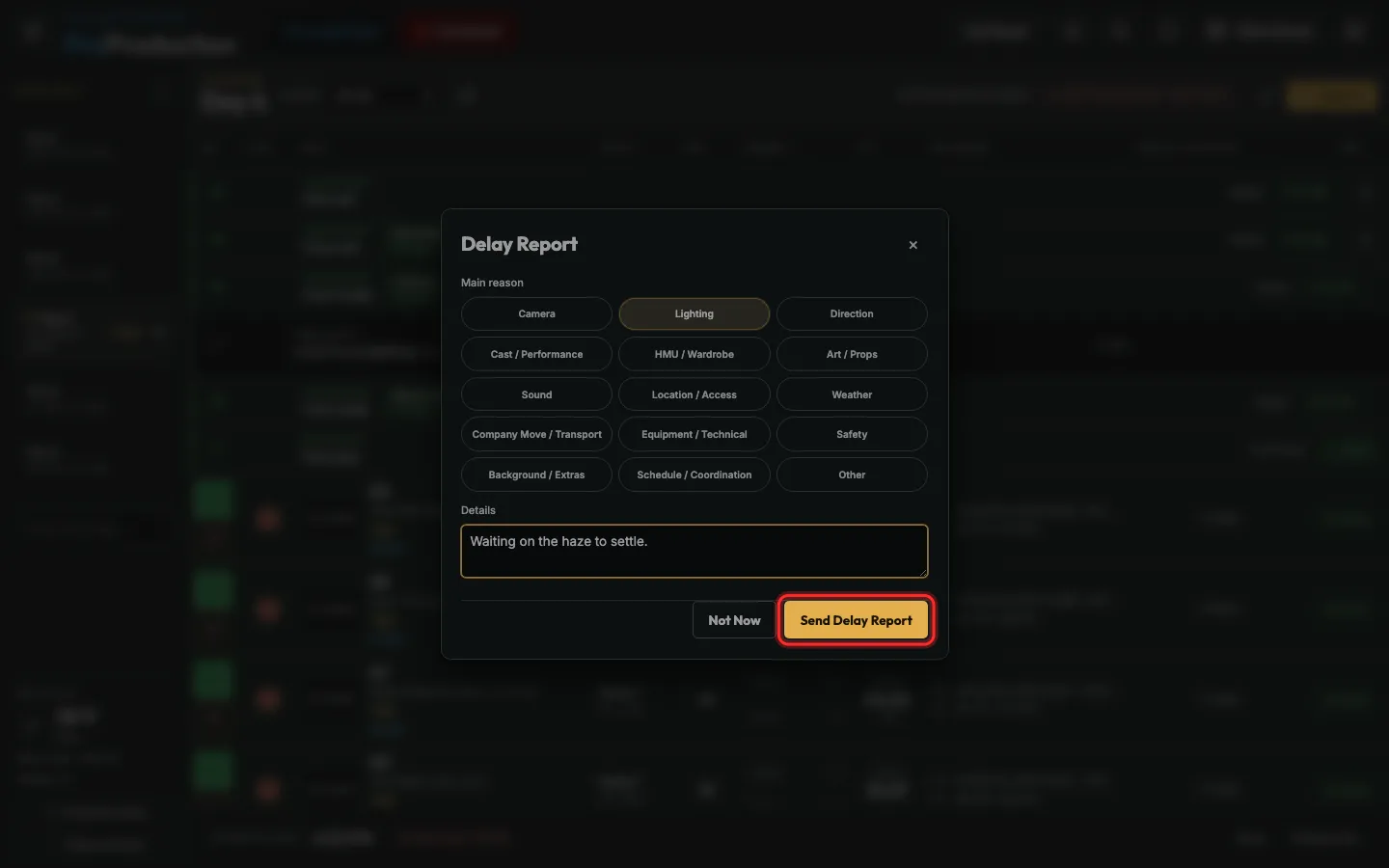
Step 6: Running five minutes over, it asks what happened. Pick the reason and click Send Delay Report.
Delays go into the Day Report PDF. Not Now puts it off.
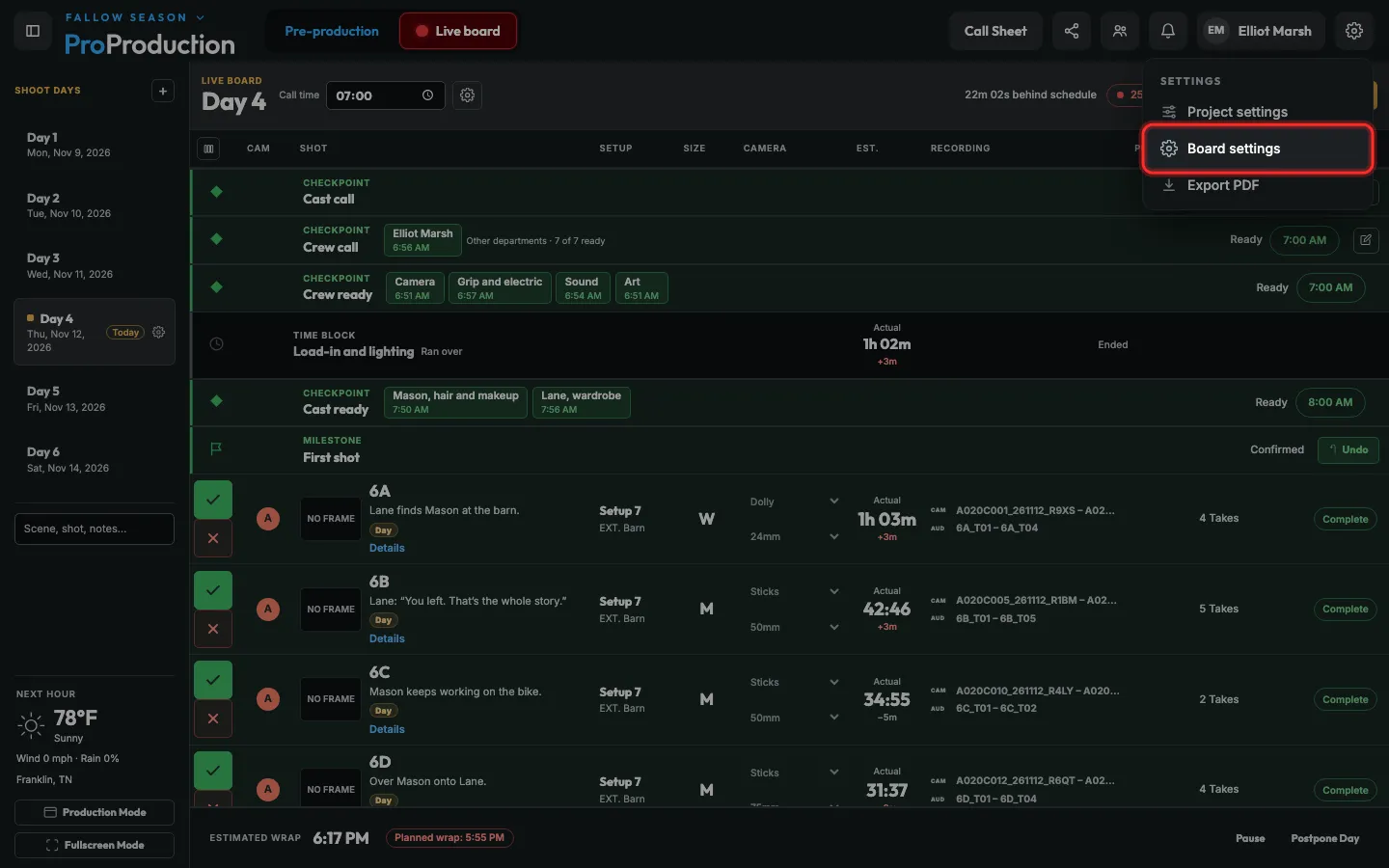
Step 7: To turn delay prompts, camera control or the live stream on or off, click the gear, then Board settings.
Still stuck?
Write to hello@proproduction.app. A person reads every message.