How do I set up my company as an organization, with teams and Spaces?
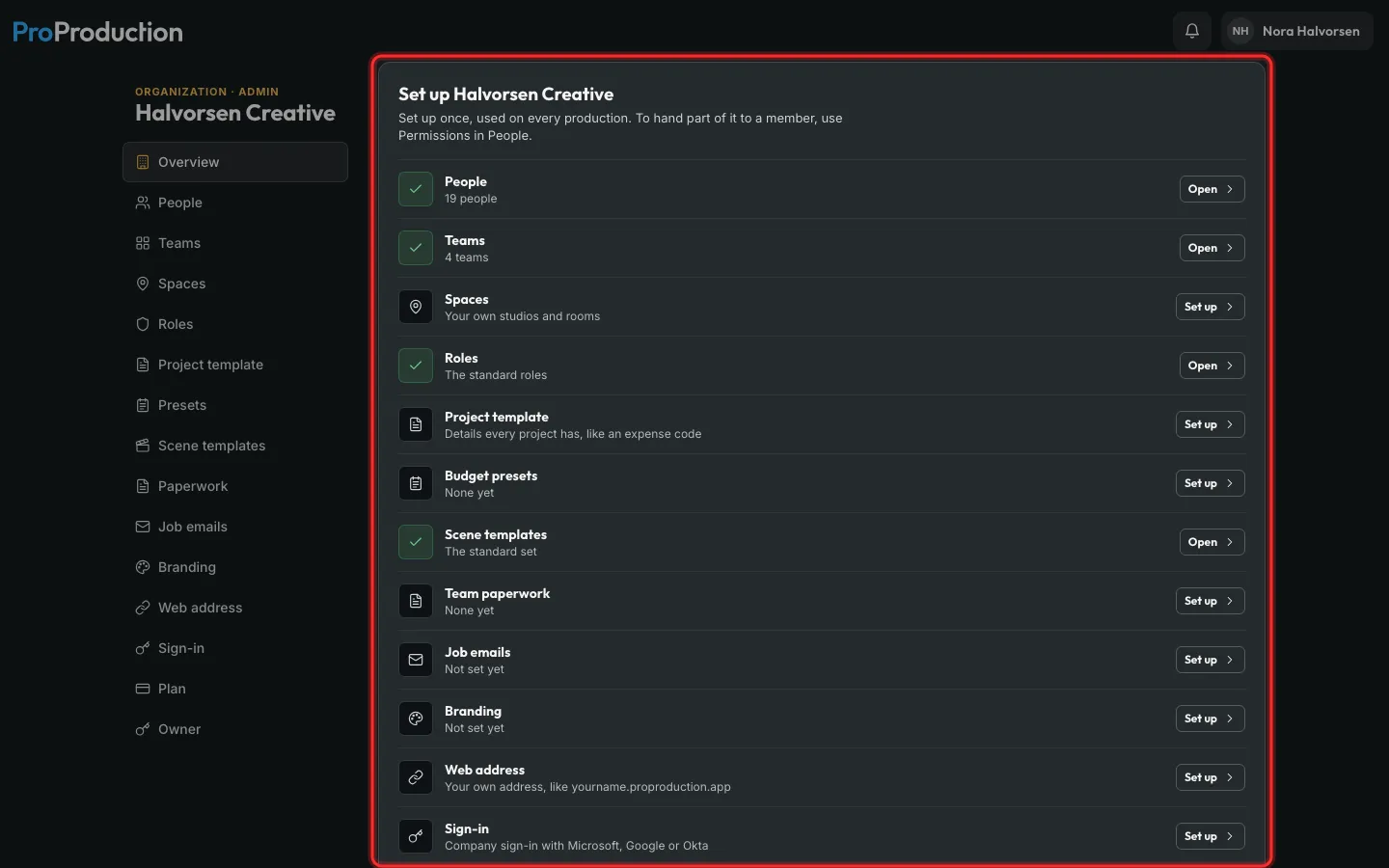
Start an organization from Plan & billing. Its Organization area has a checklist: add teams for the groups who work together, and Spaces for your own stages, with their buildings drawn once.
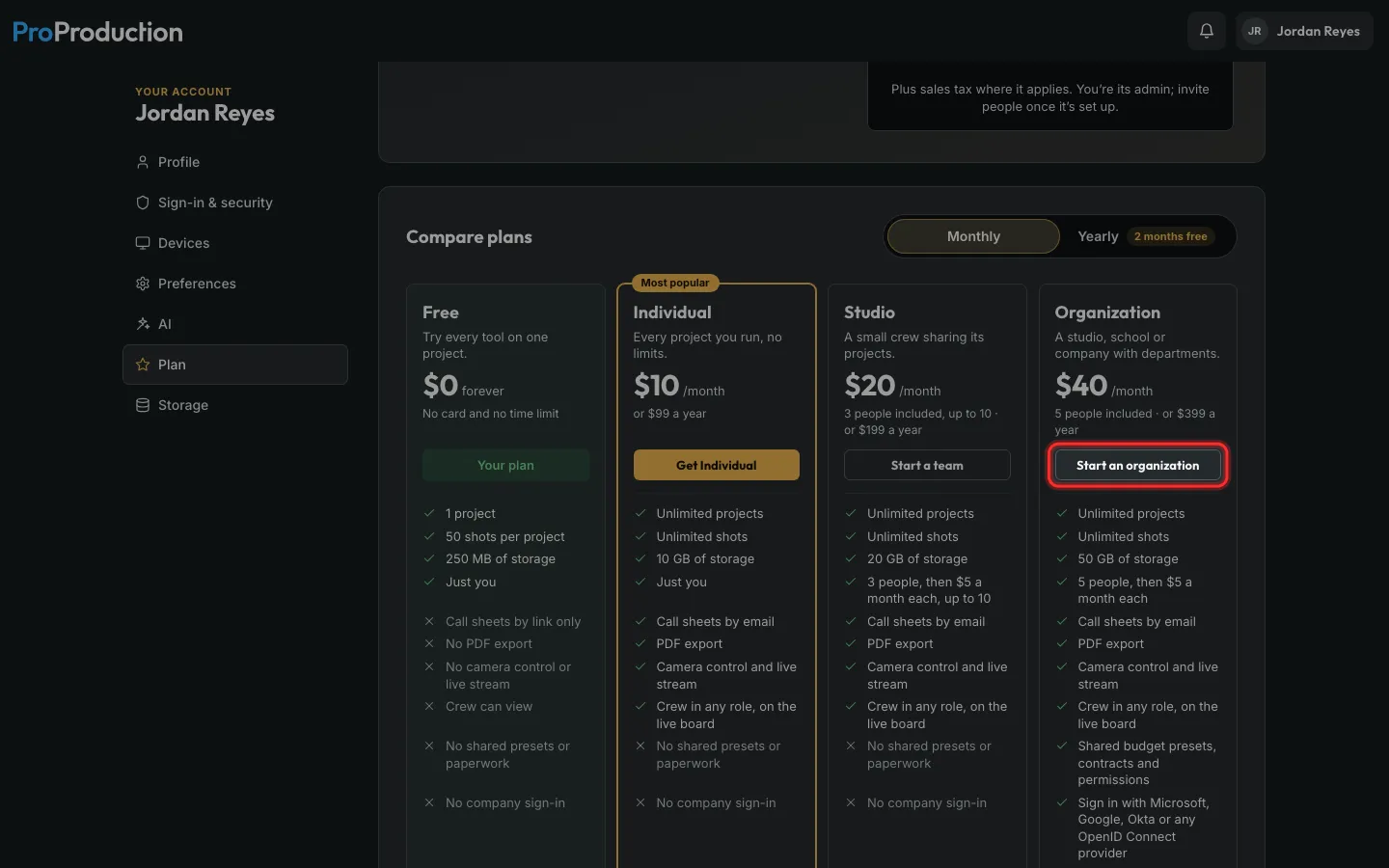
Step 1: On Plan & billing, click Start an organization.
Studio is one team of up to 10. Organization has as many teams as you need.
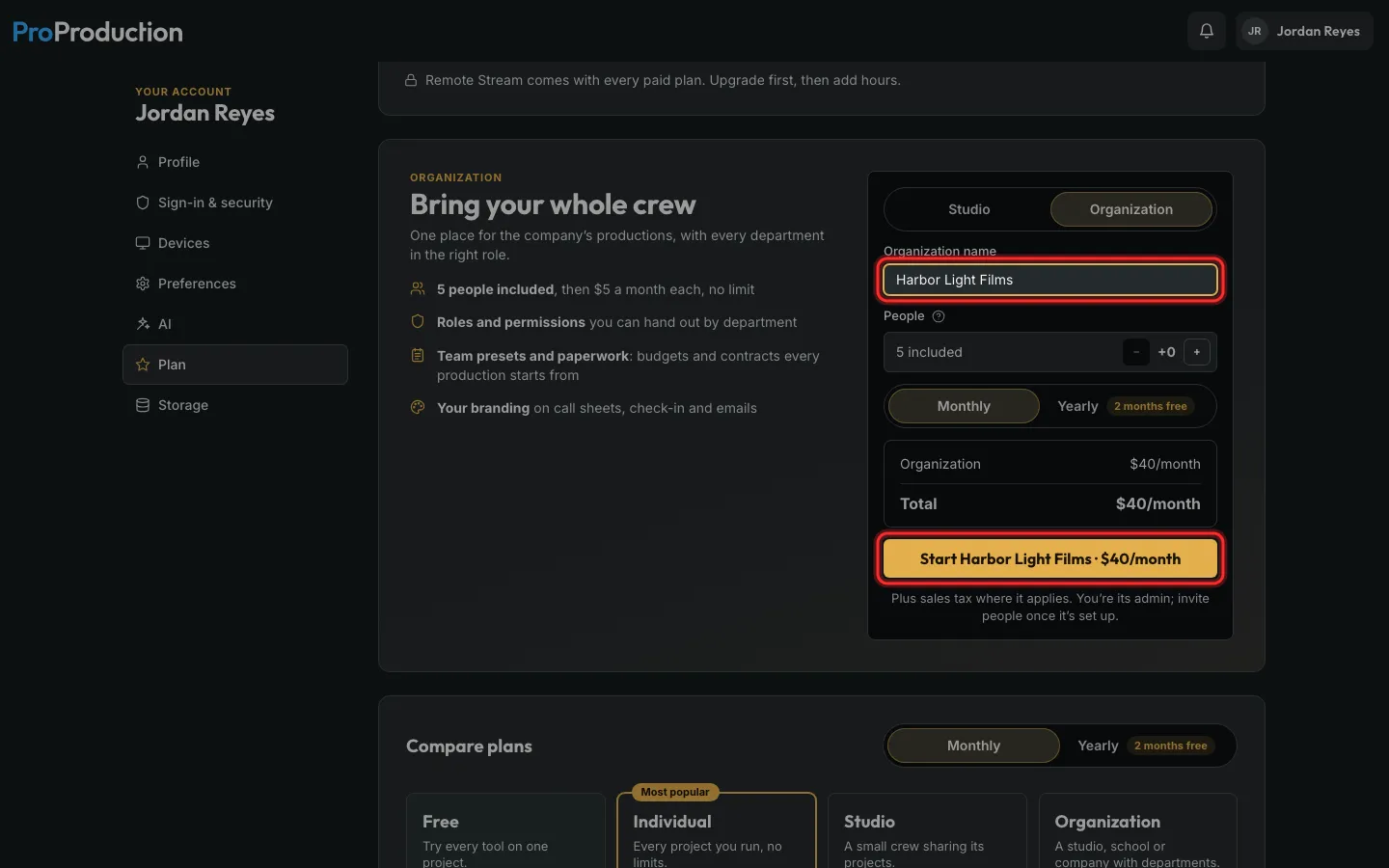
Step 2: Name it, choose how many people, and click Start. You pay on Stripe’s page.
Step 3: Your Organization area opens on a checklist. Each row has Set up or Open.
It’s in the account menu, under your organization’s name.
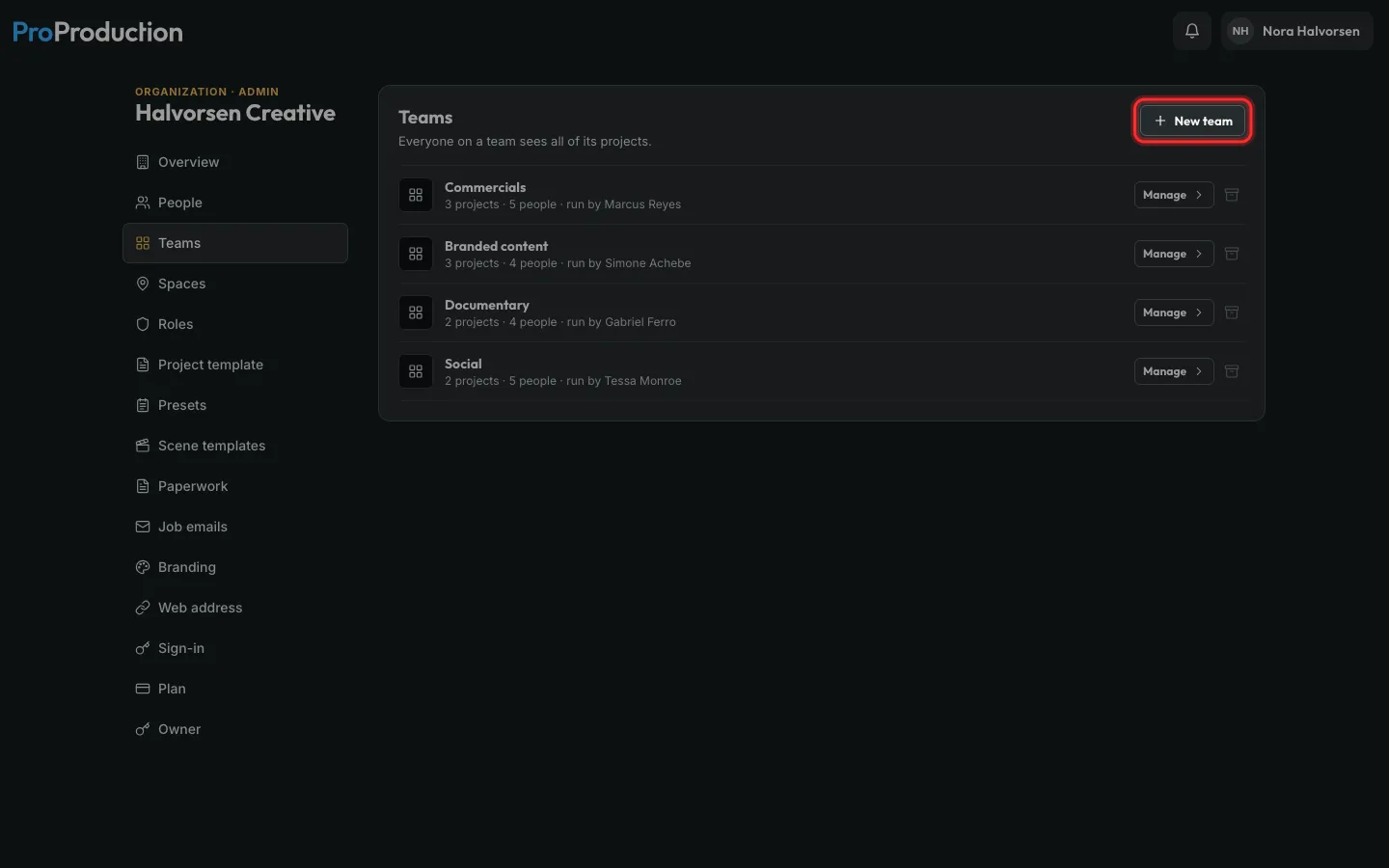
Step 4: In Teams, click New team and name it, like Commercials.
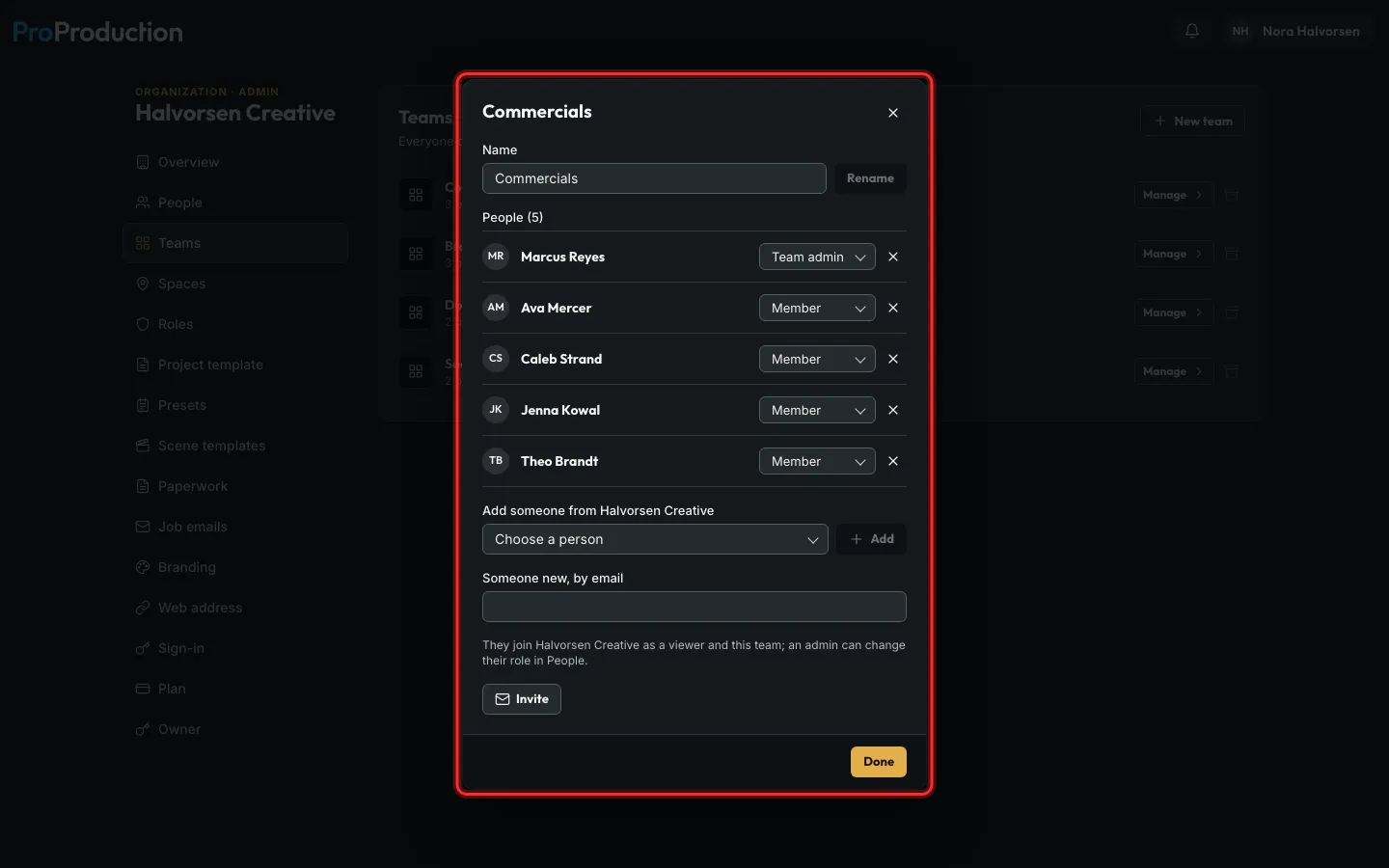
Step 5: Click Manage on a team to add people and give each a role there.
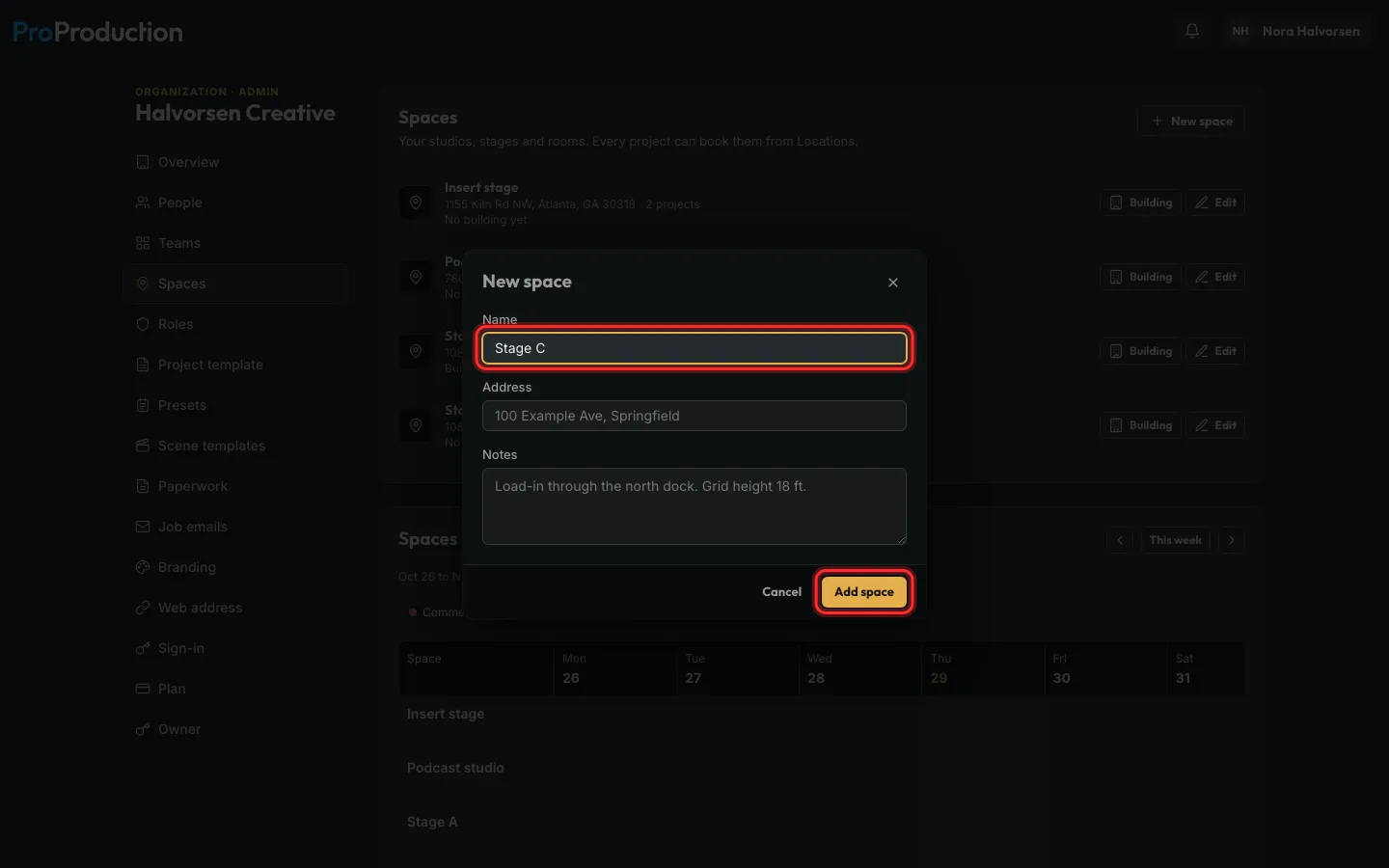
Step 6: In Spaces, click New space, give its name and address, and click Add space.
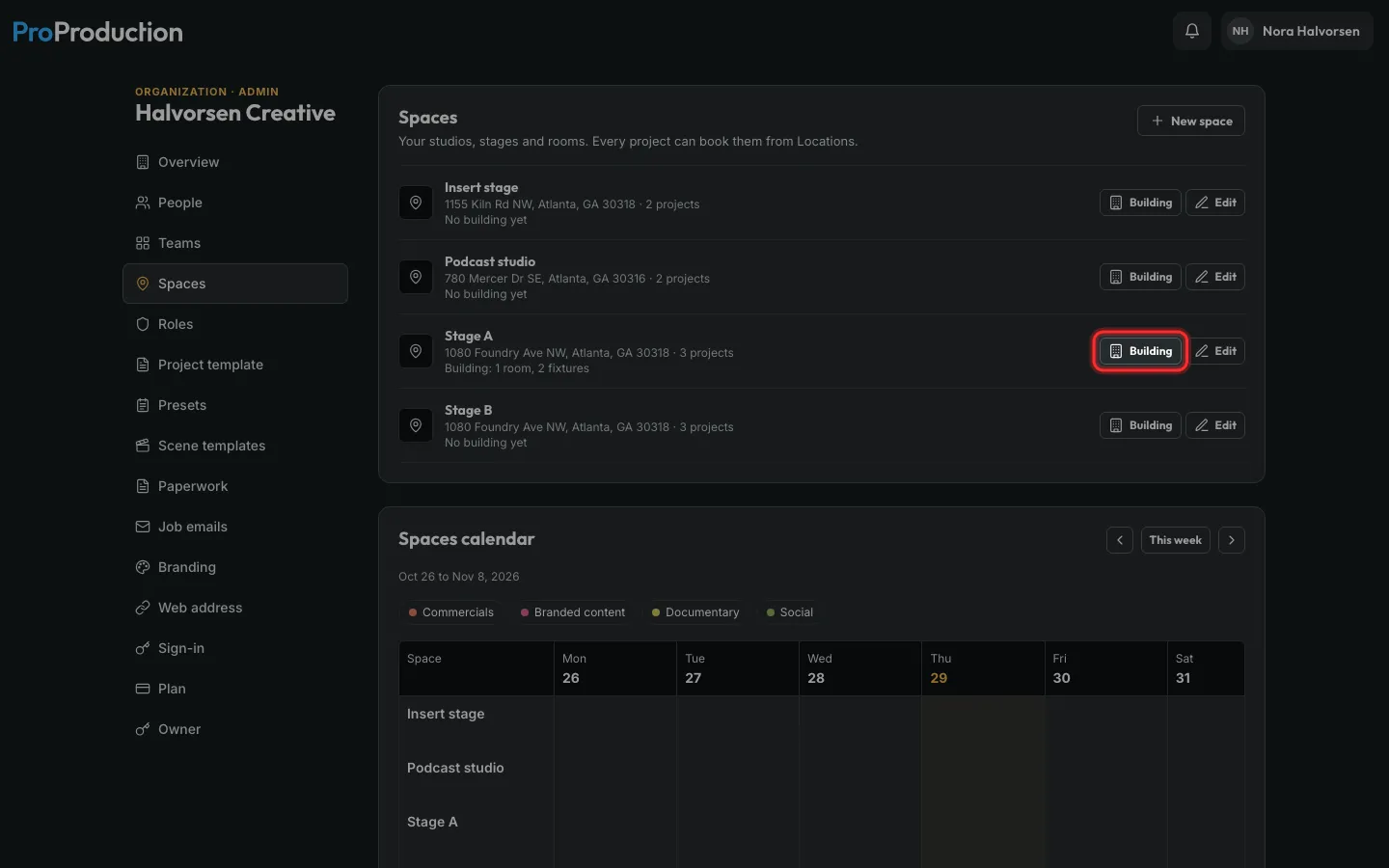
Step 7: Click Building on a space to draw it.
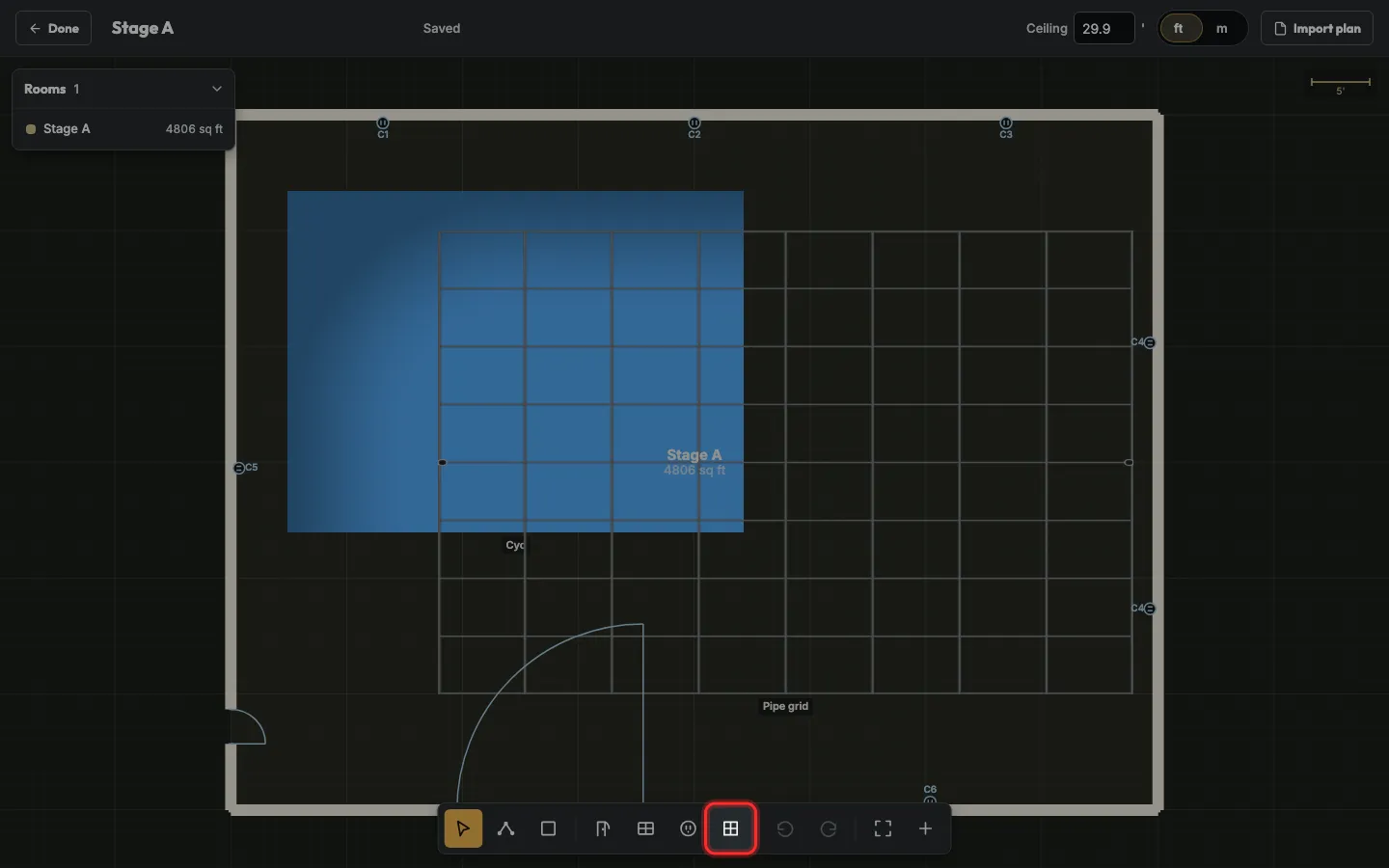
Step 8: Draw its walls and outlets like any building, then click Add a fixture for what never moves: a grid, a cyc, rigging points.
Every project that books the space shoots in this building. Only admins and people you give Spaces to can change it.
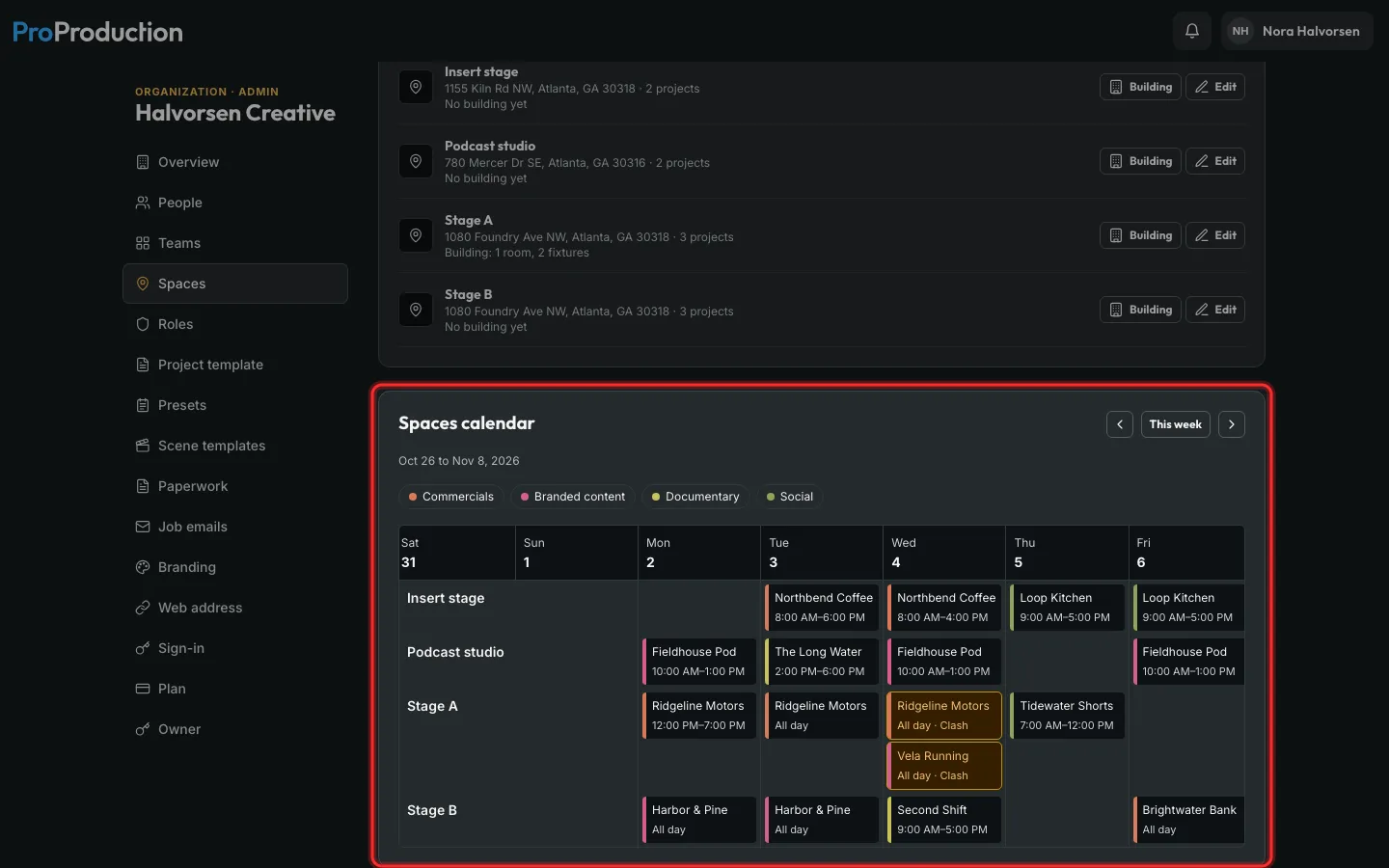
Step 9: Projects book a space from Locations. The Spaces calendar shows who has which one.
Two projects in one space on the same day show a clash, on the Schedule and the call sheet too.
Still stuck?
Write to hello@proproduction.app. A person reads every message.