How do I set up single sign-on with Microsoft, Google or Okta?
In the Organization area, open Sign-in, pick your provider and paste the IDs your IT team gives you. Verify your email domain, test it, then turn it on.
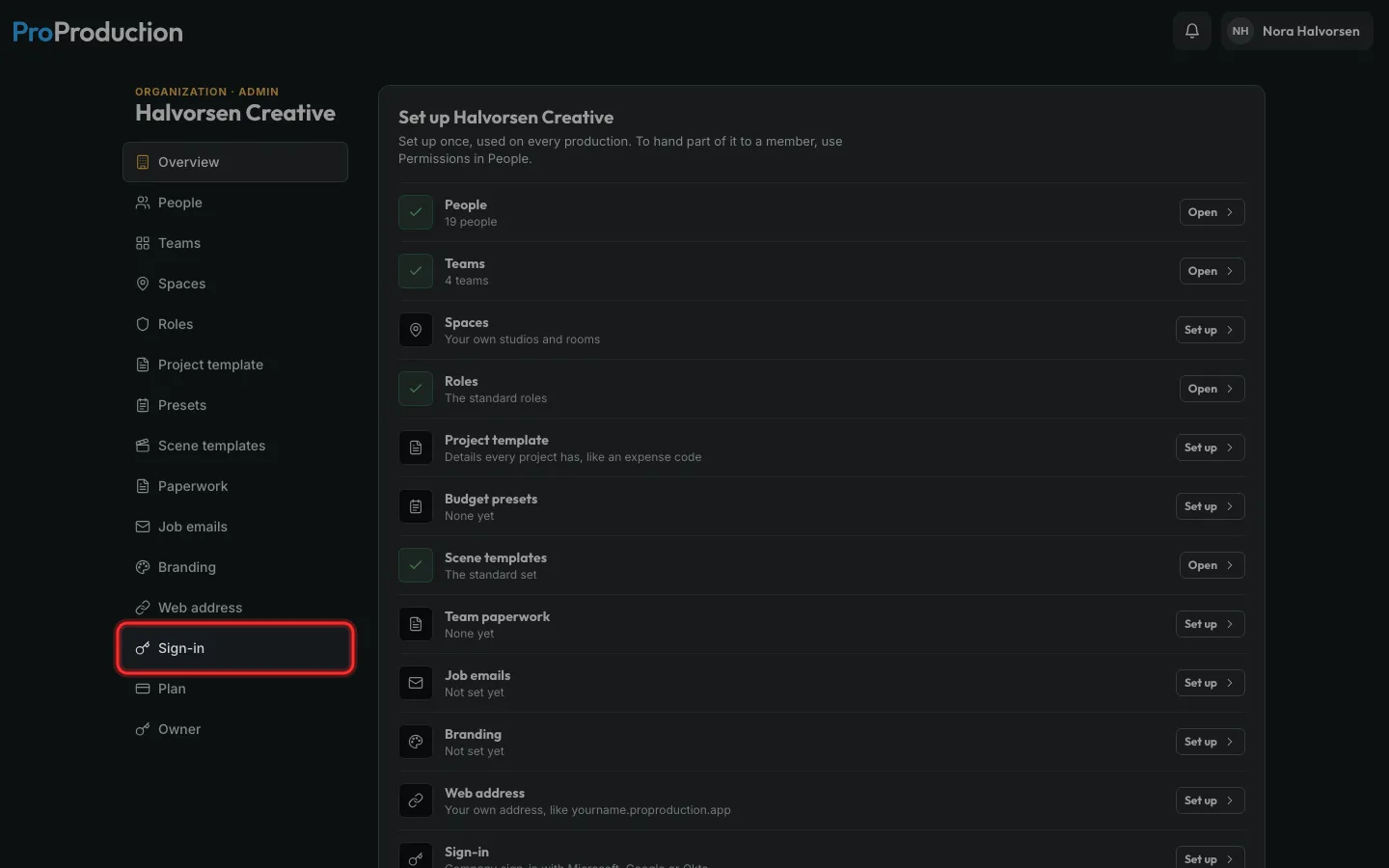
Step 1: In the Organization area, click Sign-in.
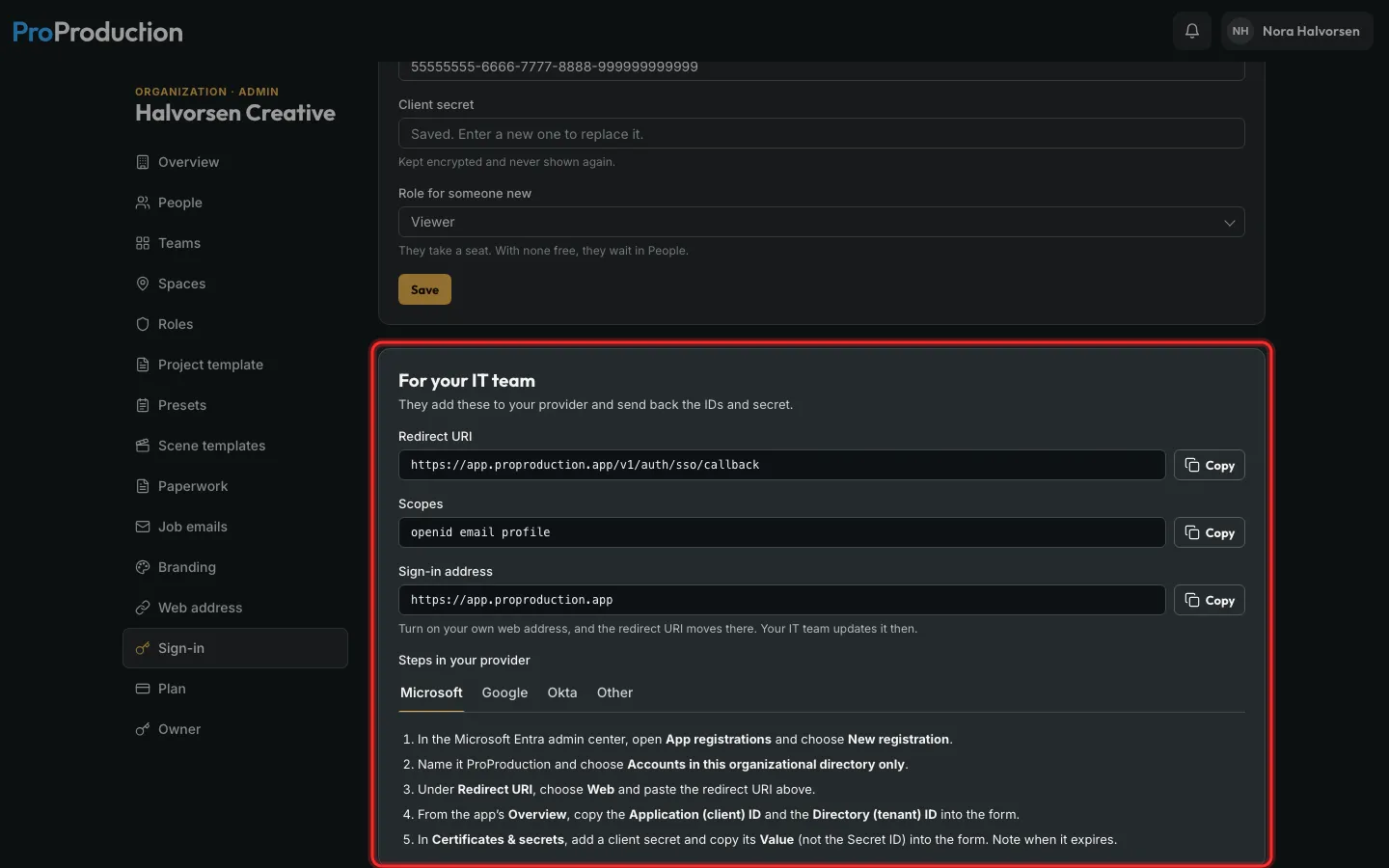
Step 2: Send the For your IT team box to whoever runs your sign-in.
They add the redirect address in your provider and send back the IDs and a secret.
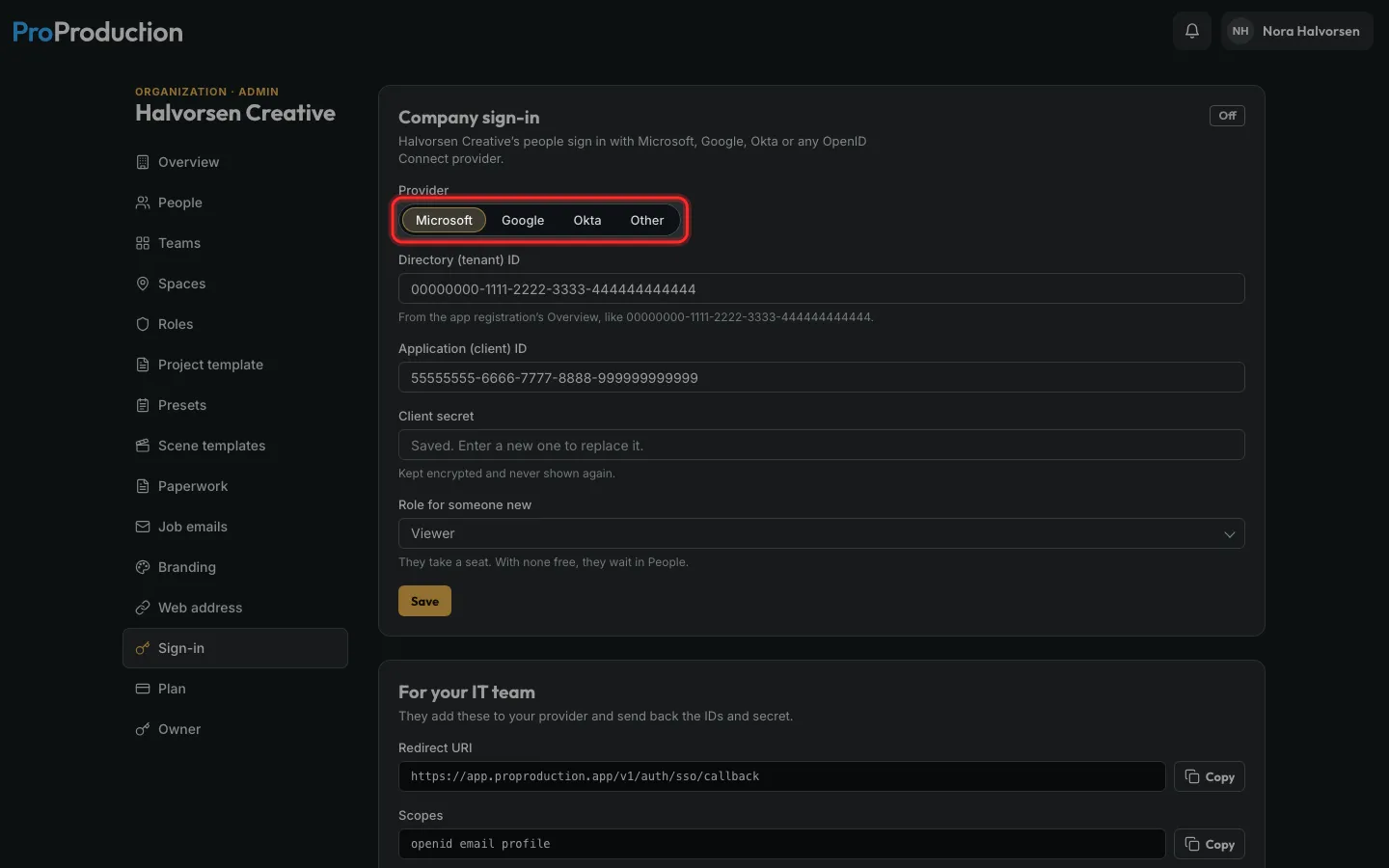
Step 3: Pick Microsoft, Google, Okta or Other.
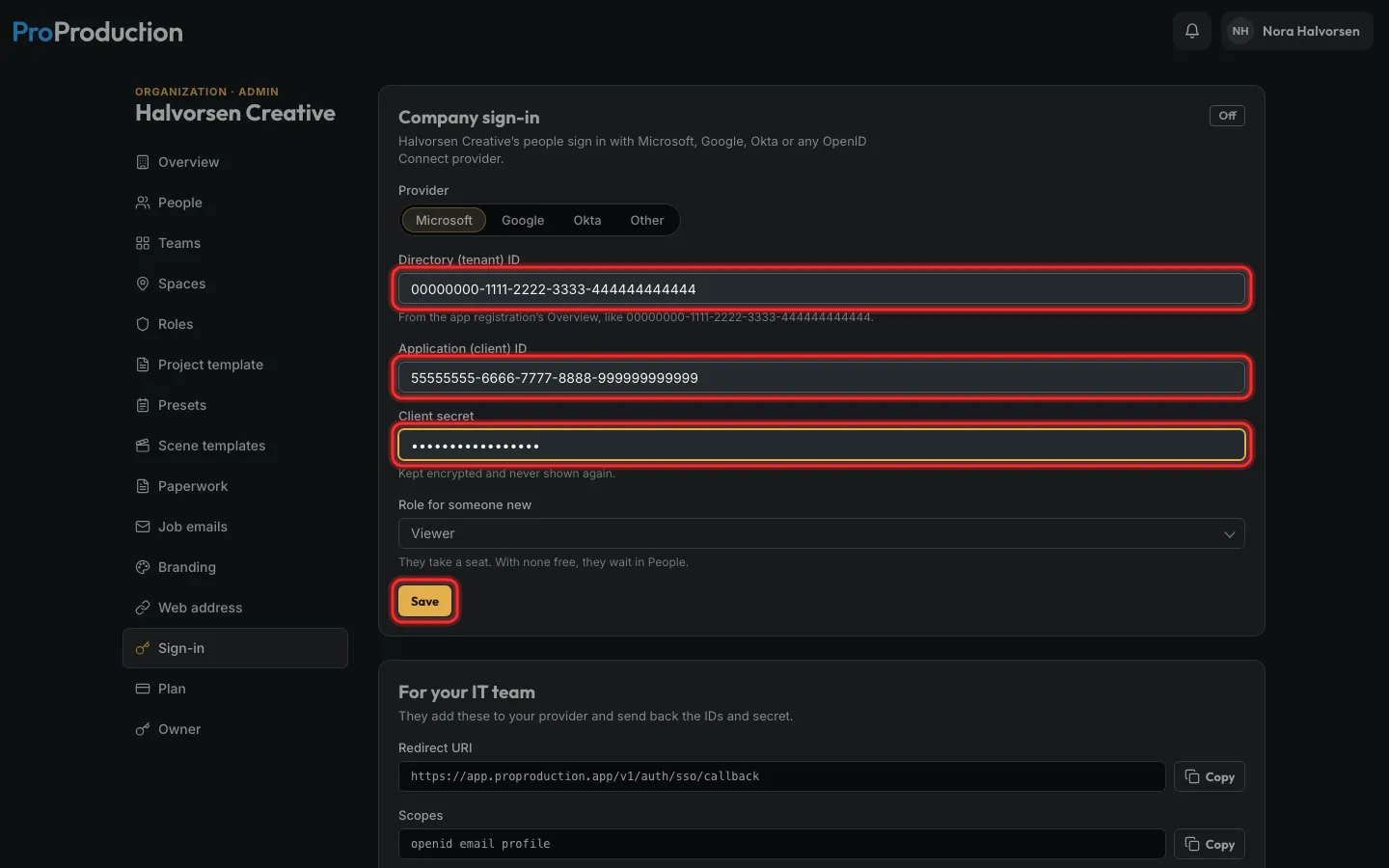
Step 4: Paste the IDs and the secret, and click Save.
The secret is kept encrypted and never shown again.
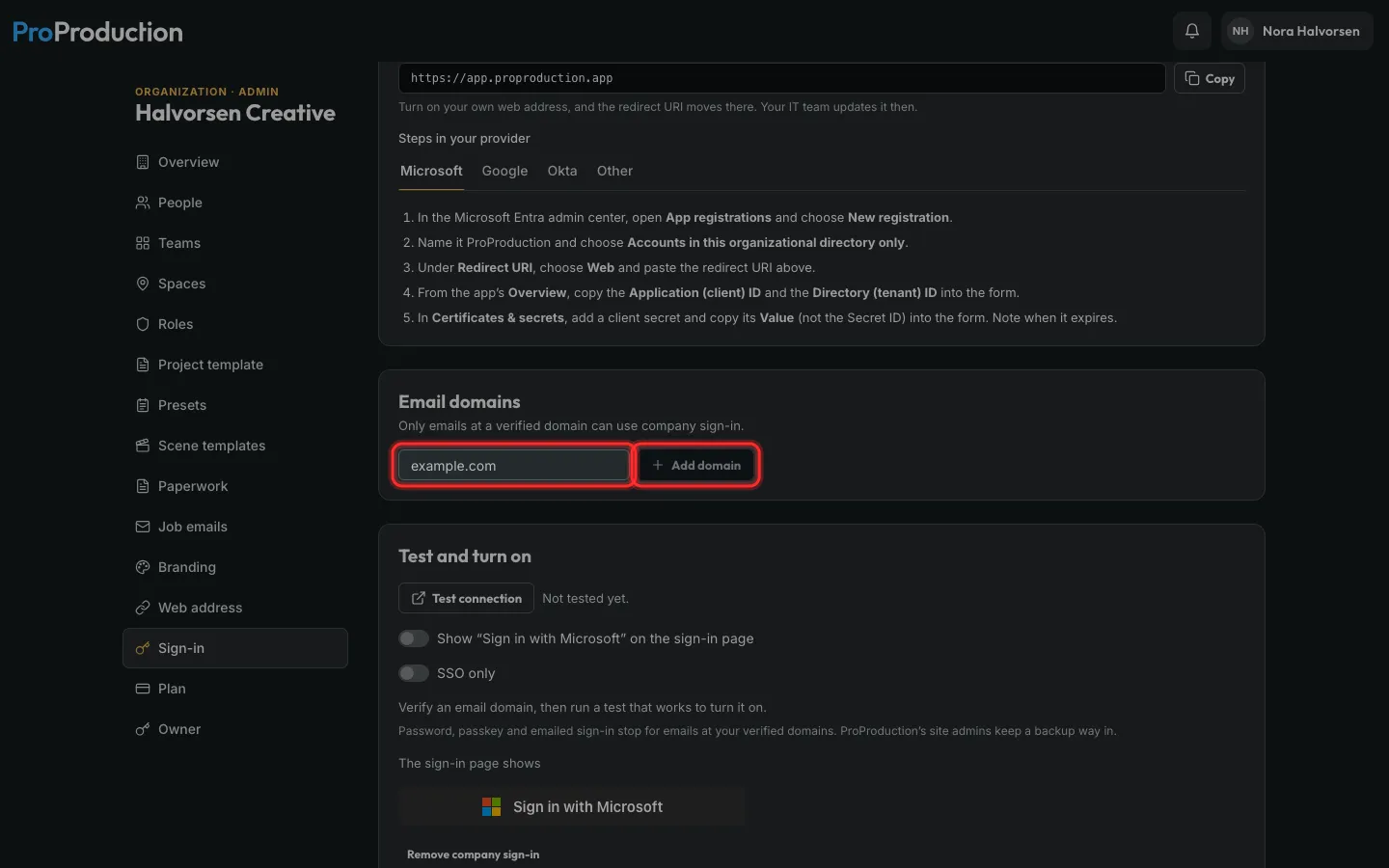
Step 5: Under Email domains, type your company’s domain and click Add domain. Add the TXT record it gives you, then click Check.
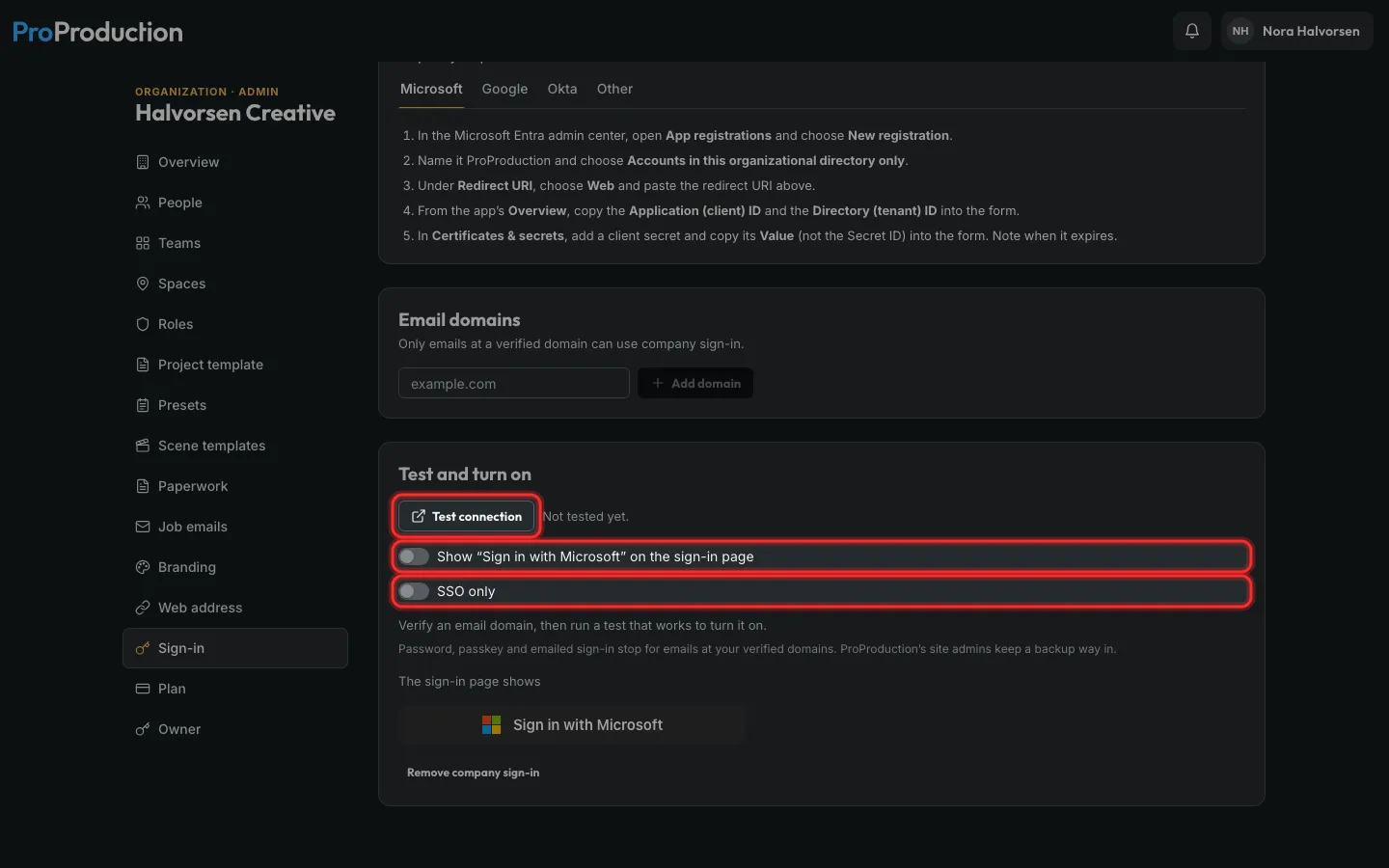
Step 6: Click Test connection and sign in once. Then switch it on.
It can’t be turned on until a domain is verified and a test has passed. SSO only makes everyone at that domain use it.
Still stuck?
Write to hello@proproduction.app. A person reads every message.