How do I fill a scene with shots from a template?
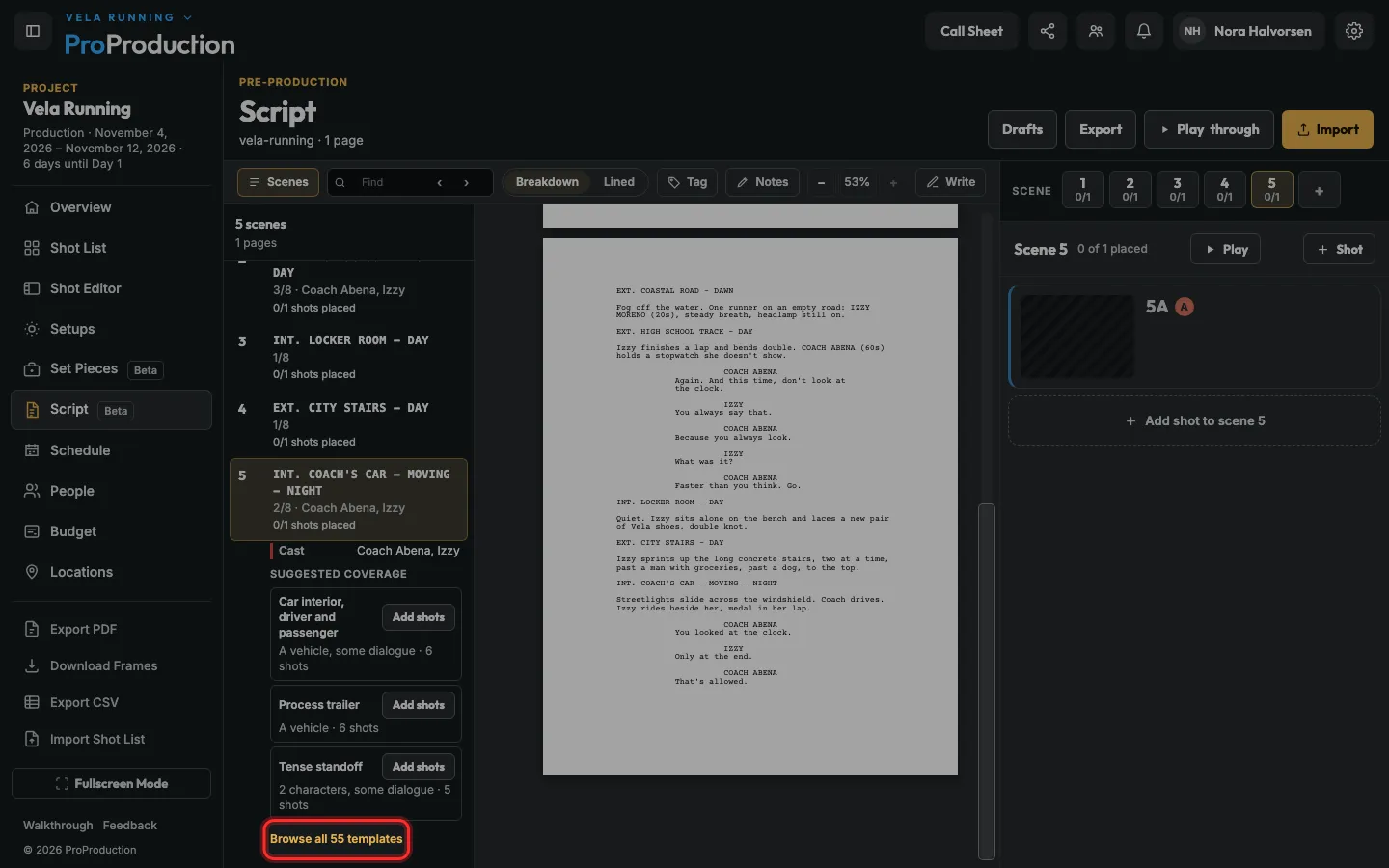
In Script, open Scenes and click a scene. Suggested coverage shows the three plans that fit it best; click Add shots and they land in the Shot List.
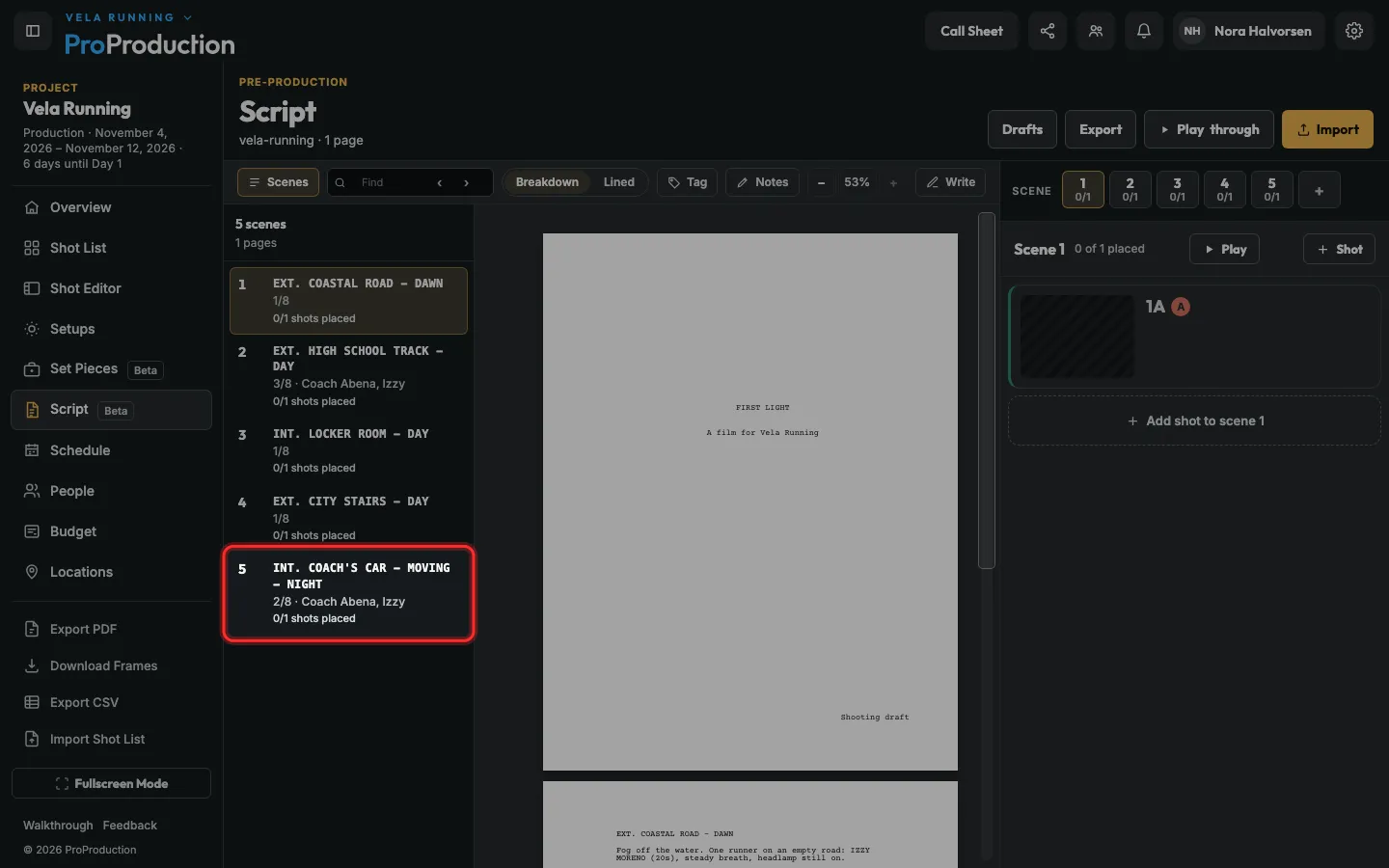
Step 1: In Script, open Scenes and click a scene.
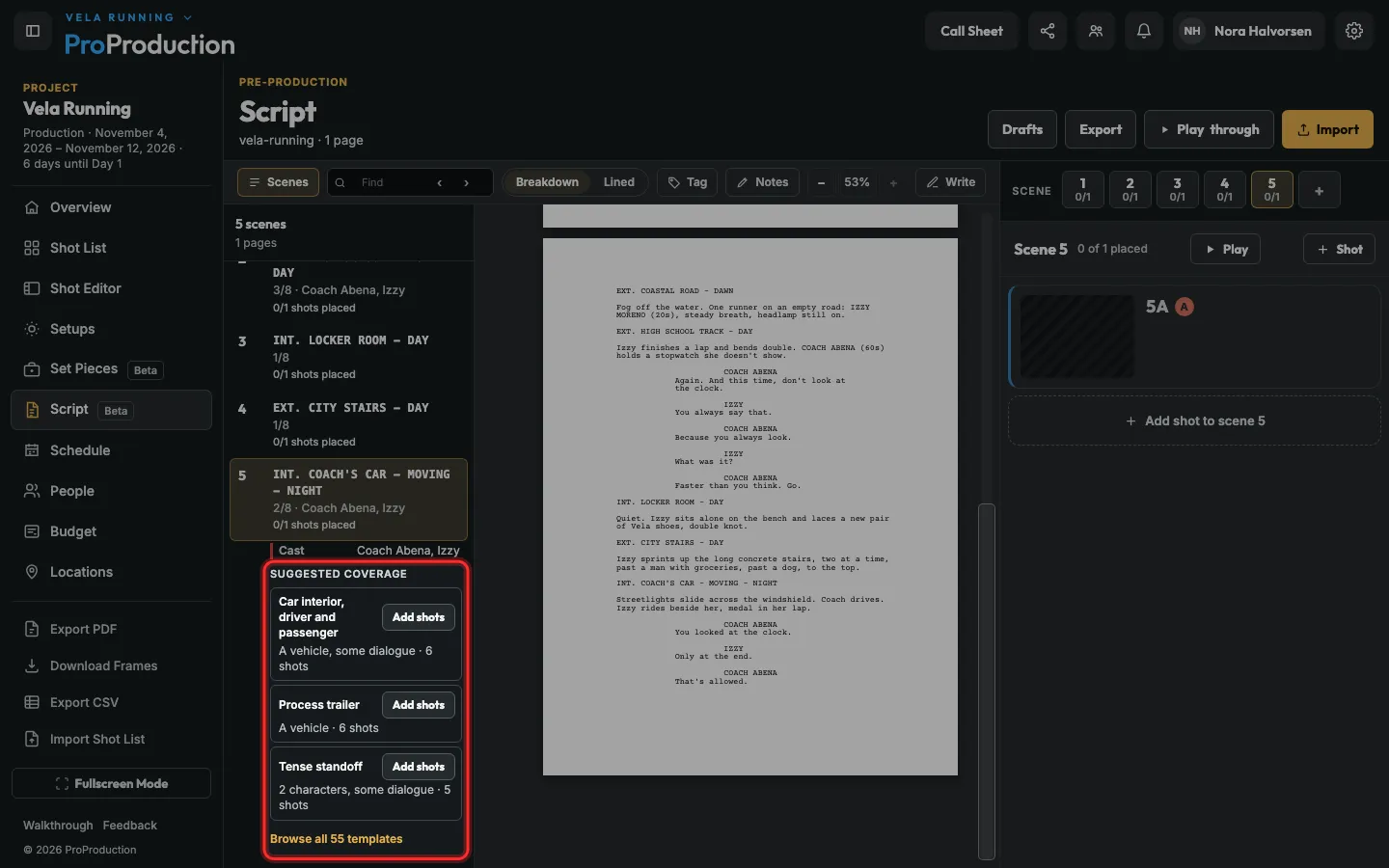
Step 2: Look under Suggested coverage.
Each plan says why it fits, like “A vehicle, some dialogue”, and how many shots it adds.
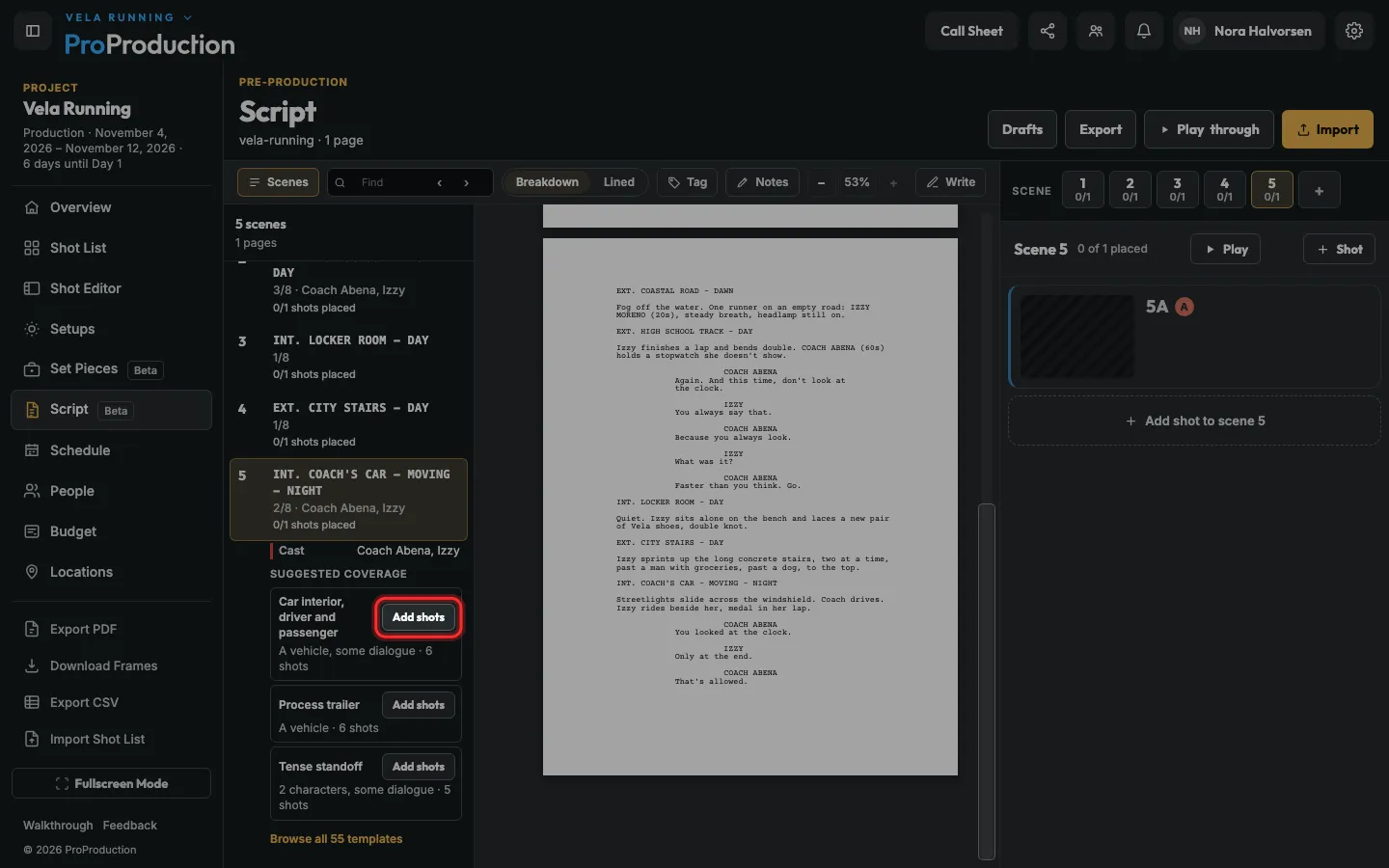
Step 3: Click Add shots on the one you want.
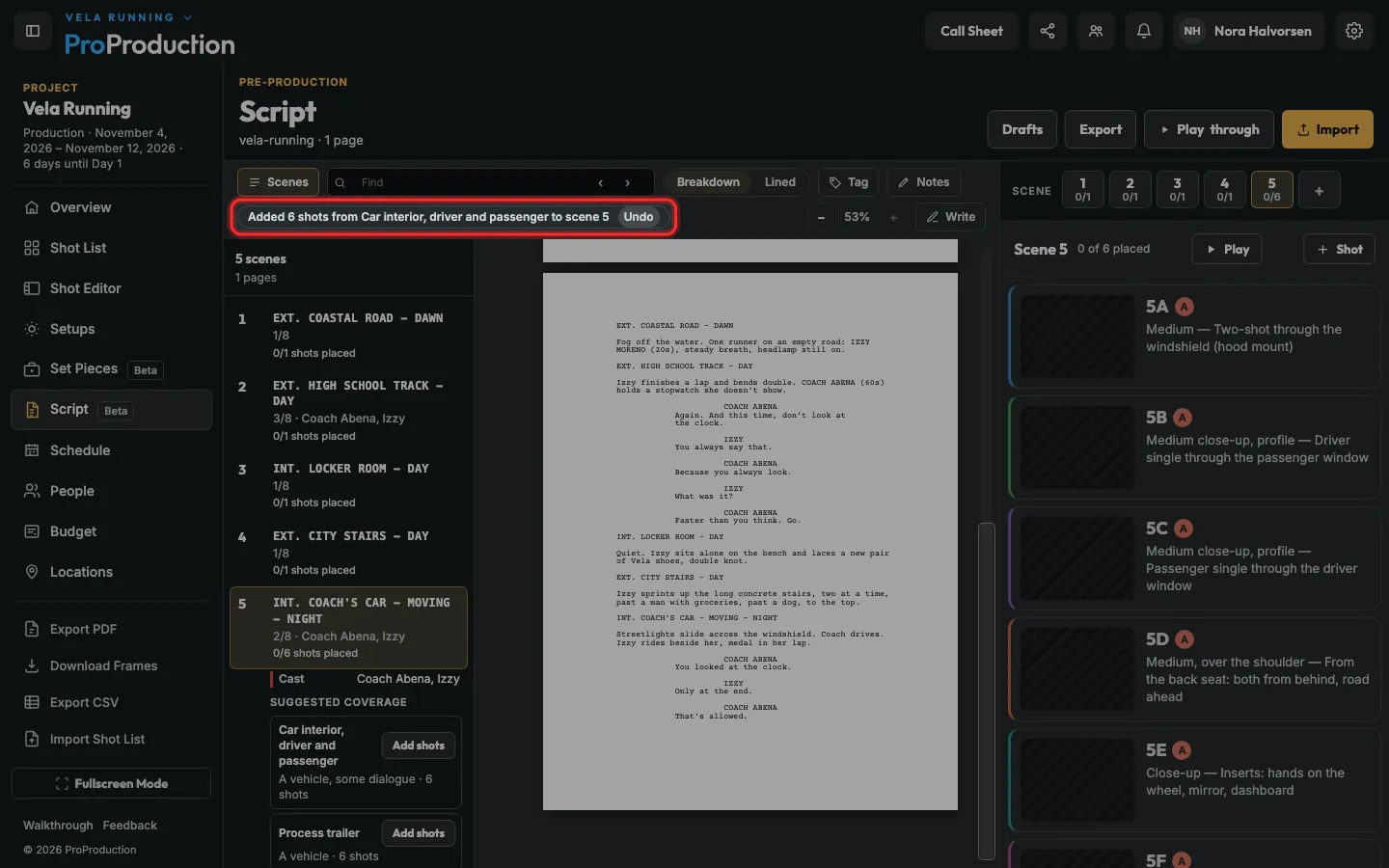
Step 4: The shots are in the Shot List now, each with its size, lens and support. Changed your mind? Click Undo.
Step 5: Want a different plan? Click Browse all 55 templates and search.
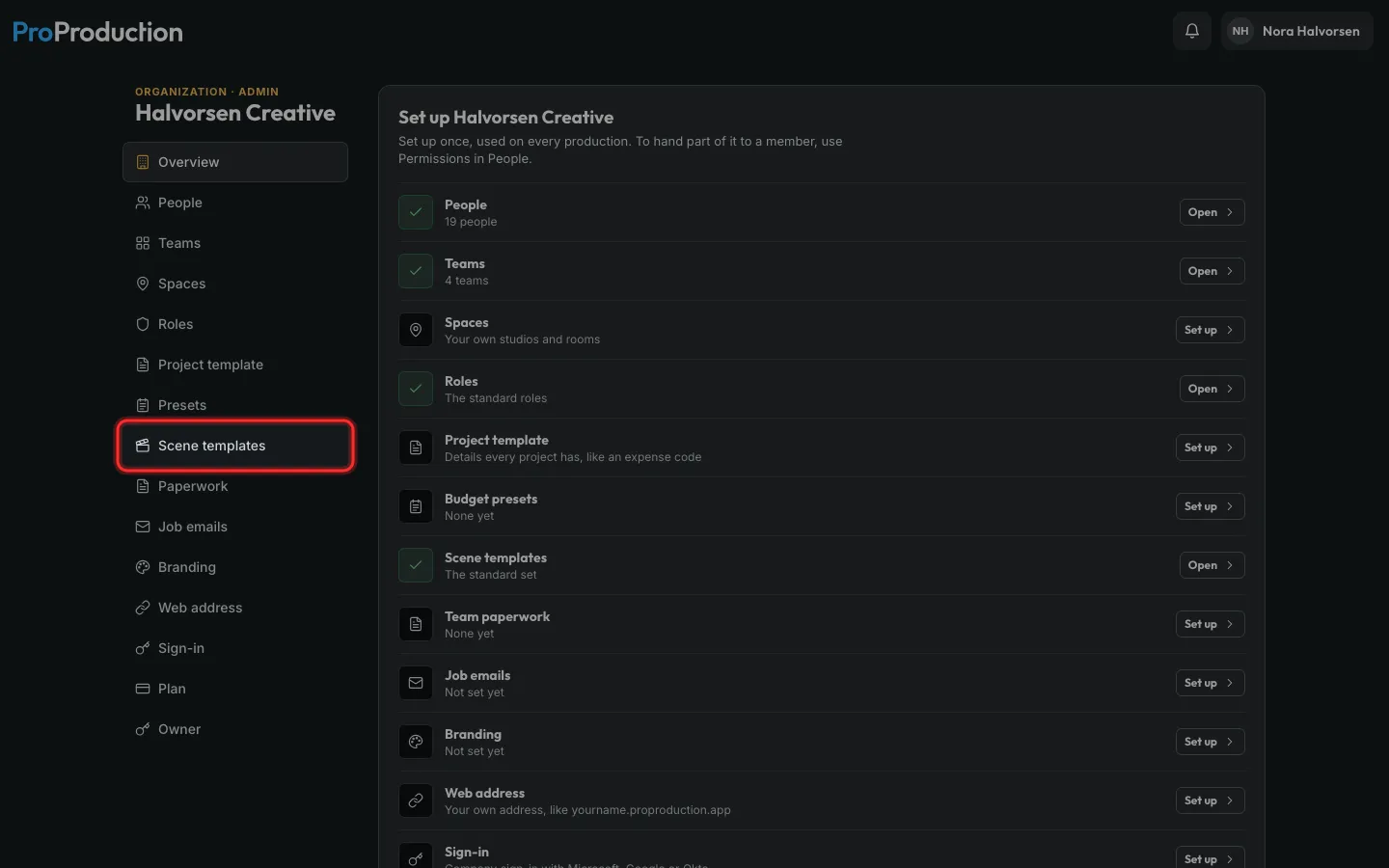
Step 6: To make your own, an admin opens the Organization area and clicks Scene templates.
Copy any standard plan and change it. Your own show up in every project of the organization.
Still stuck?
Write to hello@proproduction.app. A person reads every message.