How do I write or rewrite the script here?
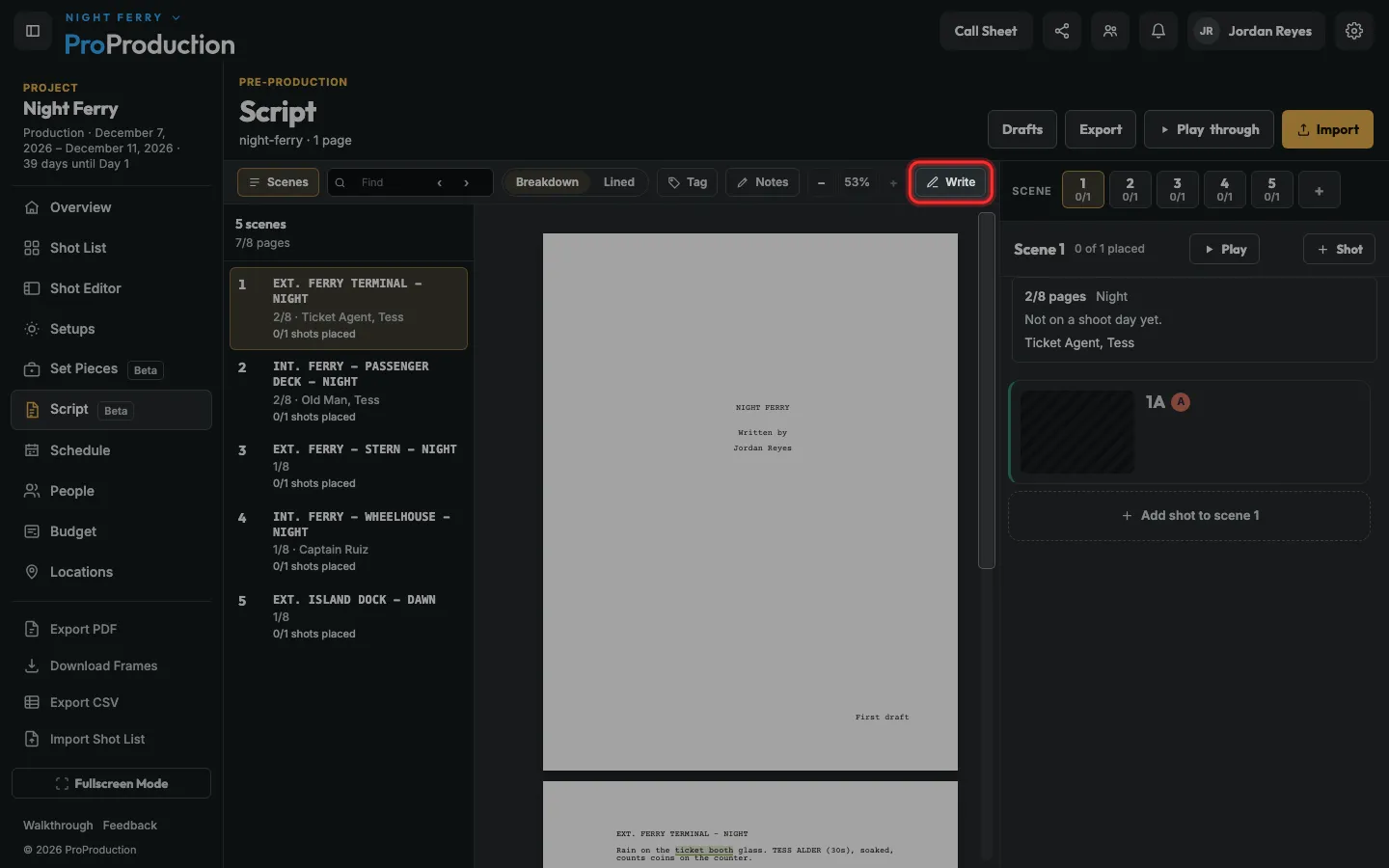
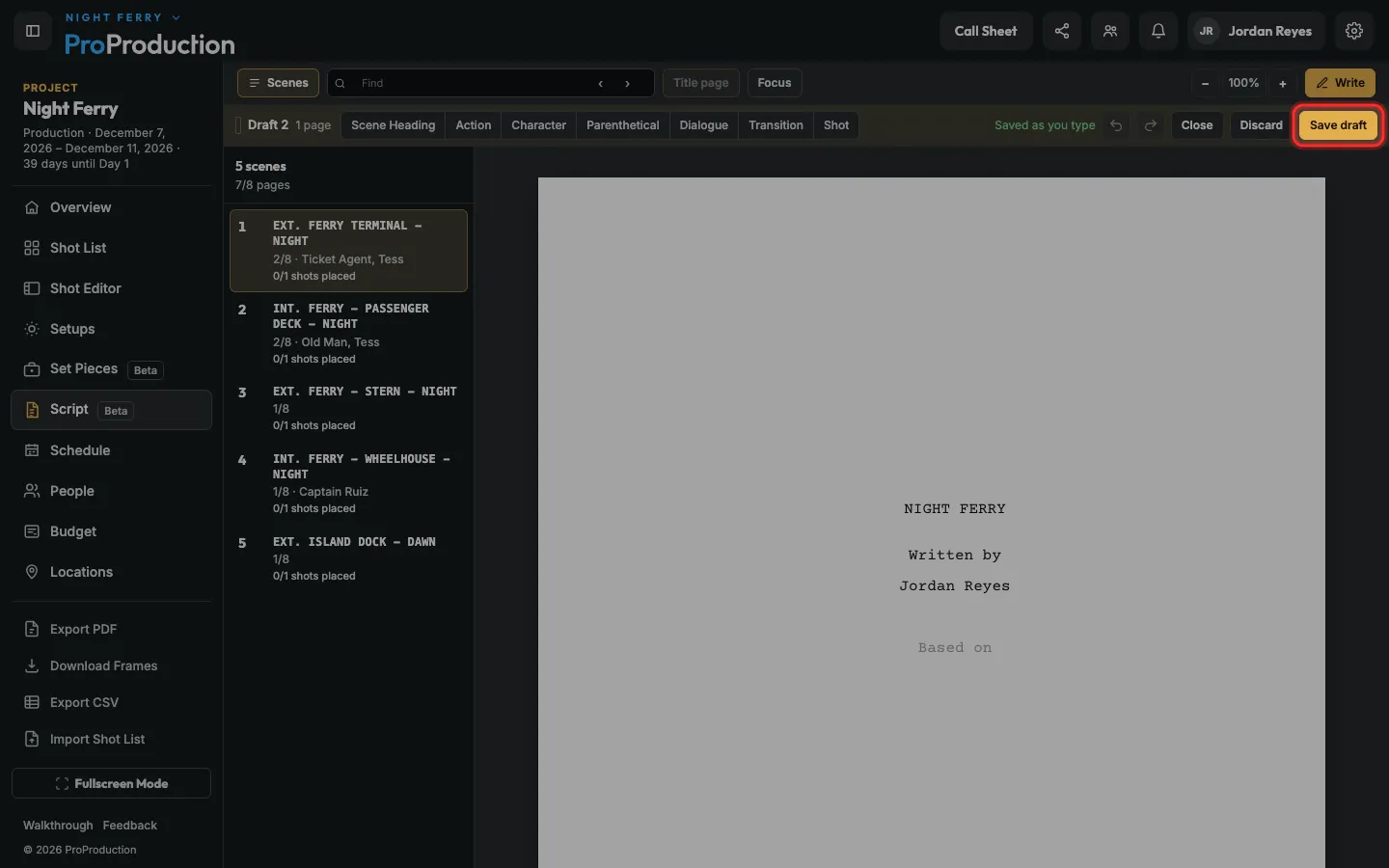
In Script, click Write. It types like Final Draft: Enter and Tab pick the next kind of line, headings offer your places and times of day, and Save draft keeps a version you can go back to.
Step 1: In Script, click Write.
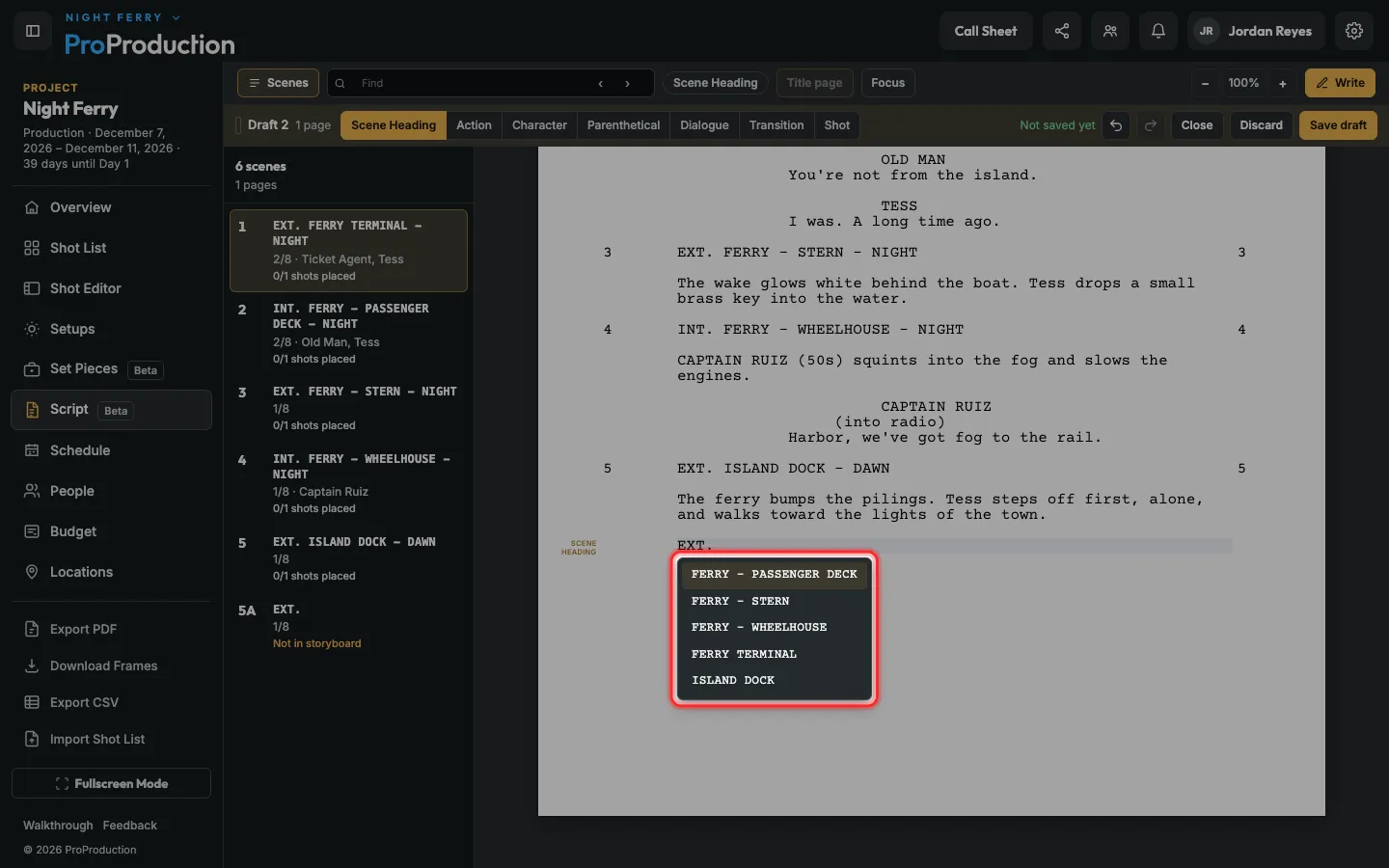
Step 2: Type. Enter and Tab pick the next kind of line. Start a heading with INT. or EXT., then pick a place and a time of day from the list.
Names offer (V.O.) and (O.S.) after a bracket. ⌘D puts a reply beside the line before it, as dual dialogue.
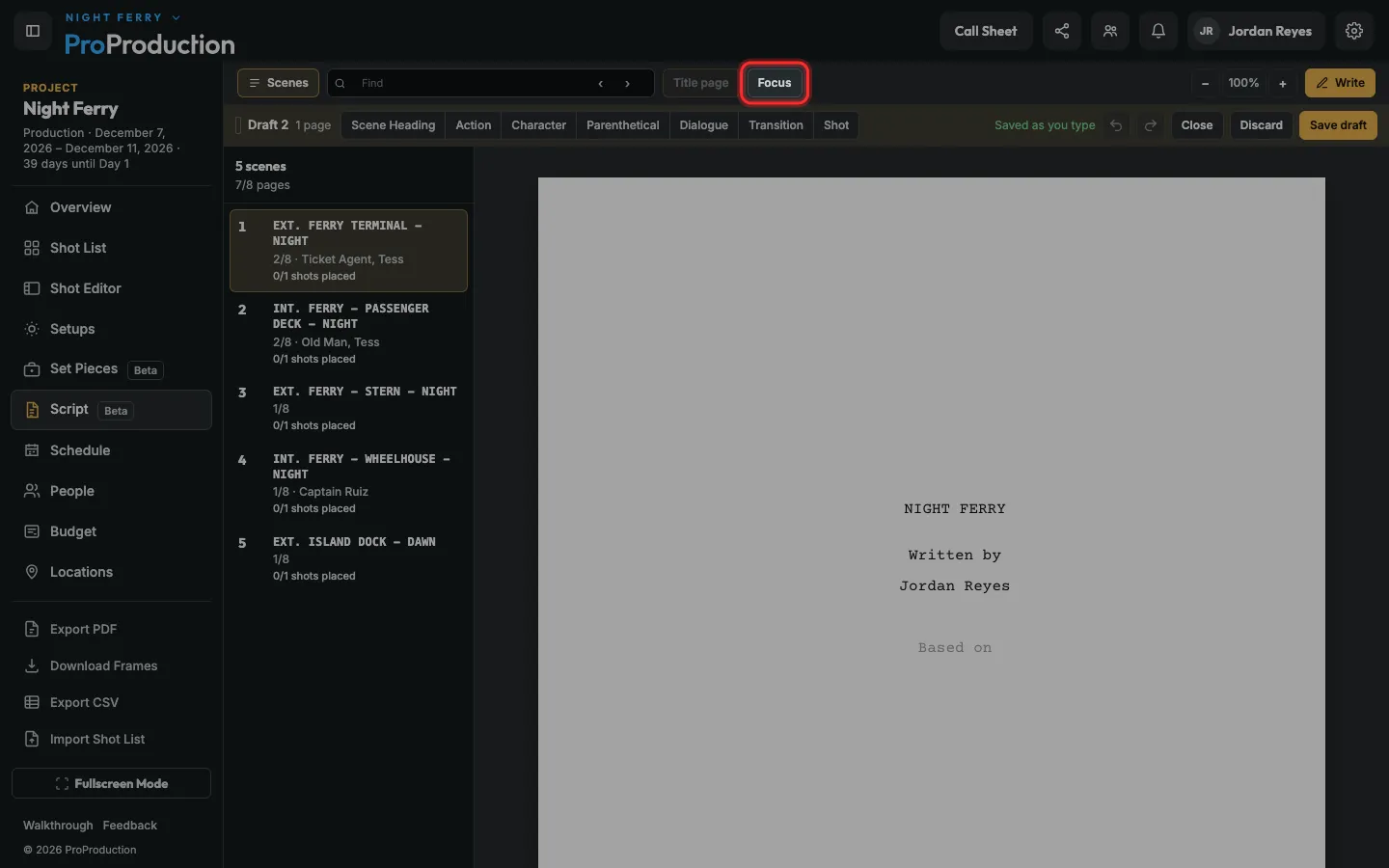
Step 3: For just the page, click Focus. Esc brings everything back.
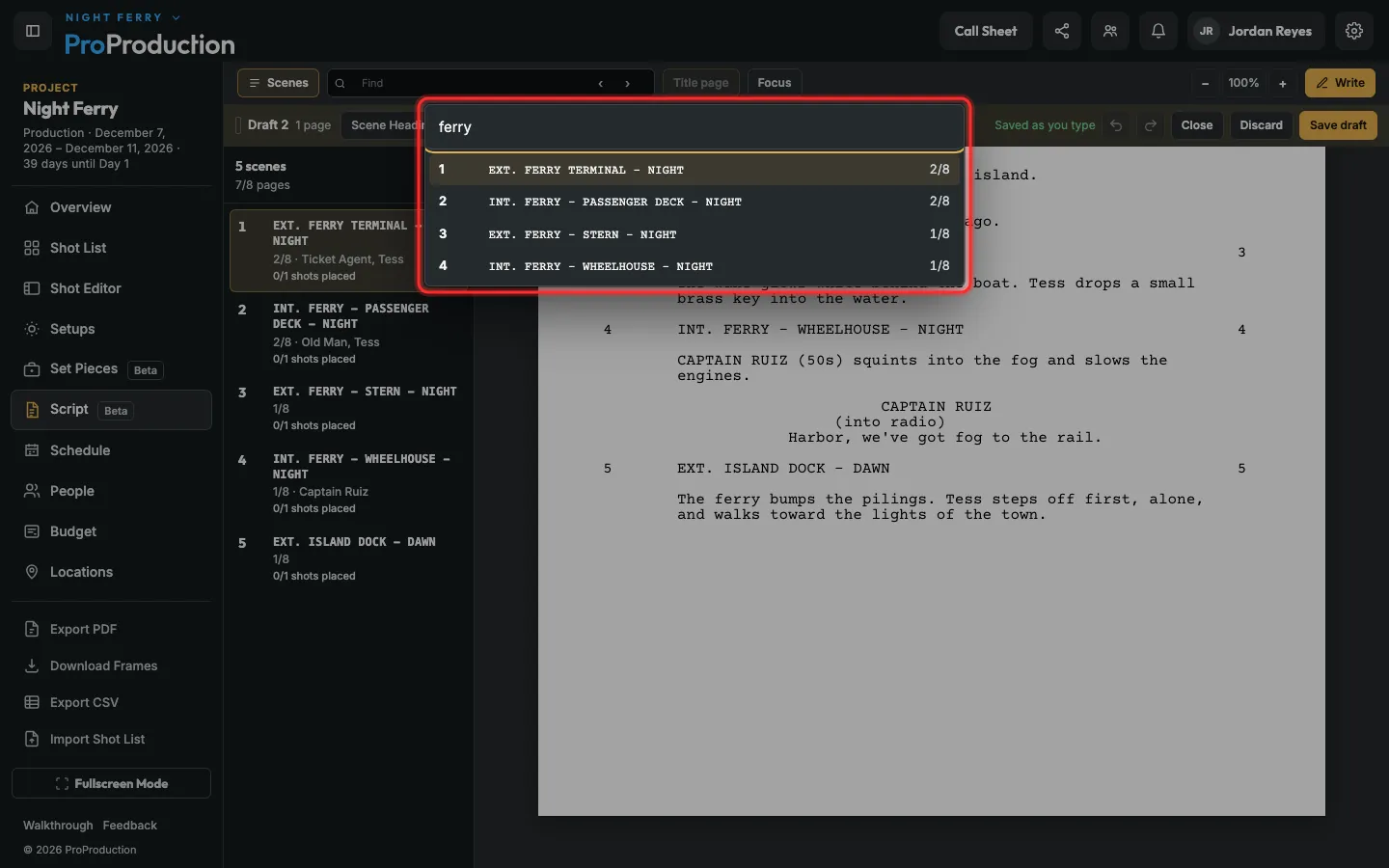
Step 4: To jump to a scene, press ⌘K (Ctrl+K on Windows) and type its number or a word of its heading.
In the scene list you can drag a scene to move it. It keeps its number.
Step 5: Click Save draft when you’re done.
Typing is kept as you go, even offline. Each saved draft stays, with everyone’s notes on it.
Still stuck?
Write to hello@proproduction.app. A person reads every message.